How do I use the S Pen on Galaxy S22 Ultra and is it compatible with other devices
The Galaxy S22 Ultra includes a built-in S Pen for writing, Air Actions, and remote control features. Some S Pens work on other devices, but functionality may be limited.
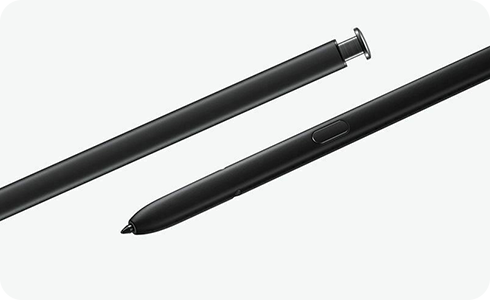
S22 Ultra has a built-in S Pen
- Remove the S Pen from the bottom of the device
- Start writing directly on the screen or input field
- Use handwriting to text for automatic conversion
- Use Smart Select to capture and extract text
Notes:
The S Pen supports writing, AI text extraction, and quick actions.
- Use the S22 Ultra S Pen on another device for writing only
- Note or Tab S Pens support writing only on S22 Ultra
- Fold 3 S Pen is not supported on S22 Ultra
- Use S Pen Pro for both writing and Air Actions when supported
Notes:
Air Actions work only with compatible devices. Maximum range is up to 10 meters.
- Use the S Pen normally even if slightly wet
- Dry the S Pen before inserting it back into the device
Notes:
The S Pen is IP68 rated for water and dust resistance.
- Keep the S Pen inserted when not in use
- Check notifications if the S Pen is left behind
Notes:
Your device can notify you if the S Pen is not inserted.
- Insert the S Pen into the device to charge
- Wait a few minutes for a full charge
Notes:
A full charge takes about 7 minutes and supports Air Actions usage.
Remote control
Single Press
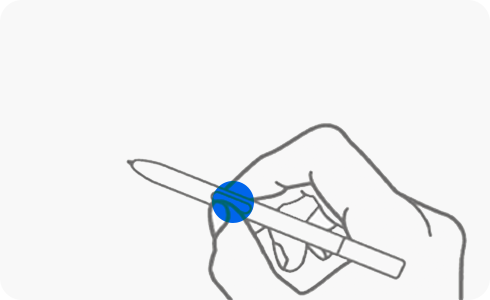
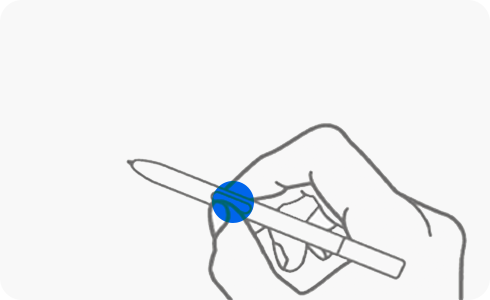
Camera: Capture.
Media: Play/Pause.
Double Press
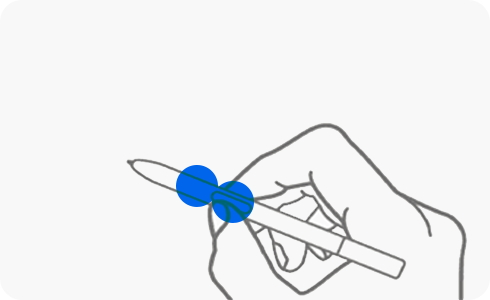
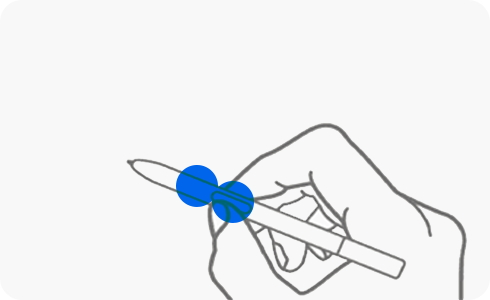
Camera: Front/Rear, Camera Change.
Media: Next.
Left/Right
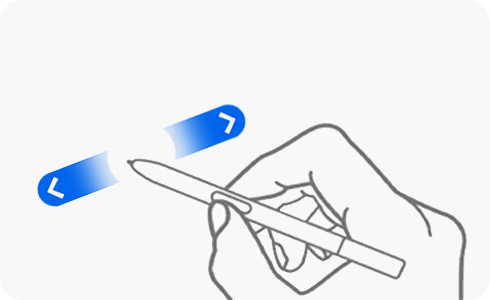
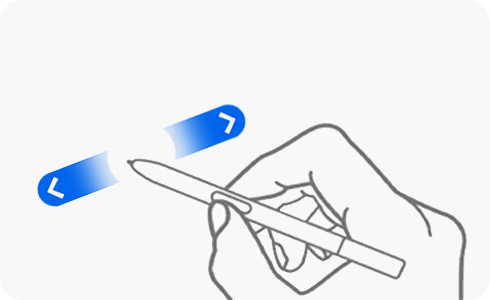
Camera: Change Mode.
Media: Previous/Next.
Up/Down
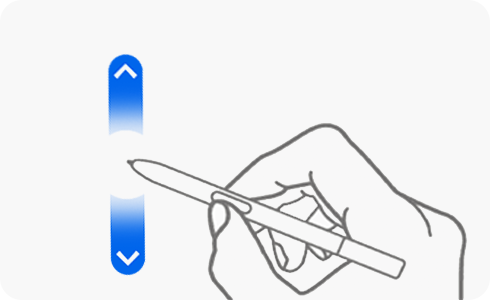
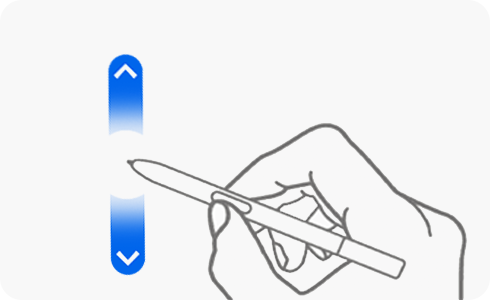
Camera: Front/Rear, Camera Change.
Media: Volume Up/Down.
Rotation
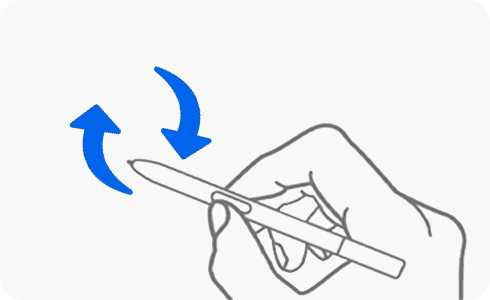
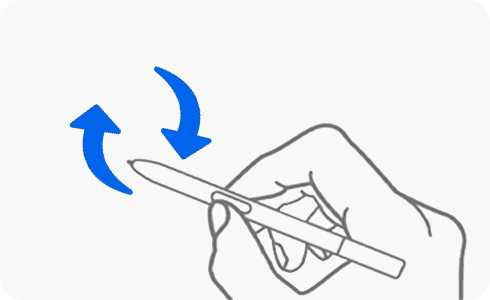
Camera: Zoom In/Out.
Media: Icon.
Air action
Back
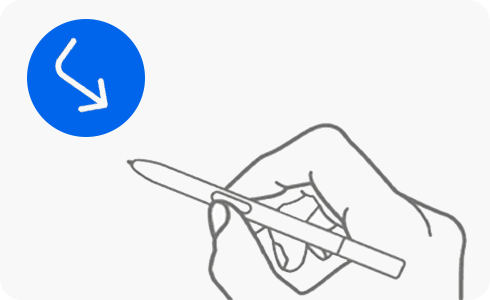
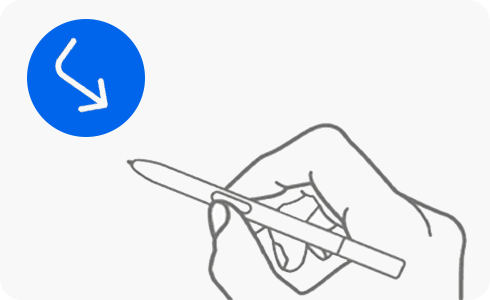
Home
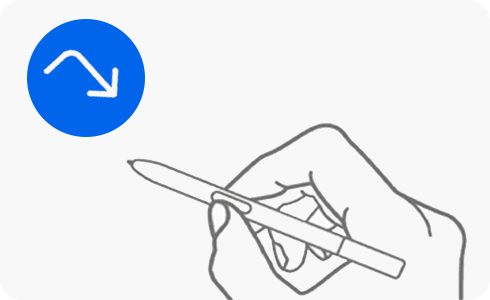
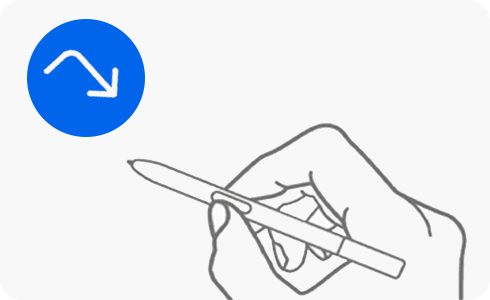
Recent


Smart Select
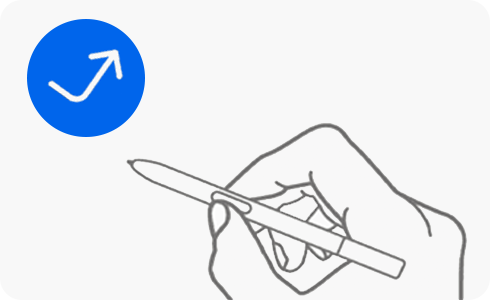
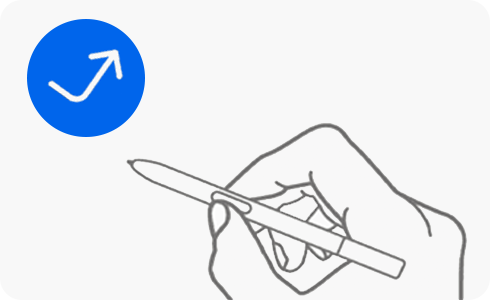
Capture & Write
S22 Ultra S Pen is compatible with other models. However, the other built-in S Pens from previous Note models can be used only for writing functions.
Thank you for your feedback!
Please answer all questions.