How to use notification settings in One UI 8 on Galaxy devices
You can manage notifications in One UI 8 by adjusting pop-up styles, lock screen visibility, and visual effects.
These settings help you control how alerts appear and behave across your Galaxy device.
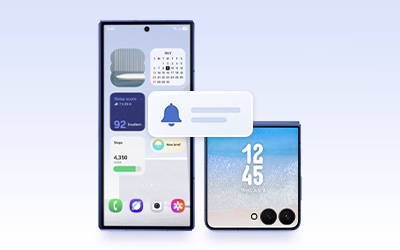
Set apps to show as brief notifications


Step 1. Open Settings > Notifications.


Step 2. Tap App notifications and select the desired app.


Step 3. Tap Notification pop-up style.


Step 4. Choose Brief pop-up or Detailed pop-up to apply the style.
Show or hide content for lock screen notifications (all apps)


Step 1. Open Settings > Notifications.


Step 2. Tap Hide content while locked.


Step 3. Select Show always or Hide when locked.
Show or hide content for lock screen notifications (Per app)


Step 1. Open Settings > Notifications.


Step 2. Tap App notifications and select the app.


Step 3. Tap Show or hide content when locked, then choose Show always or Hide when locked.
Launch apps from notifications on Galaxy Z Flip7 cover screen


Step 1. Open Settings > Advanced features > Labs.


Step 2. Turn on Apps allowed on cover screen.


Step 3. Tap to turn on Apps allowed on cover screen.
On the cover screen, tap the App launch icon at the top of a notification to open the app.

Enable Lighting effect for notifications


Step 1. Open Settings > Notifications > Notification pop-up style.


Step 2. Tap Add lighting effect.


Step 3. Select your preferred visual effect.
Notes:
- Some effects are limited if using Detailed pop-up style.
- Previous search terms like Edge or Edge lighting may no longer work.
- Device menus and screenshots may vary by model and software version.
Thank you for your feedback!
Please answer all questions.