What is the Samsung Galaxy Ecosystem and how does it work
The Galaxy Ecosystem connects Samsung devices like phones, tablets, and earbuds to work together seamlessly. It lets you switch tasks, share data, and continue activities across devices easily.


Galaxy Buds Auto Switch
Step 1: Open Settings on both devices
Step 2: Tap Connections
Step 3: Tap Bluetooth
Step 4: Select your Galaxy Buds
Step 5: Turn on Auto switch to other devices
Notes:
Your devices must be signed in to the same Samsung account and stay nearby.
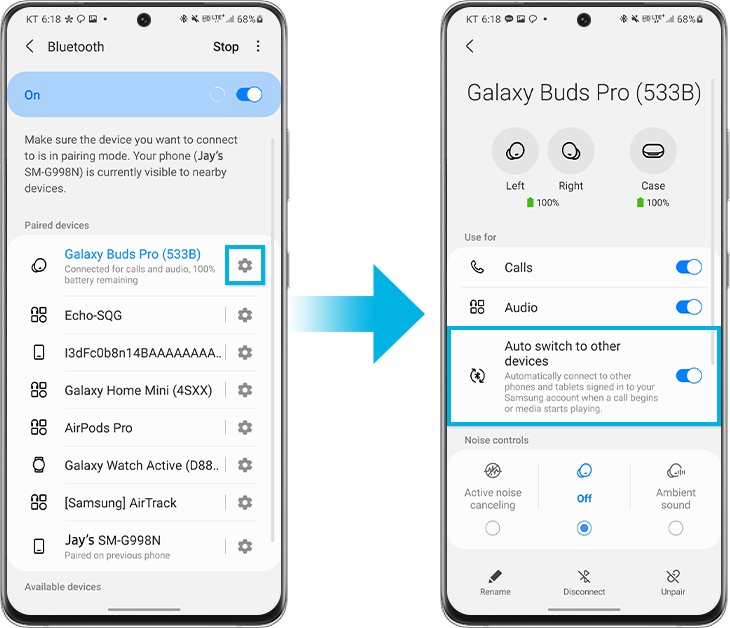
On both mobile devices that you want to switch to, launch the Settings app, tap Connections > Bluetooth, and then select earbuds under Paired devices.
Step 1. Tap Settings for the earbuds paired with Galaxy smartphones and tablets
Step 2. Tap Galaxy Buds Pro’s Auto switch to other devices to switch on for both devices.
Note :
- The phone-to-tablet continuity is supported on Galaxy Buds Pro paired with Galaxy smartphones and tablets that run One UI 3.1 or above. Support for continuity features will come to Galaxy Buds+ and Galaxy Buds Live later.
- Galaxy smartphones and tablets must be signed into the same Samsung account and with Bluetooth settings on. Galaxy Buds Pro's “Auto switch to other devices” feature must be switched on for both devices.
- Recommended distance between the devices is within 2 meters.
- Support for continuity features may vary between smartphone models and apps.
- The performance of continuity features may vary depending on usage, network environment and distance.
App Continuity
The continuity experience is also enabled within apps, so you can switch from your smartphone to your tablet, or vice versa, without restarting the app from the beginning.
For example, this helps when you are browsing on a smartphone but, want to continue what you are doing on a bigger display. Or, you might be shopping on your tablet, and want to switch to your smartphone for payment. If you open the “Recent Apps” on the bottom left of the tablet, you will see recently used apps.
If you open “Samsung Internet” on the bottom right of the tablet, the same web page from your smartphone appears, so that you can continue shopping. You can also switch from smartphone to tablet and tablet to smartphone by using the same process with the “Samsung Notes” app and continue work in progress.
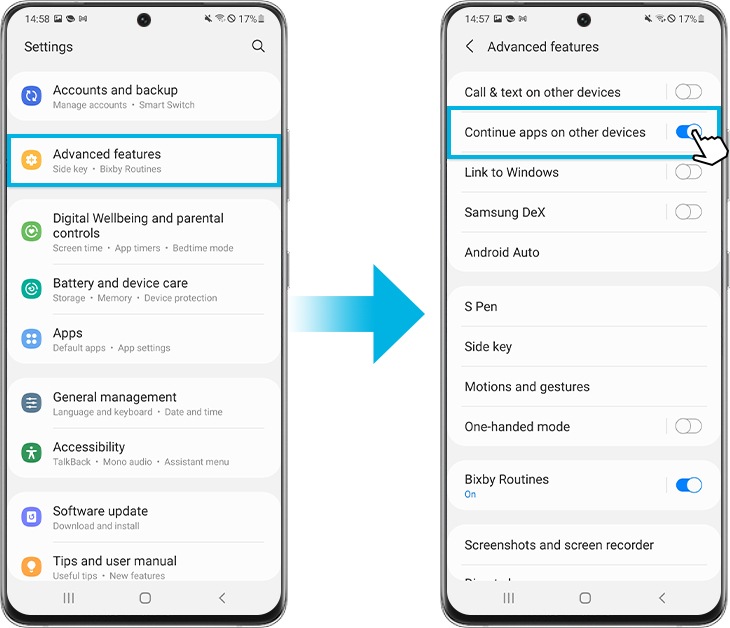
Step 1. Go to Settings > Advanced features
Step 2. Tap Continue apps on other devices to switch on for both devices.
Note:
- Galaxy smartphones and tablets must be signed into the same Samsung account and with Bluetooth settings on. “Continue apps on other devices” function of both devices must be on.
- The feature is available for devices located nearby within 2m, but it may vary.
- It supports the Samsung Notes app and Samsung Internet app with Galaxy smartphones and tablets that run One UI 3.1 or above. (Some models are not supported including but not limited to JDM, devices without Wi-Fi 5GHZ & SAK, and Android GO models)
Tablet Keyboard share
Lastly, your tablet book cover keyboard can be used between Galaxy smartphones and tablets. Like other Samsung BLE experiences, Samsung’s exclusive technology delivers keyboard sharing experiences with secure device-to-device authentication and exchange of keyboard connection information.
To use your book cover keyboard on your smartphone, you only need to complete a one-time simple registration process. If you press the ‘Cmd’ and ‘Lang’ keys on the book cover keyboard at the same time, a pop-up window for keyboard connection will appear on your smartphone.
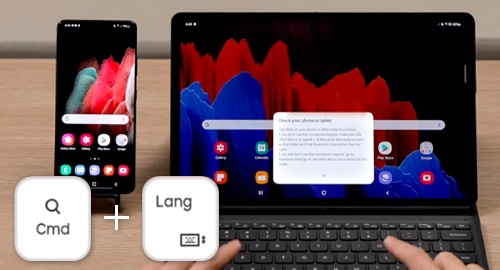
When selected, the tablet keyboard will automatically connect to your smartphone. Afterwards, you can easily type on your smartphone, writing notes, web searching and sending text messages using the book cover keyboard. When you need to go back to the tablet, you can press the ‘Cmd’ and ‘Lang’ keys again.
Like other Samsung BLE experiences, Samsung’s exclusive technology delivers keyboard sharing experiences with secure device-to-device authentication and exchange of keyboard connection information.
Note:
- Galaxy smartphones and tablets must be signed into the same Samsung account with Bluetooth turned on. And “Auto Switch to Other Devices” feature must be switched on for both devices.
- The continuity features are supported on devices with One UI 3.1 or above (some models are not supported), as well as Tab S7, Tab S7+, Tab S6 and it is supported on the keyboard attached to certified Samsung tablet covers.
- The overall performance of continuity features may vary depending on each user’s network environment.
Thank you for your feedback!
Please answer all questions.