How to fix fast battery drain on a new Samsung Galaxy phone
If your new Galaxy phone’s battery seems to drain quickly, it’s usually normal at the beginning. Your device is still learning your usage patterns and running many background processes after setup. Here’s how to understand and improve it.
Why battery drains faster on a new phone
Step 1: Initial setup runs many apps and background processes
Step 2: The system is still learning your usage with AI optimization
Step 3: Battery performance stabilizes after a few days
Notes:
Battery life typically improves after a few days of regular use.
5G can drain battery faster
Step 1: 5G uses both 4G and 5G networks at the same time
Step 2: This increases power usage and may cause slight heating
Notes:
If battery drain is high, consider switching to LTE in weak 5G areas.
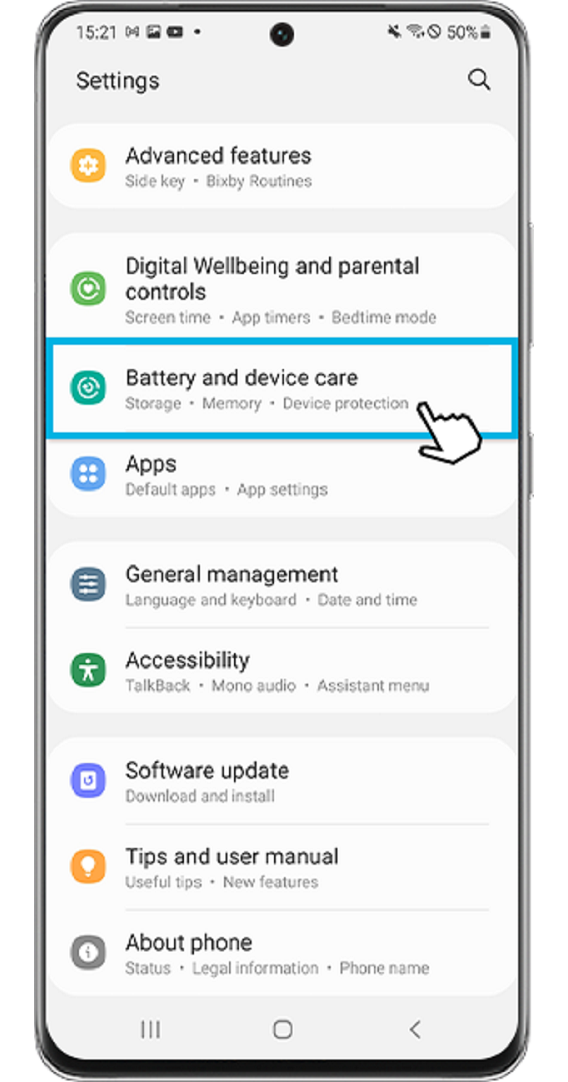
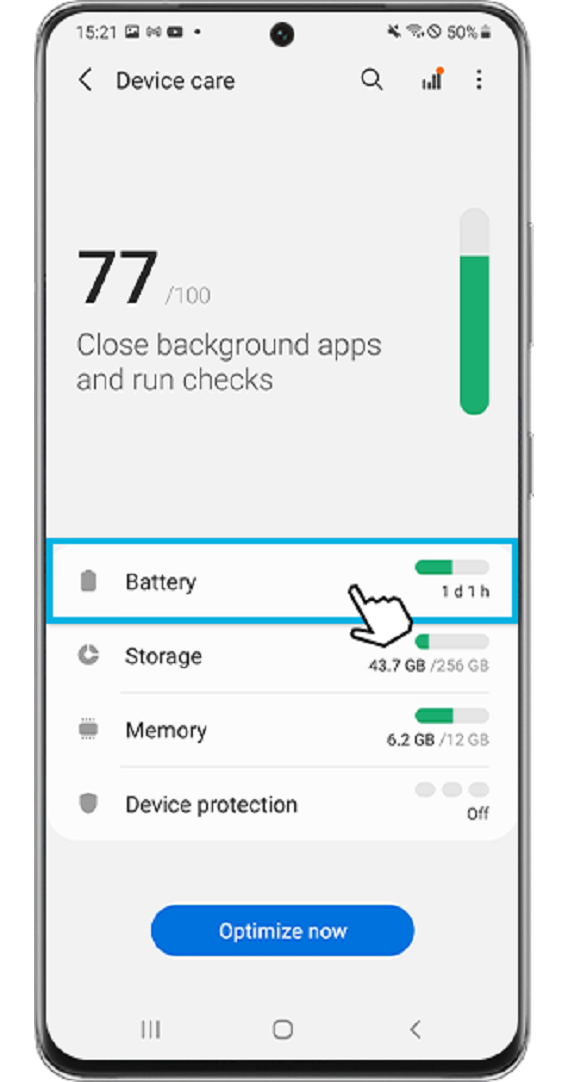
Step 1. Open Settings, and then select Battery and device care.
Step 2. Tap Optimize now. Device care automatically optimizes your phone.

The quick optimization feature improves device performance through the following actions.
- Closes apps running in the background.
- Manages abnormal battery usage.
- Scans for crashed apps and malware.
Using the auto optimization feature
You can set the device to perform auto optimization when your device is not in use. Tap More options > Automation > Auto optimize daily and tap the switch to activate it.
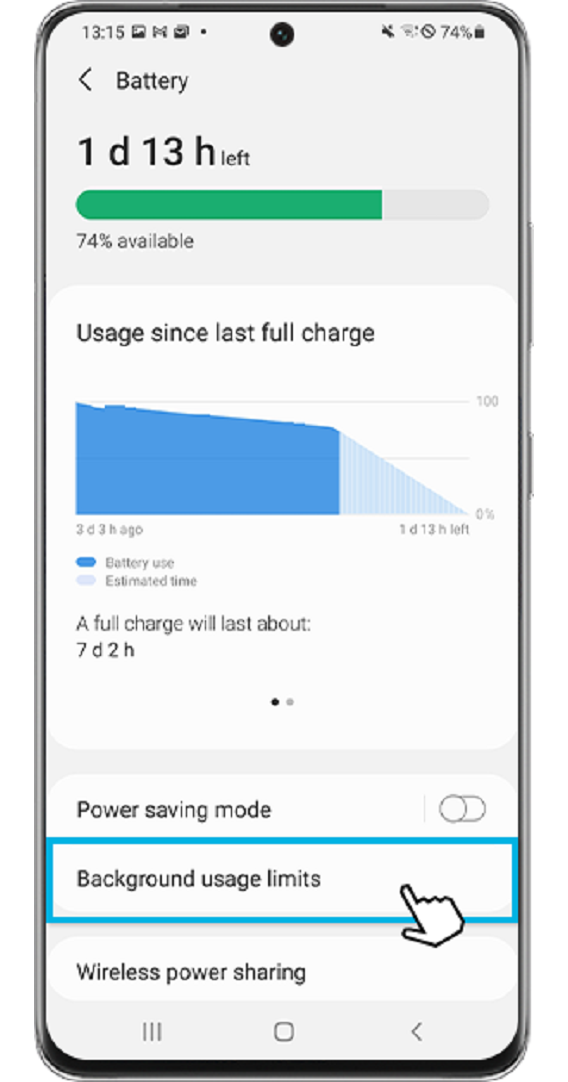
The more unused apps there are running in the background, the more power your battery will use. Background usage limits can be set to reduce battery consumption. Follow the steps below.
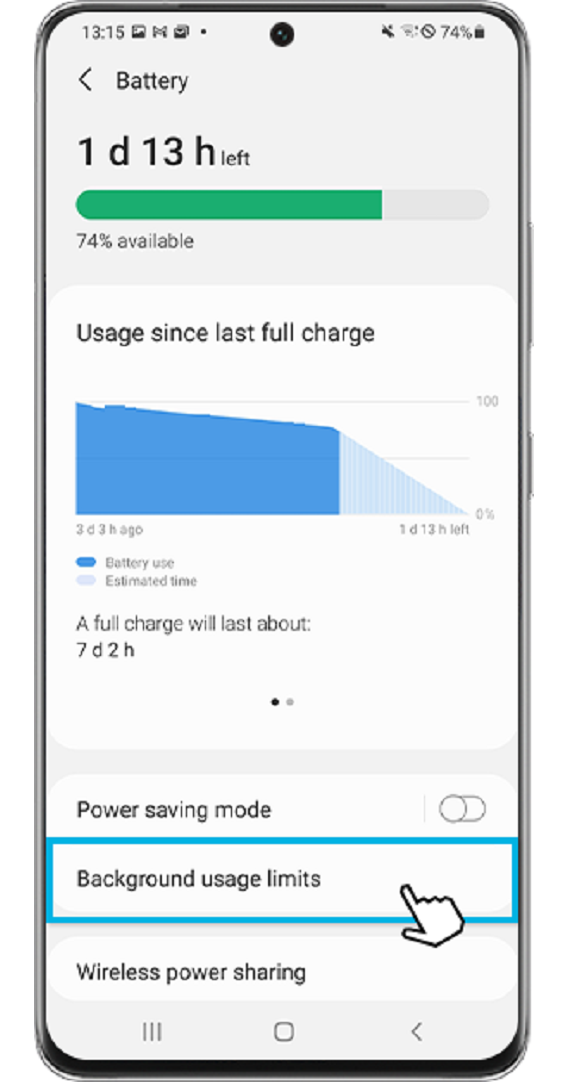
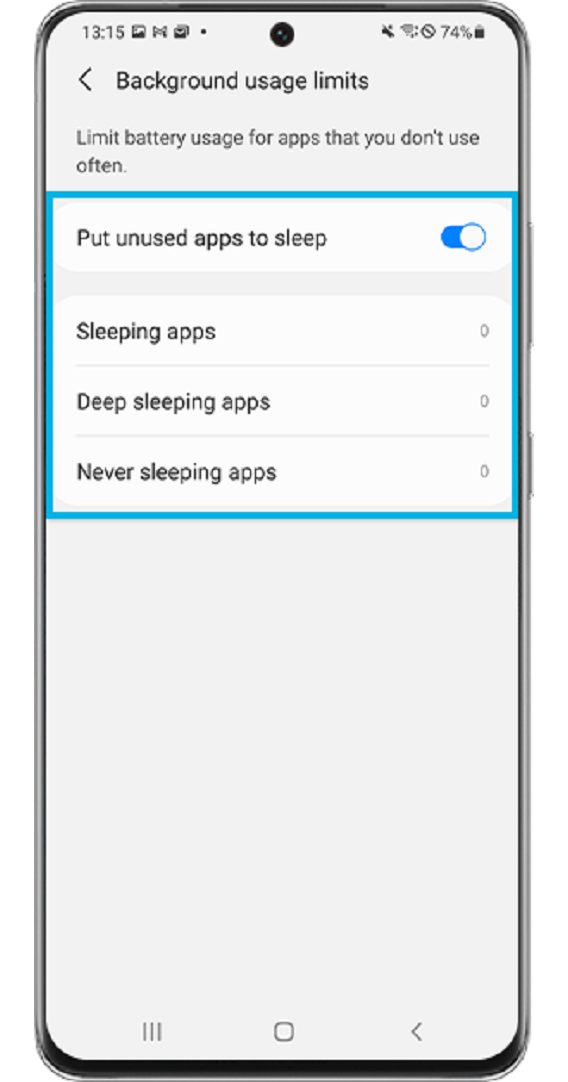
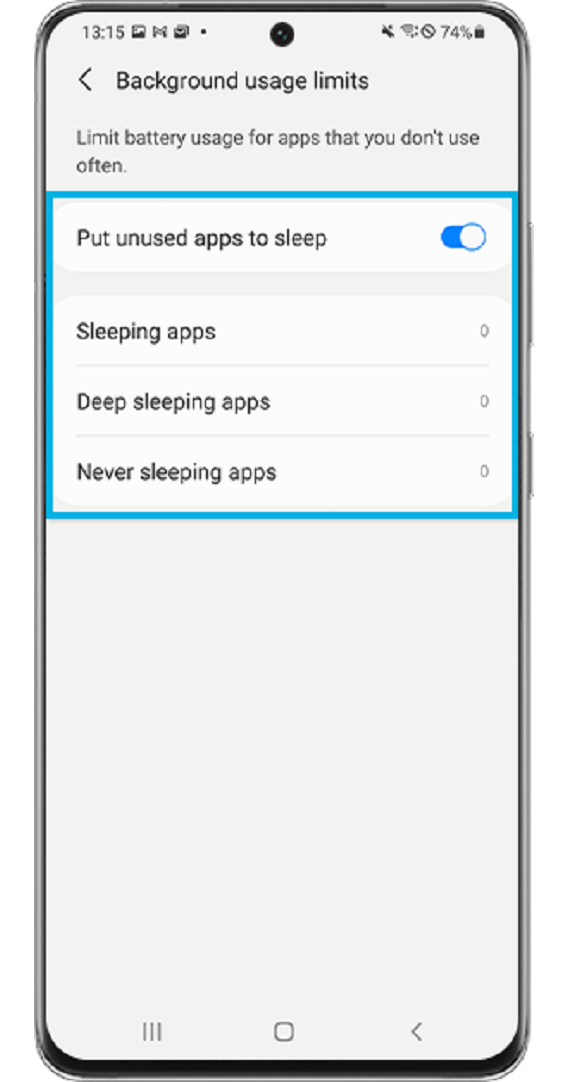
You can choose from the following settings:
- Put unused apps to sleep which will automatically put apps to sleep if they have not been used for a while.
- Sleeping apps allows you to choose the apps that won't run in the background. You can view your current sleeping apps as well.
- Deep sleeping apps will never run in the background and will only work when you open them.
- Never sleeping apps allows you to choose which apps will not automatically be set to sleeping mode.
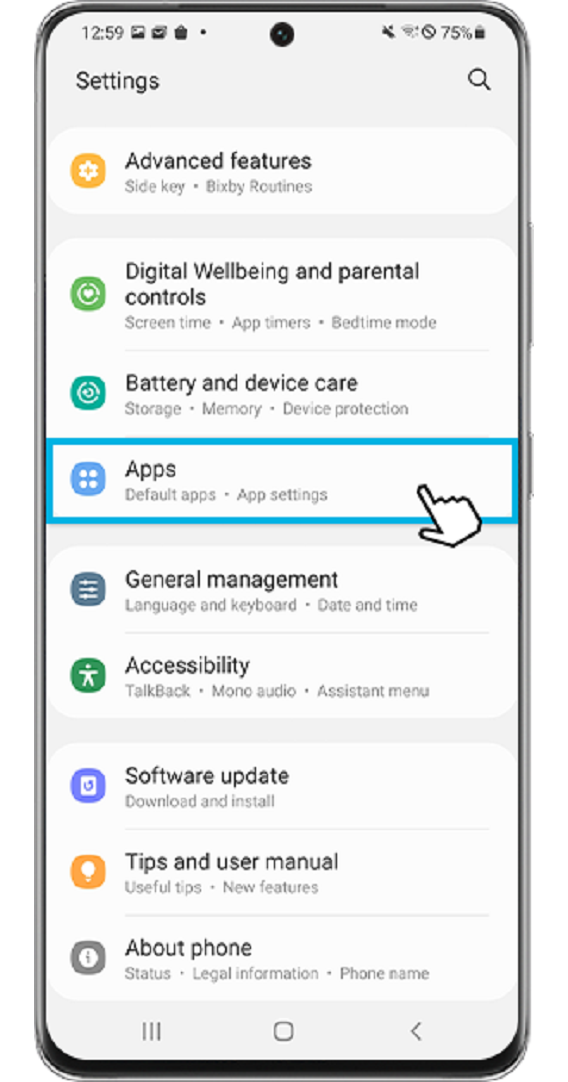
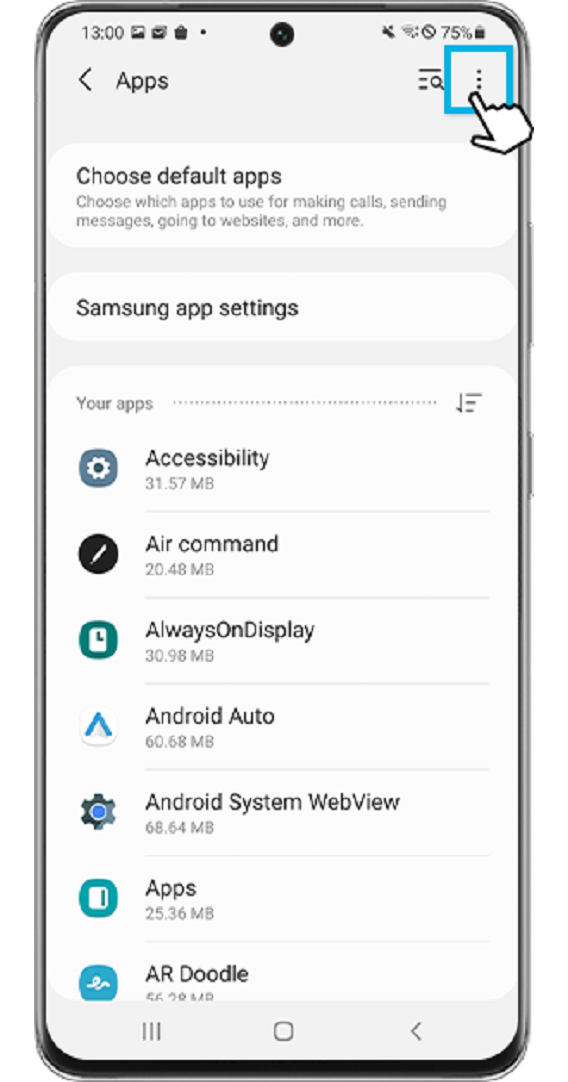
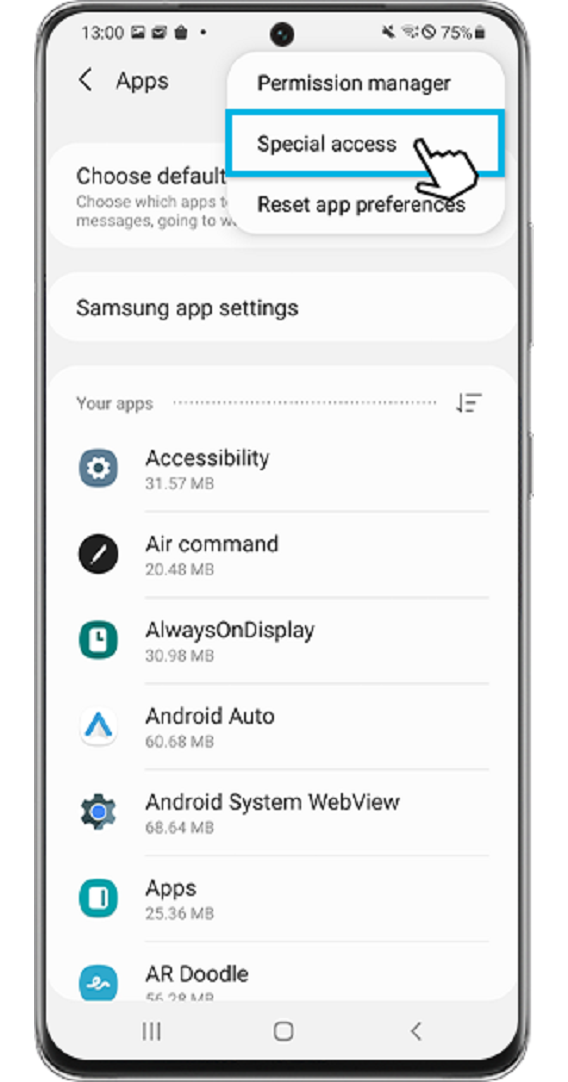
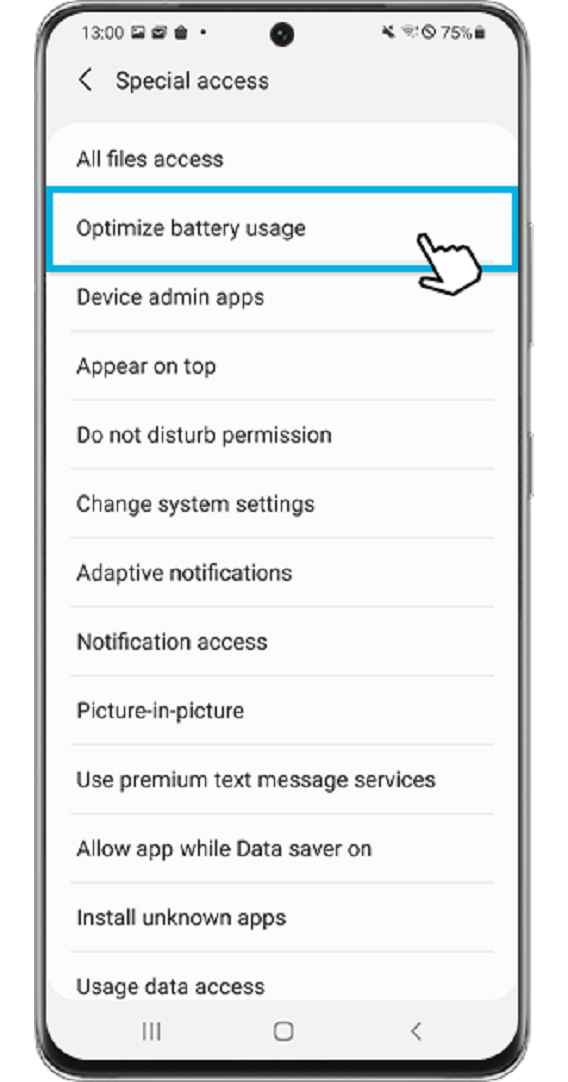
You can optimize individual apps to use less battery. Follow the steps below.
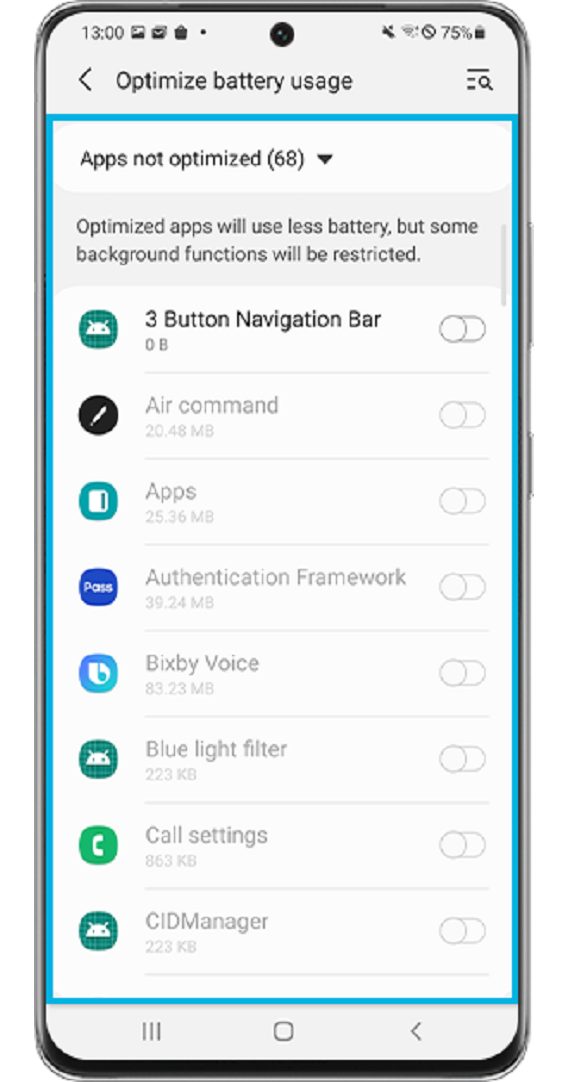
Note:
- Optimized apps will use less battery, but some background functions will be restricted.
Find out more about the Galaxy Battery with Samsung Support.
Note:
- Actual battery lifespan varies by network environment, features and apps used, frequency of calls and messages, number of times charged, and many other factors.
- Device screenshots and menus may vary depending on the device model and software version.

Thank you for your feedback!
Please answer all questions.