What to do if the microphone or speaker is not working on your Samsung Galaxy phone
If your Samsung phone has no sound during calls or the microphone is not working, it is usually caused by volume settings, apps, or network issues. Follow the steps below to fix it.
Look for any obstructions to your microphone or speaker
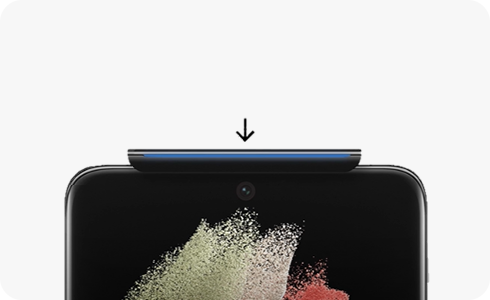
Step 1: Check that nothing is covering the microphone or speaker
Step 2: Remove any case or screen protector and test again
Please note: The location of the microphone and speaker may vary depending on the device.


Step 1. Press the volume key in the side of the device.


Step 2. The upper button increases the volume.


Step 3. The lower button decreases the volume.
Please note: The in-call volume can be adjusted only during a call. If you are in your Home screen your ringtone volume will be adjusted.
If the issue persists, please proceed to the next step, below.
If the issues do not appear while in Safe mode, the problem is caused by a downloaded app, and that app should be uninstalled.
Please note: If the issue no longer appears in Safe mode: One of your recently downloaded apps was likely the cause of the problem. Proceed to uninstall the app you downloaded just before your phone or tablet began having the issue.
If the issue still exists: Downloaded apps may not be the cause of the problem. You may need to reset the phone to its factory settings.
Please Note: The Wi-Fi Calling feature may not be available on all carriers or devices.
If you can’t hear anything when making a call, “Mute all sounds” might be on. Follow these steps to disable the feature:
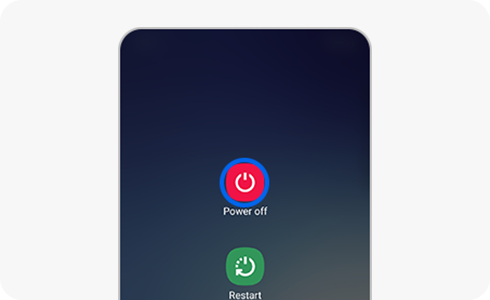
Step 1. Tap "Power off" your device.


Step 2. Remove the SIM card from the tray to inspect it for damage or corrosion.


Step 3. If it is defective or faulty, get a replacement SIM card from your carrier.


Step 4. Make sure your SIM card is lined up with the smaller cut-out on the tray.


Step 5. After inserting it carefully, restart the device and test again.
Notes:
- Make sure to back up your data before performing a factory reset.
- If the issue continues after all steps, your device may require professional repair.
Thank you for your feedback!
Please answer all questions.