What to do if the touch screen is not working properly on your Samsung Galaxy phone
Last Update date : Apr 23. 2026
If your Samsung Galaxy phone touch screen is slow or not responding, it is usually caused by screen protectors, moisture, or settings issues. Follow the steps below to fix it:
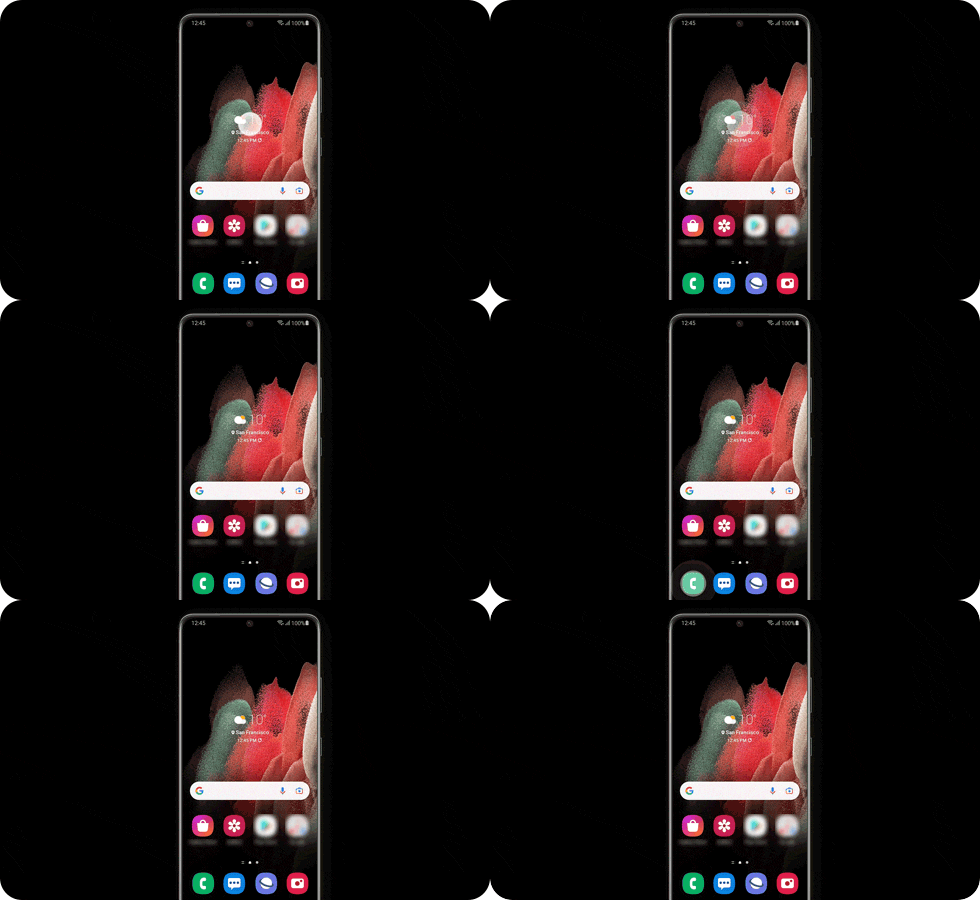
Attachments to the screen may affect the touch sensitivity
![Samsung Screen Protectors.]()
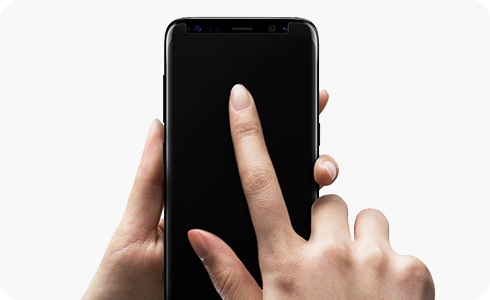
- Remove any screen protector or accessory from the screen
- Clean the screen and check if touch response improves
Note: Unapproved screen protectors may not fully stick to the screen and can cause touch issues.
Avoid using other objects to touch the screen
![Do not tap screen with sharp objects.]()
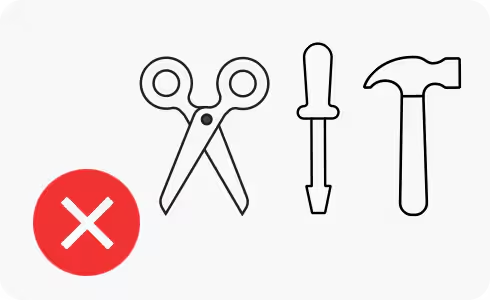
- Do not tap the screen with sharp objects
- Make sure your hands are clean and not wet
- Avoid using gloves while using the screen
Moisture may affect the touch screen
![Do not expose your screen to humid conditions.]()
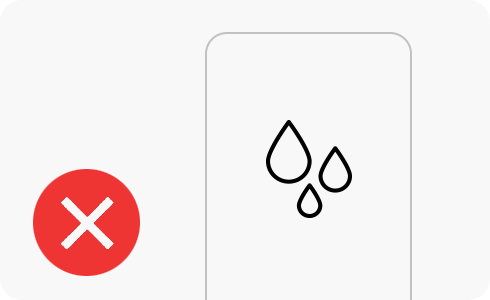
- Wipe the screen with a dry cloth
- Make sure the screen is completely dry before using it
Activate the touch sensitivity feature
1
Go to “Settings”, and then select “Display”.
2
Tap “Touch sensitivity”. You will feel an instant enhancement.
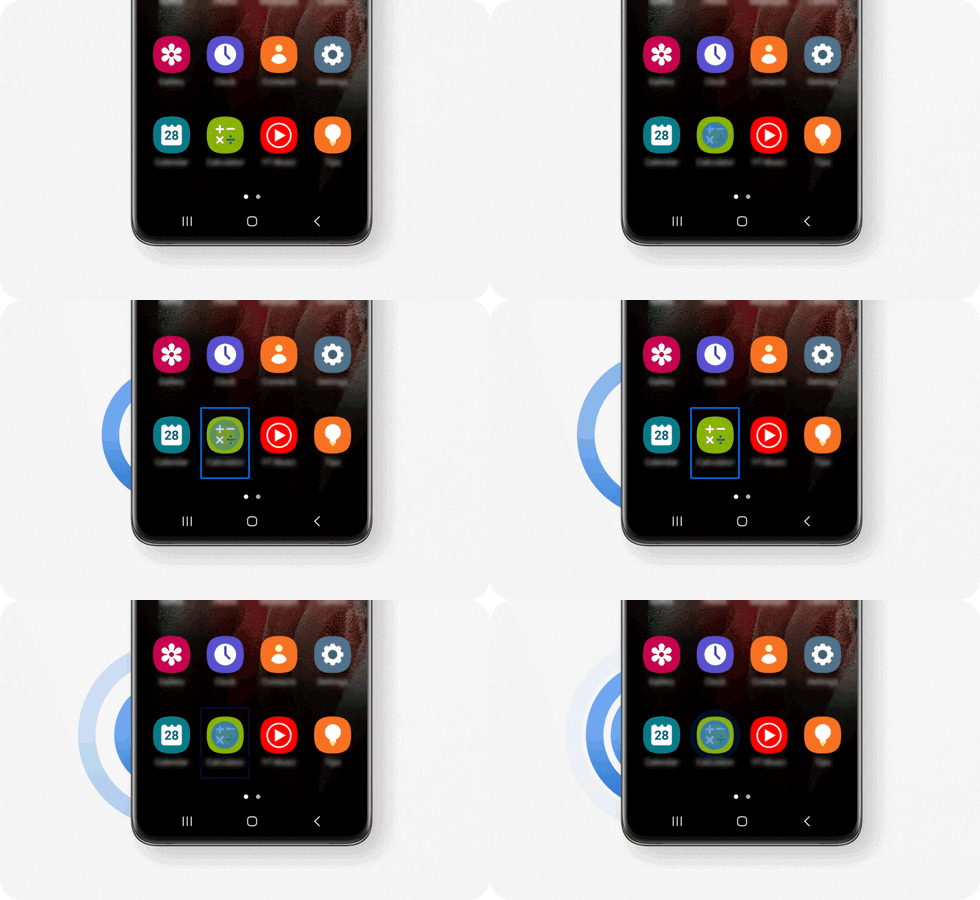
My screen doesn’t detect single-finger touches
![Double tap action is not working.]()
1
Go to “Settings”, and then select “Accessibility”.
2
Tap “Talkback”.
3
Disable “Talkback”.
Note: If TalkBack is enabled, the phone may respond only to specific gestures.
My screen doesn’t detect S Pen input
![Samsung Phone & S Pen.]()
![Avoid exposure to objects like keys, coins or watches.]()
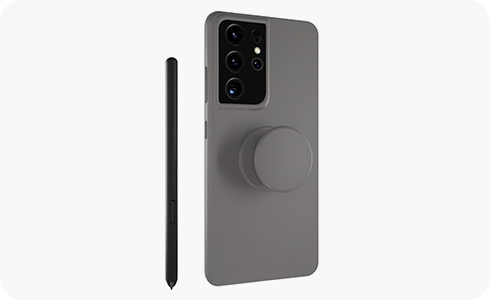
- Remove any case or accessory attached to the device
- Avoid using accessories with magnets
- Try using an official Samsung cover
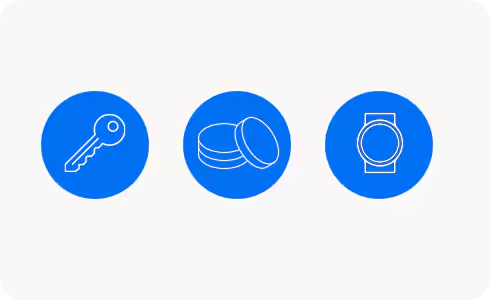
Note:
Magnetic accessories can interfere with S Pen recognition.
Please note:
- Device screenshots and menus may vary depending on the device model and software version.
- For further information, you can visit Samsung Support.
Thank you for your feedback!
Please answer all questions.