How do I turn on and use Closed Captions on my Samsung Smart TV
Closed Captions on Samsung Smart TVs display subtitles for supported content. You can enable them in Accessibility settings and customize position, size, and style.
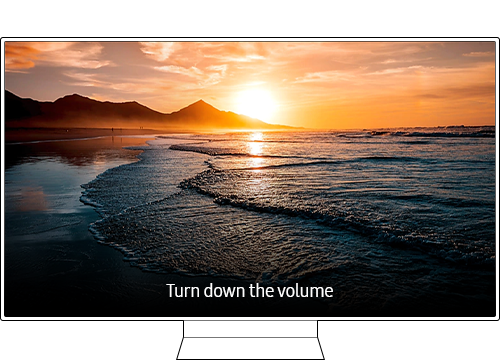
Step 1: Press and hold the Volume or Mute button on the Smart Remote
Step 2: For standard remotes, press the Caption button
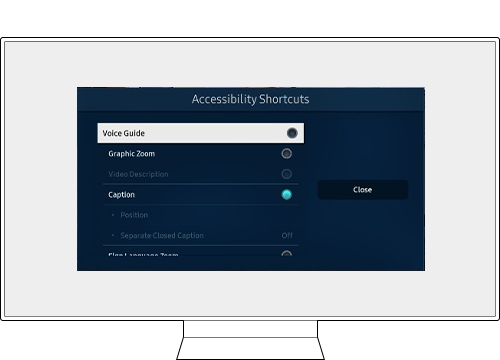
Note: Voice guidance for Accessibility Shortcuts is provided even if the Voice Guidance setting is turned off or muted.
Step 1. On the remote control, press the Home button and navigate to Settings > General.
Step 2. Select Accessibility > Caption Settings.
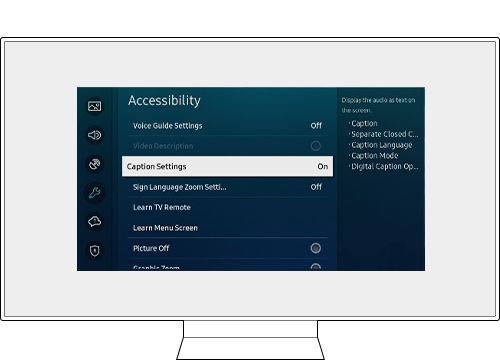
Step 3. Select Caption and enable the setting.
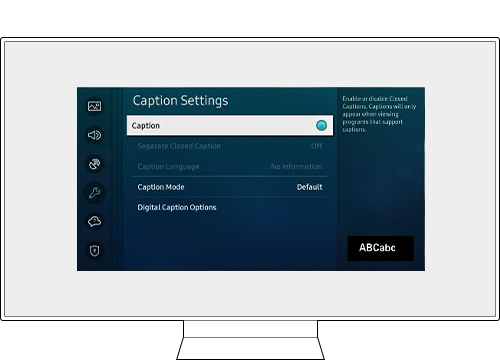
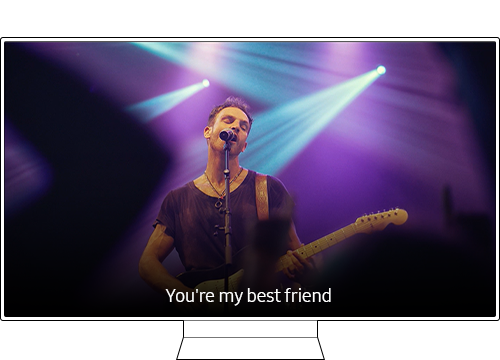
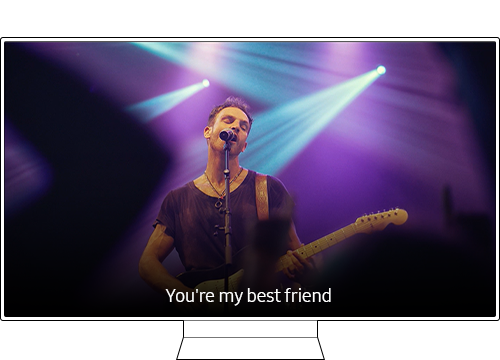
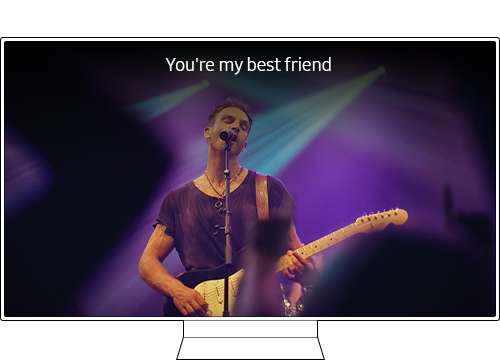
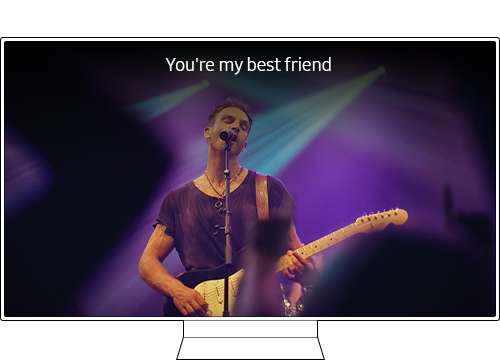
Step 1. On the remote control, press the Home button and navigate to Settings.
Step 2. Select General > Accessibility > Caption Settings.
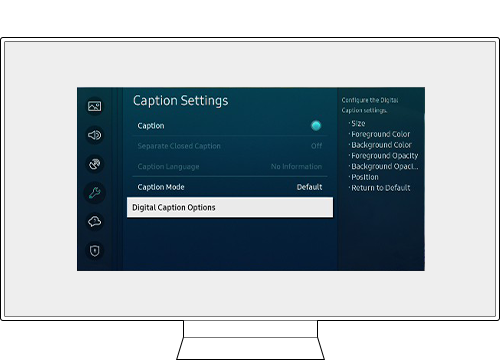
Step 3. Navigate to Digital Caption Options and select Position.
Select the position you want your captions to appear – top fill, bottom fill, top original ratio, or bottom original ratio.
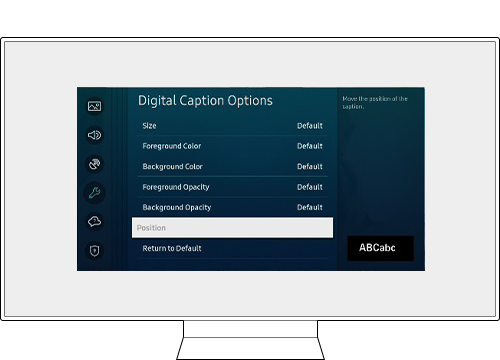
Note: This function is only available on programs that support broadcast captions.
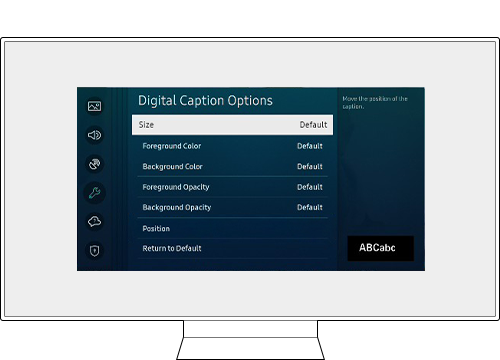
If the caption size is too small or you would like more contrast between the CC and screen background, you can adjust the size or font color accordingly.
Step 1. Press the Home button on the remote control and navigate to Settings.
Step 2. Select General > Accessibility > Caption Settings.
Step 3. Select Digital Caption Options to change the size, caption background color, and caption font color.
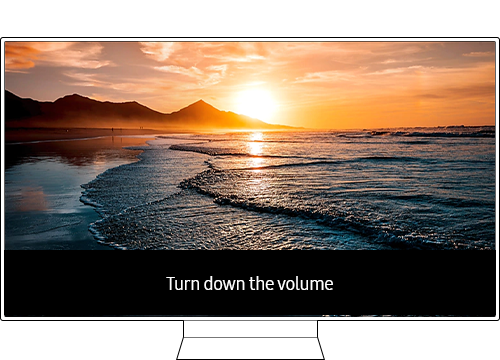
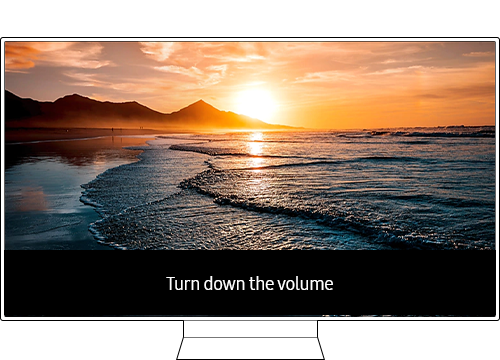
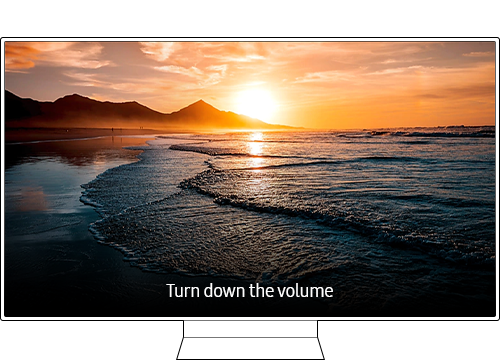
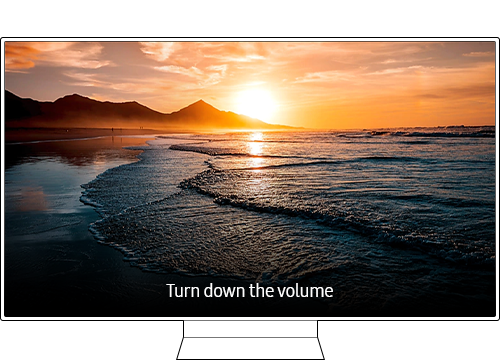
- Open Captions: Pre-inserted in content. You cannot turn this on or off.
- Closed Captions: You can turn this on or off.
Step 1. On the remote control, press the Home button and navigate to Settings.
Step 2. Select General > Accessibility > Caption Settings.
Step 3. Enable Separate Closed Caption.
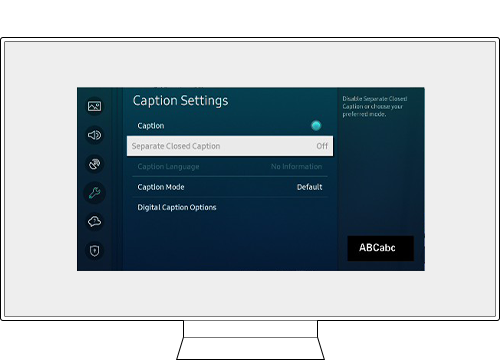
Note: This function is only available on programs that support broadcast captions.
It’s easy to reset CC settings to default factory settings. Follow the steps below.
Step 1. On the remote control, press the Home button and navigate to Settings.
Step 2. Select General > Accessibility > Caption Settings.
Step 3. From Digital Caption Options, select Return to Default.

Note:
- If you are having trouble with your Samsung Smart TV, you should always check to see if there are any software updates available as these may contain a fix for your problem.
- Device screenshots and menus may vary depending on the device model and software version.
Thank you for your feedback!
Please answer all questions.