How do I use Workspace on my Samsung Smart TV
Workspace on Samsung Smart TV lets you use your TV like a computer. You can connect a PC, mirror your screen, use Samsung DeX, or access Microsoft 365 directly.
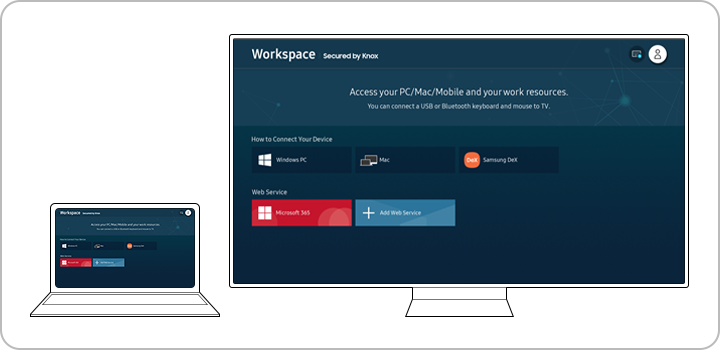
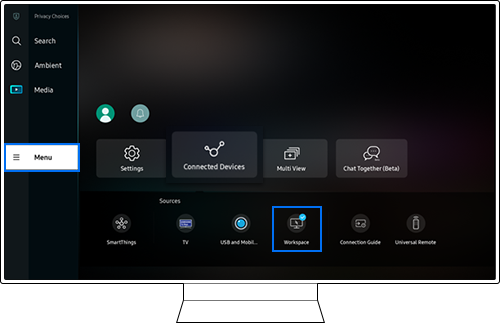
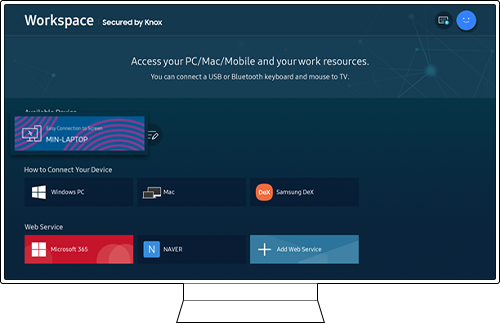
Step 1: From the Home menu, select Source, then go to Connected Devices and select Workspace
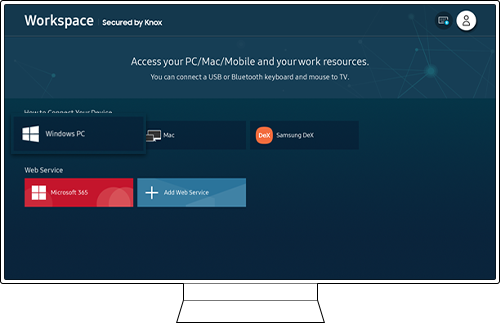
Step 2: From the Workspace menu, select Windows PC to open the guide
Step 3: Download the Easy Connection to Screen app using the link shown on the TV
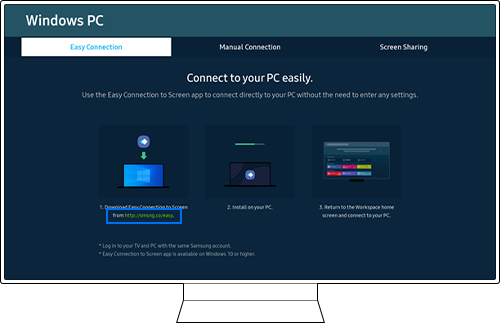
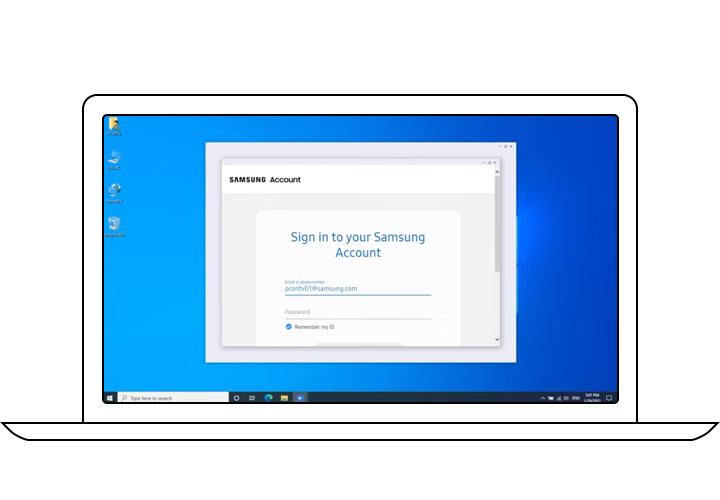
Step 4: Log in to the same Samsung account on your PC
Step 5: Select your PC from the list on the TV
Notes:
Easy Connection is supported on Windows 10. A keyboard and mouse may be required for better control.
How to activate Screen Share
Step 1. On your PC, navigate to Management Center or Device from the notifications area of the taskbar.
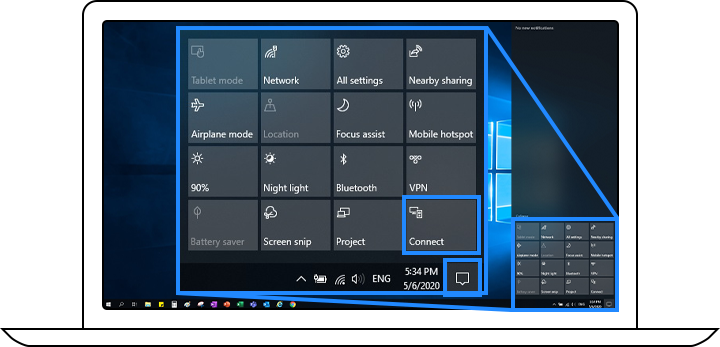
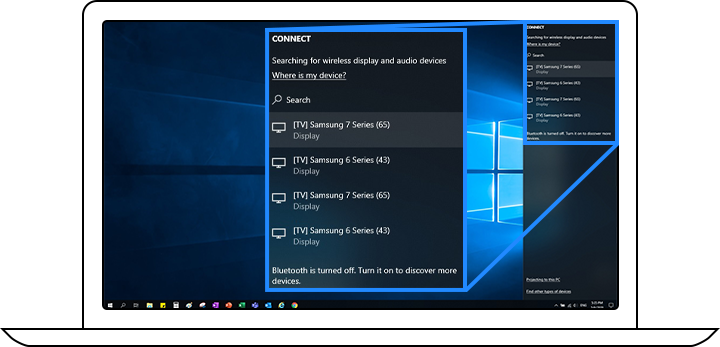
Step 2. Select Connect or Press and then choose your TV to complete the connection.
Note:
- Screen Sharing is only supported on Windows 10.
- There is no resolution limit, as the PC screen is shared in real time.
Step 1. Select Samsung DeX from the Workspace menu, and see the on-screen guide.
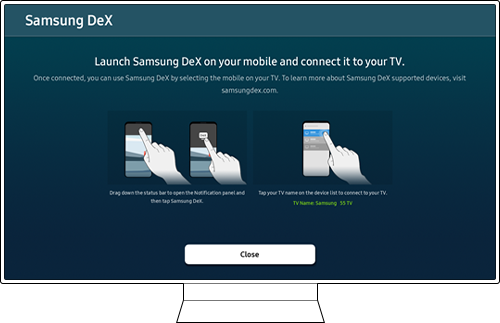


After you complete all of steps above. TV screen will switch over to your Samsung DeX screen.
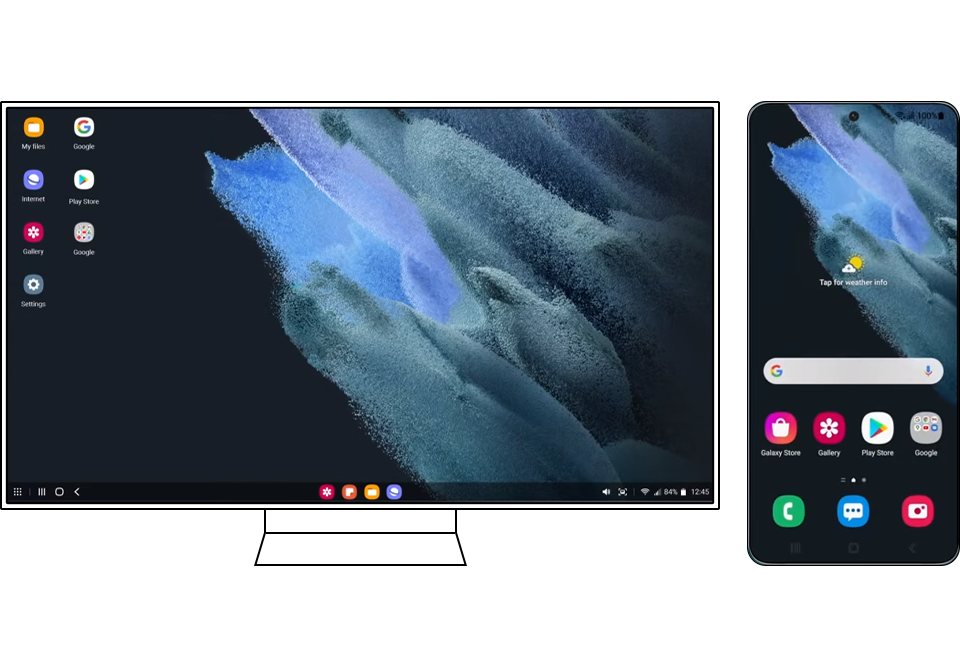
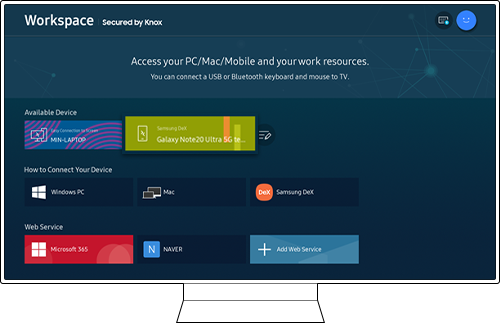
The connection with your phone is saved on your TV and you can begin using Samsung DeX immediately.
Note:
- Make sure that your Galaxy device supports connecting wirelessly with Samsung DeX via Wi-Fi.
- The connection with your phone is saved on your TV.
How to access Microsoft 365
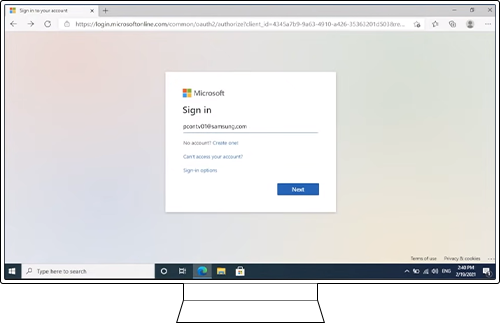
Step 1. Select the Microsoft 365 icon on the Workspace menu.
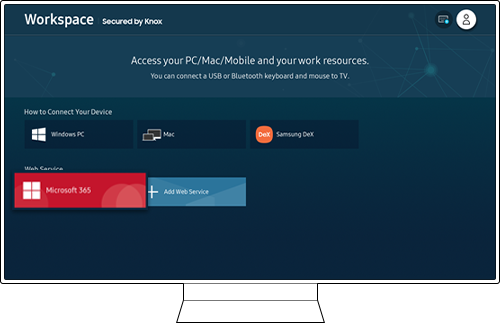
Step 2. Enter the ID and password associated with your Microsoft Office account.
Note: Symbols that are not supported by the Samsung One UI font may not be displayed properly.
Note:
- If you are having trouble with your Samsung Smart TV, you should always check to see if there are any software updates available as these may contain a fix for your problem.
- Device screenshots and menus may vary depending on the device model and software version.
Thank you for your feedback!
Please answer all questions.