How to record or listen to voice recordings on your Galaxy watch
The Galaxy Watch is a useful tool that can keep you organized and productive throughout the day, not just a fashionable wristband accessory. The ability to capture and playback voice recordings is one of its significant features, making it a practical tool for taking notes, setting reminders, or even conducting interviews. You can quickly record and listen to voice recordings on your Galaxy watch no matter where you are by following the instructions in this guide on how to make the most of this function.

To record or play voice recordings follow the below steps:
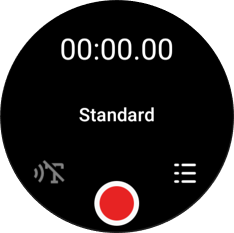
Tap Voice Recorder on the Apps screen. Select the mode you want.


Note: If you have any questions after verifying the above-mentioned solutions, please call our contact center to get help with your inquiry. Our helpful agents will be there to help you.
Thank you for your feedback!
Please answer all questions.