How to use the Dual Messenger feature on Galaxy Device
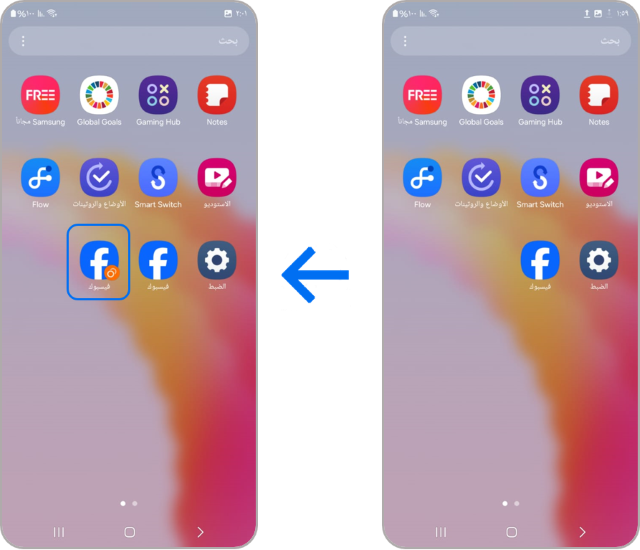
How to Use Dual Messenger on Samsung Galaxy Devices
Dual Messenger allows you to run two instances of supported messaging apps on your Samsung Galaxy device, enabling you to manage separate accounts—such as personal and work—on the same phone. This feature is ideal for users who want to keep their accounts organized without needing multiple devices.
1. What Is Dual Messenger?
Dual Messenger is a built-in feature on Samsung Galaxy devices that lets you use two different accounts with the same messaging app. For example, you can run two Facebook accounts, two WhatsApp accounts, or two KakaoTalk accounts simultaneously on a single device.
- Dual Messenger creates a secondary instance of the app, which runs independently from the primary app.
- Both instances operate with separate data, notifications, and settings.
- Supported apps include Facebook, WhatsApp, KakaoTalk, Telegram, and more.
2. How to Activate Dual Messenger
- Open the Settings app on your Samsung Galaxy device.
- Scroll down and tap on Advanced Features.
- Select Dual Messenger from the menu.
- You will see a list of supported apps. Choose the app you want to enable Dual Messenger for (e.g., Facebook).
- Tap Turn On or Install to create a second instance of the app.
- Follow the prompts to install the secondary app. For example, if you selected Facebook, you'll need to download a new copy of the app.
- Once installed, open the secondary app and log in with a different account.
3. Supported Samsung Galaxy Devices
Dual Messenger is available on select Samsung Galaxy devices, including:
- Galaxy S24, S25, S26 series
- Galaxy Z Fold and Galaxy Z Flip series
- Galaxy A series (select models)
4. Additional Things to Check
If Dual Messenger isn't working as expected, consider the following:
- Ensure your device is running the latest software version.
- Verify that the app you want to use with Dual Messenger is supported.
- Check your device's storage space, as Dual Messenger requires additional storage for the secondary app.
5. How to Deactivate Dual Messenger
- Go to Settings > Advanced Features > Dual Messenger.
- Find the app you want to disable and tap the toggle to turn off Dual Messenger.
- Confirm the action if prompted.
- The secondary app will be uninstalled, and you'll return to using the primary app.
6. Related Samsung Support Topics
Thank you for your feedback!
Please answer all questions.