The person you are calling cannot hear you on your Samsung Galaxy phone
If the person you are calling cannot hear you, it is often caused by a temporary external factor rather than an issue with your phone.

Before troubleshooting, consider when the issue happens:
- Does it happen only once or in specific situations?
For example, in a particular location or at a certain time. In this case, the issue is usually related to network coverage or the surrounding environment. - Or does it happen during every call, regardless of location or contact?
This may indicate a problem that requires further checks.
Note: The screens and settings on your device may vary depending on your wireless provider and software version.
In most cases, this issue is caused by temporary external factors, such as network conditions or the environment. For this reason, simply trying the call again or waiting a short time can often resolve the issue. Try the steps below in order.
Step 1. Try the call again
End the call and try again after a few moments. You can also message the other person and try switching who is placing the call. Temporary network or connection issues can sometimes affect call quality.
Step 2. Change location or try again later
If the issue happens in a specific place, such as indoors or in a crowded area, move to a different location and try again.
You can also try placing the call later, as network conditions may vary throughout the day.
Step 3. Restart both phones
Restart your Samsung Galaxy phone and ask the other person to restart their device as well. This can help resolve temporary issues affecting the call.
Step 4. Check basic call conditions
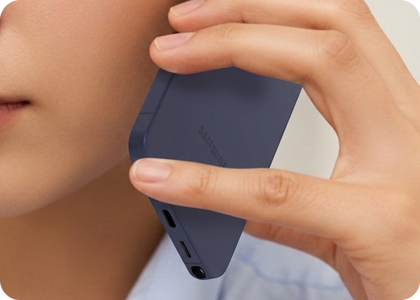
- Make sure your fingers are not covering the bottom of the phone, and block the microphone, while speaking.
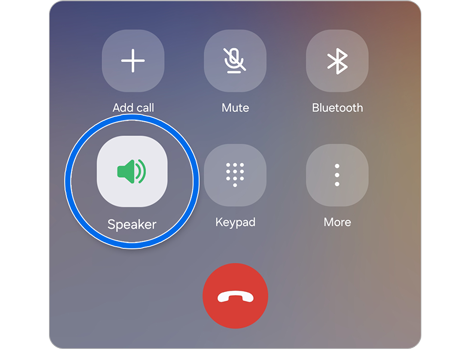
- You can also ask the other person to increase their call volume or try using Speaker mode.
If the issue happens during every call, regardless of the contact or location, try to identify when it started. This can help determine whether the issue is related to recent changes or requires further checks.
Step 1. Check for recent changes
If the issue started recently, it may be related to a change in how the phone is used:
- If the issue started after using a new case or accessory, remove it and try again. Some cases or accessories may block the microphone and affect your voice during calls.
- If the issue started after installing a new app, especially a calling or messaging app, uninstall it and try again. Some apps may interfere with call functions or microphone access.
- If the phone was dropped or exposed to liquid, this may affect the microphone. If the issue started after this, we recommend visiting a Samsung service centre for further inspection.
Step 2. Test the phone during a call with another person
If no recent changes explain the issue, test your phone during a call with a different contact while staying in the same location.
If the issue also occurs during this call, it may be related to your environment or your device. In most cases, network conditions are still the main cause, especially in certain areas or buildings.
If possible, try the call again from a different location to confirm.
Thank you for your feedback!
Please answer all questions.