Why doesn't my Samsung TV detect an HDMI device?
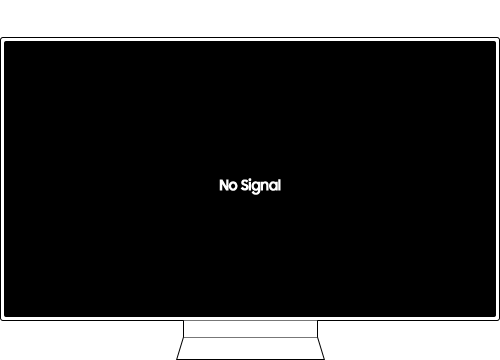
Why My Samsung TV Doesn't Detect a Device Connected via HDMI
If your Samsung TV fails to detect a device connected via HDMI, it could be due to a loose connection, incorrect source settings, or a faulty HDMI cable. Follow these steps to resolve the issue quickly and ensure seamless connectivity.
1. Why Your Samsung TV Might Not Detect an HDMI Device
When your Samsung TV doesn't recognize a connected device via HDMI, it's often due to one of the following reasons:
- The HDMI cable is not securely connected to the TV or the external device.
- The source input on the TV is not set to the correct HDMI port.
- The connected device is powered off or in sleep/hibernate mode.
- The HDMI cable is damaged or incompatible with the connected device.
- The TV or connected device requires a software update.
2. How to Fix Samsung TV HDMI Detection Issues
Follow these steps to troubleshoot and resolve HDMI detection issues on your Samsung TV:
- Ensure the connected device is powered on: Make sure your external device, such as a gaming console or laptop, is turned on and not in sleep or hibernate mode.
- Check the source input on your TV: Navigate to the source list on your TV and ensure it is set to the correct HDMI port where the device is connected.
- Reconnect the HDMI cable: Disconnect the HDMI cable from both the TV and the external device. Wait 10 seconds, then reconnect the cable securely.
- Power cycle the TV and connected device: Unplug the power cords of both devices for at least 10 seconds, then plug them back in and turn them on.
- Test a different HDMI port: If the issue persists, try connecting the device to another HDMI port on the TV and adjust the source input accordingly.
- Replace the HDMI cable: If reconnecting the cable doesn't work, try using a different HDMI cable. Ensure it is certified and compatible with your devices.
-
Use the HDMI Cable Test function:
Check for HDMI cable abnormalities using the built-in HDMI troubleshooting tool on your TV.
- Press the Home button on your remote.
- Go to Settings > Support > Device Care > Self Diagnosis > HDMI Troubleshooting.
- Test each connected HDMI port sequentially.
3. Additional Things to Check
If the issue persists after following the above steps, consider these additional checks:
- Verify that the connected device supports the resolution and refresh rate of your Samsung TV.
- Ensure the TV and connected device are running the latest software versions.
- Test the HDMI cable and device on another TV to rule out hardware issues.
4. Supported Samsung TV Models
This troubleshooting guide applies to most Samsung Smart TVs, including the Galaxy S24, Galaxy S25, Galaxy S26, Galaxy Z Fold, Galaxy Z Flip, and Galaxy A series models. Always refer to your user manual for model-specific instructions.
5. Related Samsung Support Topics
Thank you for your feedback!
Please answer all questions.