How to change the source on a Samsung TV
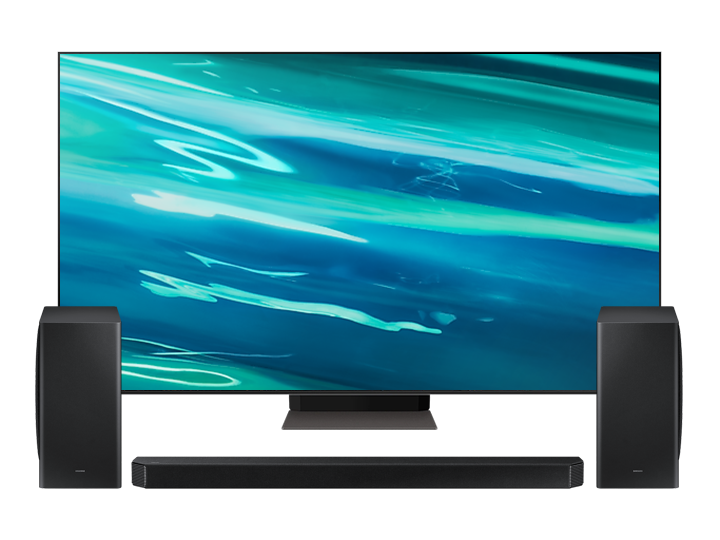
How to Change the Source on My Samsung TV?
To change the source on your Samsung TV, press the Source button on the remote control to cycle through available inputs such as HDMI, airplay, or external devices. If using a Smart Remote, navigate to the Connected Devices menu to select the correct input source.
1. Using a Universal Remote
- Press the Source button on your remote control.
- Cycle through the available input sources until you find the one matching your connected device.
2. Using a Smart Remote
- Press the Home button on your Smart Remote.
- Navigate to the Menu option.
- Select Connected Devices from the menu.
- Choose the input source that your device is connected to.
3. Additional Things to Check
- Ensure the connected device is properly plugged into the correct HDMI or AV port on your Samsung TV.
- Verify that the connected device is powered on and functioning correctly.
- If using HDMI-CEC (Consumer Electronics Control), ensure both devices support this feature.
4. Supported Samsung TV Models
This feature is available on most Samsung TV models, including:
- Galaxy S24 series-compatible Smart TVs
- Galaxy Z Fold and Z Flip-compatible Smart TVs
- Galaxy A series-compatible Smart TVs
For specific model compatibility, refer to your TV's user manual or visit the official Samsung support page.
5. Why the Source Change May Not Work
- The connected device might not be turned on or properly connected to the TV.
- The TV might not recognize the input due to a loose cable or incorrect port selection.
- The TV software may require an update to support newer devices or features.
6. Related Samsung Support Topics
Thank you for your feedback!
Please answer all questions.