Gear S3: How can I Add or Delete Widgets?
Important Note: The information on this page is for Hong Kong products only. Models, sequences or settings will vary depending on location and/or where the product had been purchased. To be redirected to your local support page please click here.
The Watch screen is the starting point of the Home screen. Rotate the bezel to view more items, such as notifications and widgets.
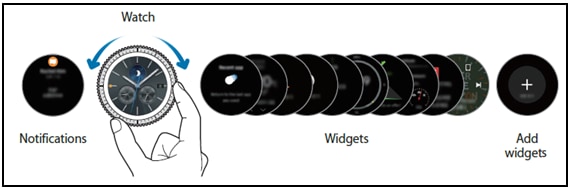
Add Widgets
(1) Rotate the bezel clockwise till you see the “+” icon
(2) Tap the “+” icon, then rotate the Bezel clockwise to see some available widgets
(3) Tap on a widget to add it. The selected widget will appear in a new panel.
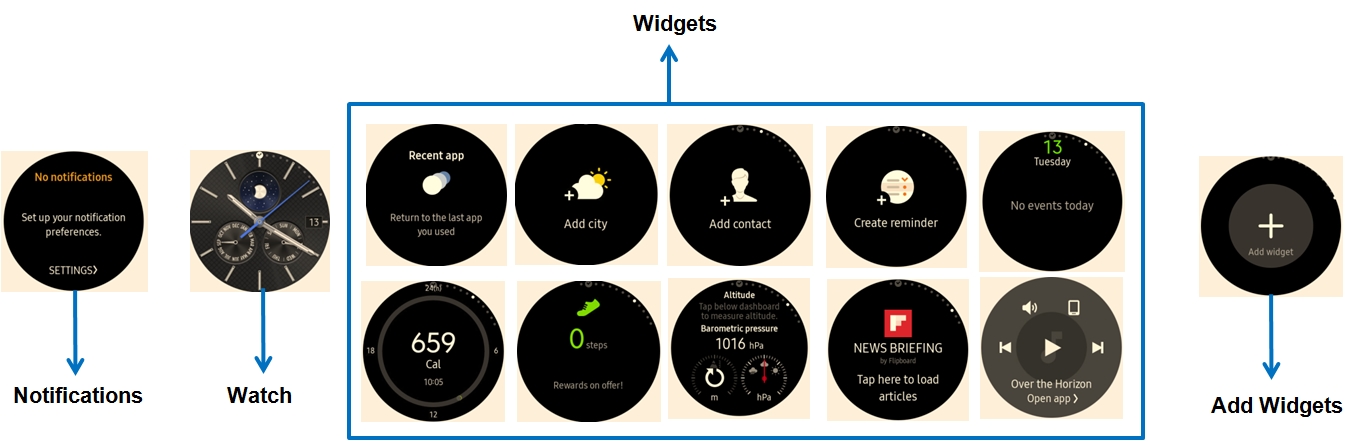
Remove Widgets
Tap and hold a widget, then tap 
Available widgets, notifications, and their arrangement may vary depending on model and the software version
These are virtual images and for reference only.
If the above information does not match what your product is showing, you may check the User Manual for your product. If you are unable to solve the problem, please contact us for further assistance.
Thank you for your feedback!
Please answer all questions.
RC01_Static Content : This text is only displayed on the editor page