How to Activate S Pen Remote on my Note9?
Important Note: The information on this page is for Hong Kong products only. Models, sequences or settings will vary depending on location and/or where the product had been purchased. To be redirected to your local support page please click here.
Control apps remotely by using the S Pen connected to Galaxy Note9 via Bluetooth Low Energy (BLE).
You can quickly launch apps, such as the camera or gallery app, by pressing and holding the S Pen button.
While using apps, you can use certain features by pressing the S Pen button once, or switch between the front and rear cameras by pressing the button twice. Launch the Settings app, tap Advanced features > S Pen > S Pen remote, and then tap the switch to activate the feature.
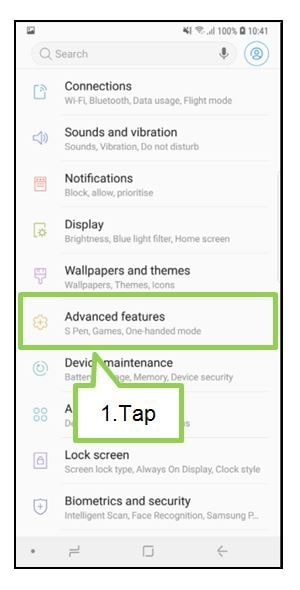
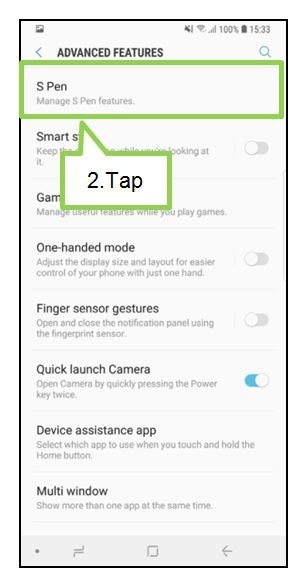
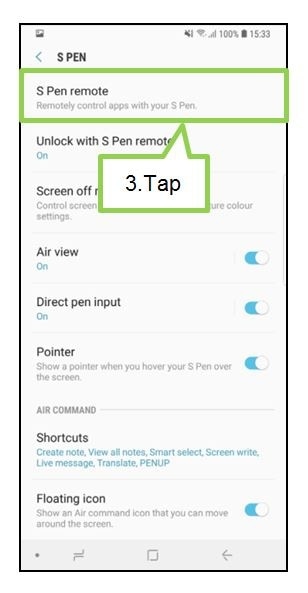

The S pen must be charged before you can use the S pen remote feature. When you detach the S Pen from the slot, the ‘S-Pen Connected’ icon will appear on the status bar. If the S Pen is discharged or far from the device, or if there are obstacles or there is external interference between the S Pen and the device, the S Pen will be disconnected from the device and the icon will turn grey. To use the S Pen remote feature again, connect the S Pen with the device by reinserting the S pen into the slot.

The ‘S-Pen Connected’ icon

The ‘S-Pen Disconnected’ icon
Screen Images and S Pen icons are subject to change and are for reference only. The above product description is only applicable to Samsung Galaxy Note9.
Notice: All functionality, features, specifications and other product information provided on this website including, but not limited to, the benefits, design, pricing, components, performance, availability, and capabilities of the product are subject to change without notice or obligation. Samsung reserves the right to make changes to this website and the product described herein, at any time, without obligation on Samsung to provide notification of such change.
If the above information does not match what your product is showing, you may check the User Manual for your product. If you are unable to solve the problem, please contact us for further assistance.
Thank you for your feedback!
Please answer all questions.
RC01_Static Content : This text is only displayed on the editor page