How to Install Micro SD memory card in Galaxy A5/A7?
Important Note: The information on this page is for Hong Kong products only. Models, sequences or settings will vary depending on location and/or where the product had been purchased. To be redirected to your local support page please click here.
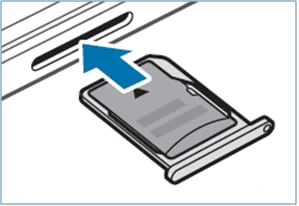
This FAQ demonstrates how you can install SD cards to your Smartphone. Please also read the notes following the installation steps.
The Chinese version of this FAQ is also available.
Installation Steps
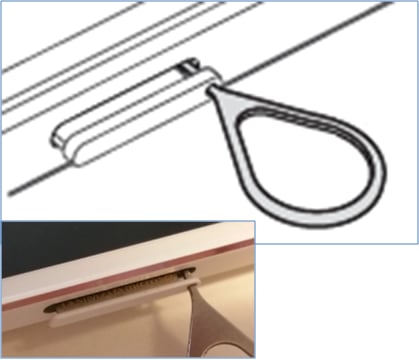
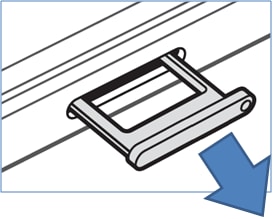
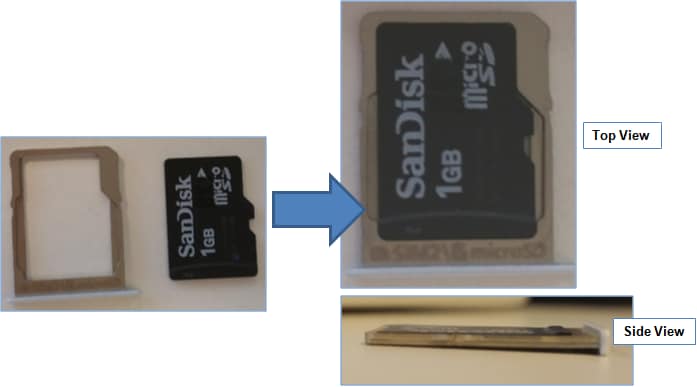
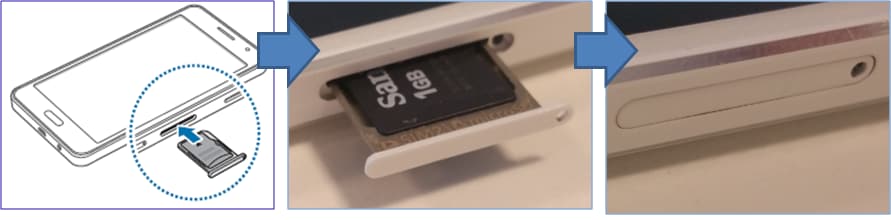
Notes:
• Your device accepts memory cards with maximum capacities of 64 GB.
• Use caution to insert the memory card right-side up.
• The device supports the FAT and the exFAT file systems for memory cards. When inserting a card formatted in a different file system, the device asks to reformat the memory card.
• Frequent writing and erasing of data shorten the lifespan of memory cards.
• When inserting a memory card into the device, the memory card’s file directory appears in the My Files → SD card folder.
If the above information does not match what your product is showing, you may check the User Manual for your product. If you are unable to solve the problem, please contact us for further assistance.
Thank you for your feedback!
Please answer all questions.
RC01_Static Content : This text is only displayed on the editor page