How to manage calls when multiple Bluetooth devices are connected
Important Note: The information on this page is for Hong Kong products only. Models, sequences or settings will vary depending on location and/or where the product had been purchased. To be redirected to your local support page please click here.
Your Galaxy phone can be paired with multiple devices at the same time. You can select which of your connected devices has priority over the others, and switch between your paired devices to use them for certain tasks. Learn how to manage an incoming call, audio and more with multiple devices connected to your phone via Bluetooth below.
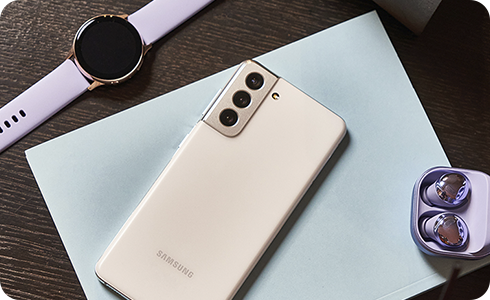
With multiple connected devices to your phone via Bluetooth, the last device to be connected will be the default one to answer calls.
However, you can switch between your connected devices during a call between your headset, Galaxy Watch and more.
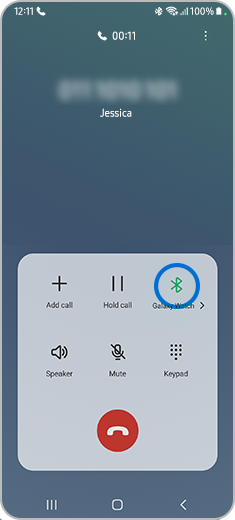
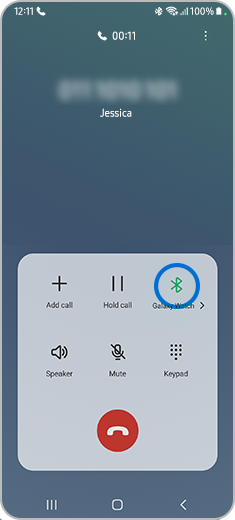
During a call, tap the Bluetooth icon.
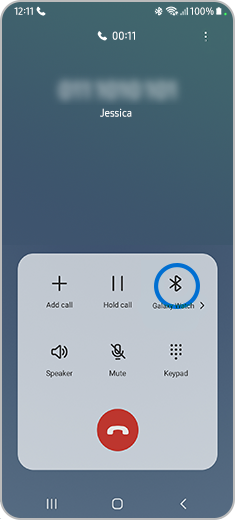
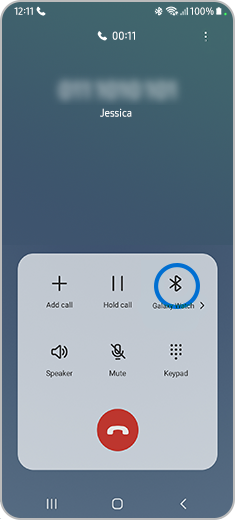
Now, the Bluetooth option is deactivated and you will hear the audio through your phone.
Please note: Bluetooth function will be reactivated when the call is finished.
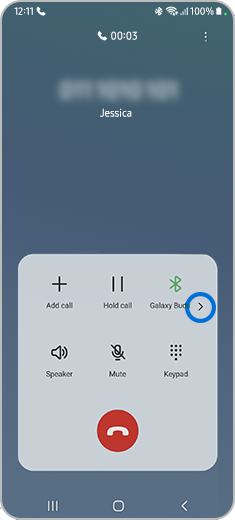
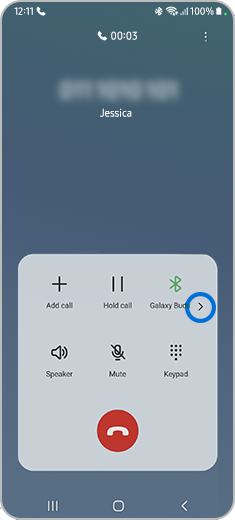
Step 1. Tap the right arrow below the Bluetooth icon.
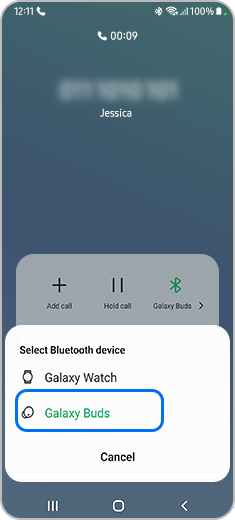
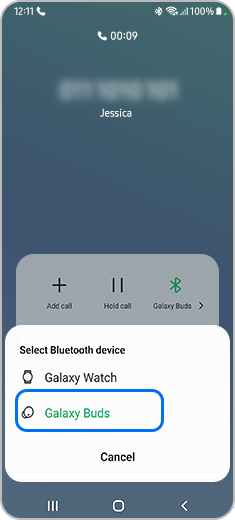
Step 2. Tap the device you want to switch to.
If your phone is paired with multiple Bluetooth devices, you can receive calls from these devices, not only from your phone.
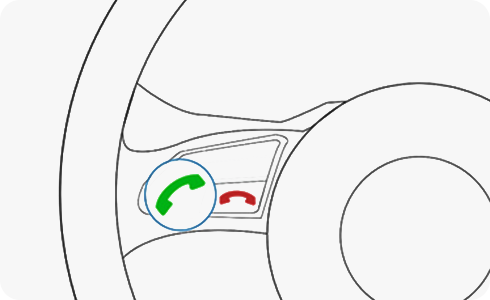
Press the answer button.
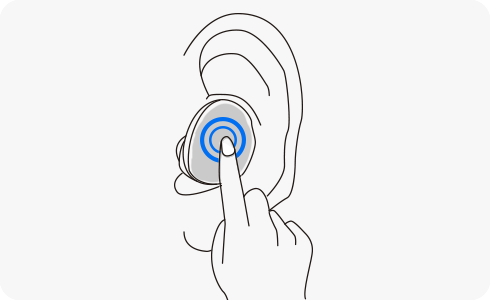
Double press the action button of your headset.
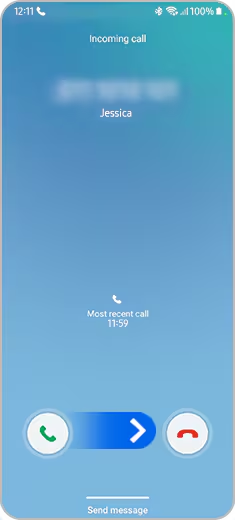
Press the answer button and swipe right.
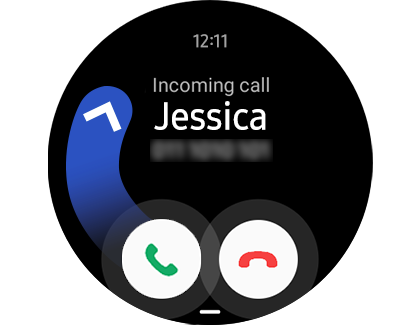
Press the answer button and swipe up.
If the above information does not match what your product is showing, you may check the User Manual for your product. If you are unable to solve the problem, please contact us for further assistance.
Thank you for your feedback!
Please answer all questions.
RC01_Static Content : This text is only displayed on the editor page