What is the Air View feature and how do I use the Air View feature?
Important Note: The information on this page is for Hong Kong products only. Models, sequences or settings will vary depending on location and/or where the product had been purchased. To be redirected to your local support page please click here.
Use this feature to enable you to point at an item with your finger to preview the content or view information in a pop-up window.
When you point at an area on a webpage for a few seconds, the device magnifies the area.
1. On the Home screen, tap Apps

2. Tap Settings

3. Tap My Device

4. Scroll down to Air view, and drag icon to the right to enable it.

The device magnifies the 4 following areas in Air view mode:
Information preview
Preview information, extend text, or enlarge pictures by hovering your finger over the screen
(S planner, Gallery, Messaging)
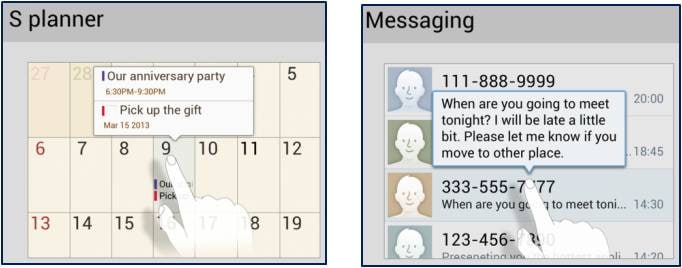
Progress bar preview
Preview a scene or show the elapsed time when your finger hovers over the progress bar

Speed dial preview
Show the names of contacts assigned to speed dial numbers by hovering your finger over them

Webpage Magnifier
When the finger hovers over the screen, a magnifier will appear in the browser to help you select the right link

If the above information does not match what your product is showing, you may check the User Manual for your product. If you are unable to solve the problem, please contact us for further assistance.
Thank you for your feedback!
Please answer all questions.
RC01_Static Content : This text is only displayed on the editor page