How to do Smart Hub Connection Test in Samsung TV
The Smart Hub Connection Test is a diagnostic tool designed to ensure your Samsung TV can connect to the Smart Hub seamlessly. This test checks the network connectivity, signal strength, and other essential parameters to guarantee optimal performance of your TV's Smart Hub features.
Purpose:
- Verify Network Connectivity: Ensure your TV is properly connected to your home network.
- Check Signal Strength: Confirm that the Wi-Fi signal is strong enough for uninterrupted streaming.
- Diagnose Issues: Identify potential problems that may affect Smart Hub functionality.
Perform the Smart Hub Connection Test
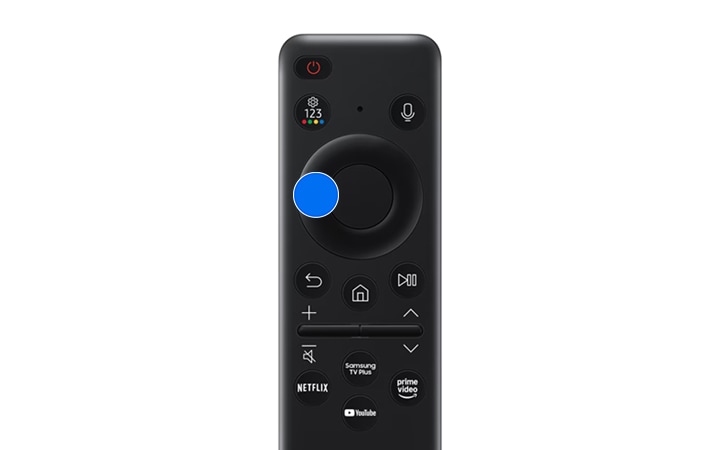


*Wired networks are not supported by some models.

Troubleshoot the Network problems
When the TV has difficulties connecting to the network, these steps may help resolve the problem.
1. Wireless network connection failed. Unable to connect to a wireless access point. Unable to connect to the network.
- Ensure that the network cable is connected and the router is powered on
- Connect your mobile device to the router via Wi-Fi
- Turn the router off and back on again. (Requires 2 to 3 minutes)
- If a security key is required, make sure it has been entered correctly
- Unplug the TV’s power cord and plug it back in or press and hold the power button for at least 3 seconds
- Make sure that there is no electromagnetic wave generating device placed between the TV and router
- If unable to establish a wireless internet connection, connect the TV to the wireless router via a LAN cable
- If the TV is able to connect to the internet normally via the cable connection, there might be a problem with the wireless router. In this case, try using a different wireless router
2. Wired network connection failed.
- Check if the LAN cable is plugged in on both ends. If it is plugged in, check if the access point is turned on. If it is on, turn it off, wait 1 or 2 minutes, and then turn it on
3. Connected to a local network, but not to the Internet.
- Check if the Internet LAN cable is connected to the access point's external LAN port
- Check the DNS setting in IP Settings
- Home > Settings > All Settings > Connections > Network > Network Status > IP Settings
For more information, please get in touch with Samsung customer care.
Thank you for your feedback!
Please answer all questions.
Contact Info
Digital Service Center
![DSC icon image]()
![DSC icon image]()



Scan to access
WhatsApp
![WhatsApp image icon]()
![WhatsApp image icon]()


Languages offered : English/ हिन्दी/ Indian Regional Languages
Available 24 Hours / 7 days
WhatsApp@ 1-800-5-726-7864

Scan to access


Face-to-Face Support
![Image of location icon]()
![Image of location icon]()


Remote Service
![Image of RM icon]()
![Image of RM icon]()


Phone Support (India)
![image of phone dialer]()
![image of phone dialer]()


Phone Support (Bangladesh, Sri Lanka, Nepal)
![Image of caller icon]()
![Image of caller icon]()
RC01_Static Content : This text is only displayed on the editor page