How to update the firmware / Software on a Samsung TV
इस लेख को हिंदी में पढ़ने के लिए कृपया यहां क्लिक करें
Smart TV firmware updates are designed to enhance features, fix bugs, and sometimes add new applications. You can update your TV firmware either by using a USB drive or through an internet connection.
Note:
- Screen & Images are simulated.
- All third-party logos/marks are trademarks/registered of respective third-party brands
- Do not turn off the TV's power until the update is complete. The TV will turn off and on automatically after completing the update. Video and audio settings may be reset to defaults after a software update.
- TV menu options may vary by model
Update the TV software with Internet directly


Note: You can also select Auto Update. Your TV will receive automatic updates.
Download file and update the TV software with a USB
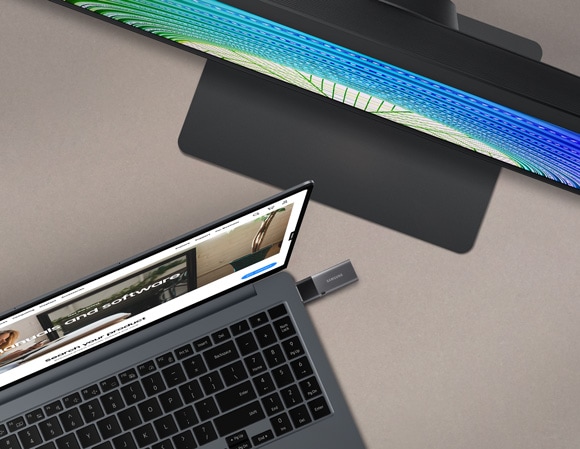
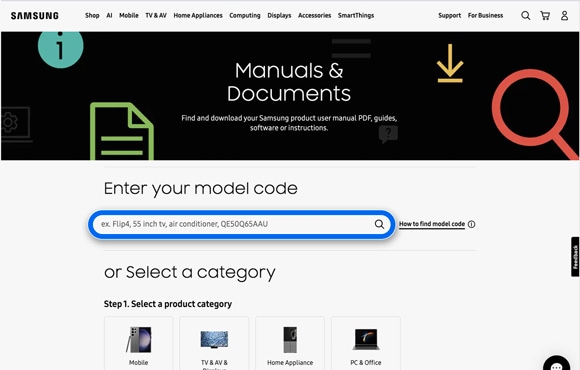
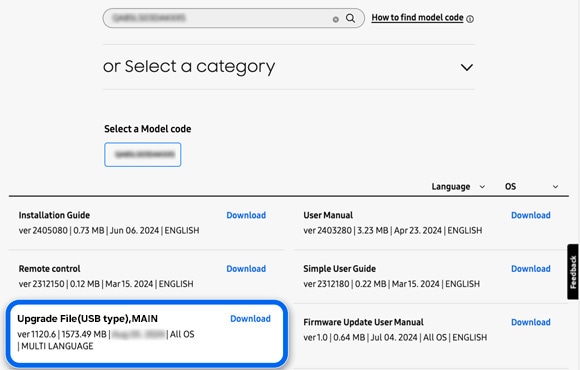
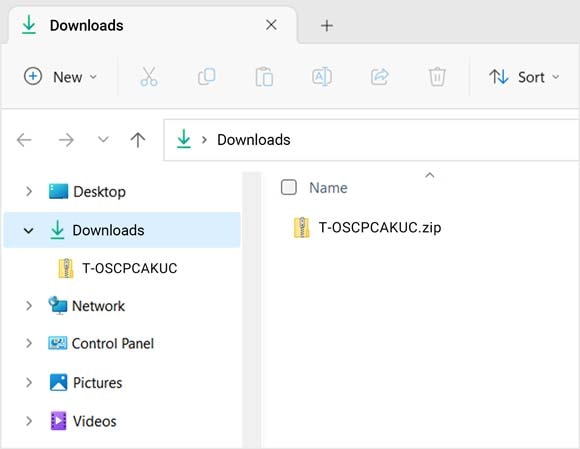
If your Samsung TV is not connected to a network, you can download the latest software file from the Samsung website and save it to a USB flash drive. Then, you can connect the USB flash drive to your TV to perform the update.
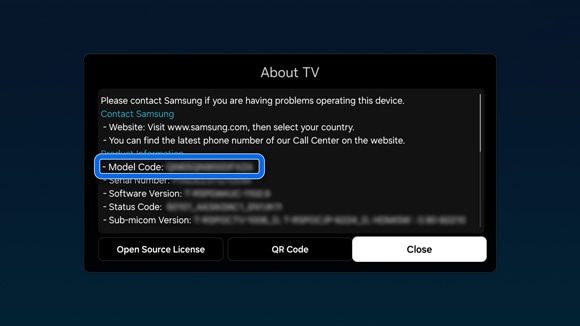
To know the model number of your TV, click here.
Notes:
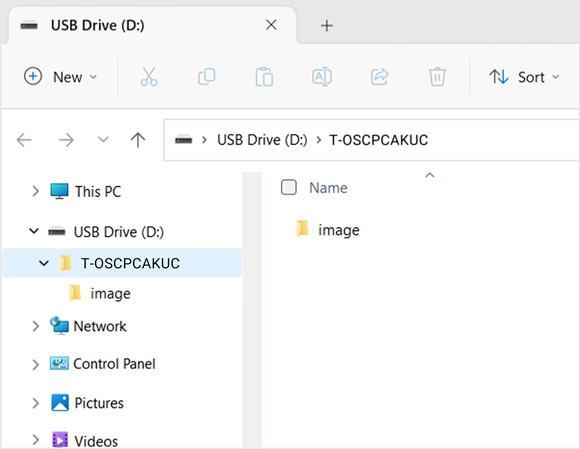
- Save the downloaded software file in the USB drive’s top-level folder. Otherwise, the TV will not be able to locate the update package.
- If there are multiple files, place all of the files in the USB drive’s top-level folder.

Note: The update will take at least 10 minutes to complete. The TV will restart automatically afterward. Do not turn off the TV or remove the USB flash drive until the update is complete.
Other topics you may be interested in:

Thank you for your feedback!
Please answer all questions.
Contact Info
Digital Service Center
![DSC icon image]()
![DSC icon image]()



Scan to access
WhatsApp
![WhatsApp image icon]()
![WhatsApp image icon]()


Languages offered : English/ हिन्दी/ Indian Regional Languages
Available 24 Hours / 7 days
WhatsApp@ 1-800-5-726-7864

Scan to access


Face-to-Face Support
![Image of location icon]()
![Image of location icon]()


Remote Service
![Image of RM icon]()
![Image of RM icon]()


Phone Support (India)
![image of phone dialer]()
![image of phone dialer]()


Phone Support (Bangladesh, Sri Lanka, Nepal)
![Image of caller icon]()
![Image of caller icon]()
RC01_Static Content : This text is only displayed on the editor page