How to mirror your Galaxy smartphone’s screen to your Samsung TV
इस लेख को हिंदी में देखने के लिए कृपया यहाँ क्लिक करें
What is Screen Mirroring
Screen mirroring is a technology that allows the screen of a mobile device to be transmitted to the TV screen as it is and viewed on a large screen of the TV. You can watch the screen of your mobile device on the TV screen through Smart View, Apple AirPlay or Tap View.
Note:-
- This function may not be supported depending on the model.
- Images are simulated. Device screenshots and menu may vary depending on the wireless service provider, device model and software version.
- Your iOS device and Samsung TV must be connected to the same Wi-Fi network to use Screen Mirroring.
- Apple AirPlay is a trademark and owned by Apple LLC.
Connecting using Smart View
This is the simplest way to mirror your smartphone to a TV using Wi-Fi. To mirror with Smart View, follow the steps outlined below.


1. Scroll down the Quick Panel on your phone.


2. Turn on Smart View.


3. Follow the on-screen instructions if this is your first time connecting your device to the TV.


4. Turn on your TV. On your Galaxy device, you'll see a list of available devices. Tap on your TV name.


5. Choose between Full Screen or Multi View, depending on your TV's features.


6. Enter the PIN displayed on your TV, if required.


7. Tap Connect to successfully connect your device to the TV.
Note: If you don't see your TV, tap the refresh symbol to search again. If you still don't see your TV make sure that it is turned on and connected to the same Wi-Fi network as your device.
If the mirroring image is small on the screen, you can change the aspect ratio.


1. Tap Smart View icon showing on Home Screen.


2. Tap Change Aspect Ratio.


3. Tap Set aspect ratio.


4. Select an option based on your preference.
Connecting using SmartThings
SmartThings is Samsung's hub for controlling smart home devices and can be downloaded to both Android and iOS devices. SmartThings can automatically detect and connect to most Samsung TV's manufactured from 2016 onwards.
Click here to know how to register your TV with SmartThings app.
Step 1. Connect your Samsung smart TV and your device to the same Wi-Fi network.
Step 2. Open SmartThings app onto your device.


Step 3. Choose your registered TV in SmartThings app.


Step 4. Go to & tap on Featured tab.
*All third-party logos/marks are trademarks/registered of respective third-party brands.


Step 5. In Featured tab, choose Smart View card.


Step 6. After tapping on Smart View, select the options that suit your preference.
Your device and TV are now connected and ready for mirroring!
Note: Make sure your phone is near your TV so they can connect.
Connecting using Airplay (iOS devices)
You can mirror your iOS device’s screen to your Samsung Smart TV if you’d like to share content, such as videos and photos. You can follow the instructions in our guide to learn how to use the Screen Mirroring feature, as well as Apple AirPlay.
Click here to know how to mirror your iOS device’s screen to your Samsung Smart TV.
Note: Your TV and Apple device must be connected to the same Wi-Fi network.
Tap View function is a new feature in 2020. Just tap the TV with your phone and it will be mirrored.
Settings to be prepared in advance
Check if the TV's Access Notification function is turned on (Settings > All Settings > Connections > Device Connect Manager > Access Notification).
How to set up Tap View on your phone
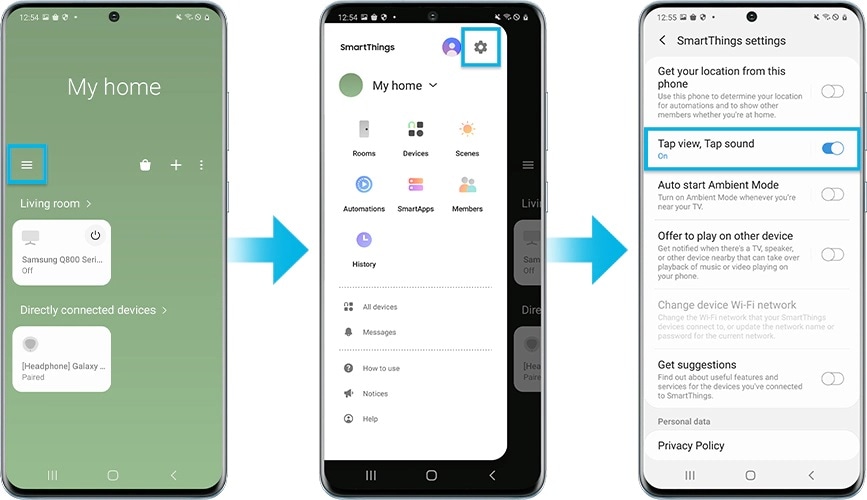
Enable Tap View in the SmartThings app.
- This function may not be supported depending on the model.
- Depending on the SmartThings app version, you may need to register the TV with your mobile device.
1. Launch the SmartThings app on your mobile device.
2. Select Settings (More > Settings ) in SmartThings app on your mobile device.
3. Set Tap View, Tap Sound to on.
*Upon connection for the first time, select Allow on a pop-up window of the TV.
Note:
- Only available from TU7000 and above TV model (Including Lifestyle/Outdoor TV) and Samsung Galaxy models from the launch. (Android 8.1 and above)
- To use Tap View, update your SmartThings app to version 1.745 or higher. It is available to download from Google play Store or Apple App store.
- When you start mirroring, you need to cancel power saving mode in Power mode.
Some apps like Netflix and YouTube have an in built screen casting function that makes it easy to share what you're watching between the big and small screen.
Step 1. Connect your device and TV to the same Wi-Fi network.
Step 2. Download the compatible app to your device and TV.
Step 3. Login or create an account. Sign into the same account on both your TV and device.
Step 4. Open the content you want to watch through your device.
Step 5. Tap the Cast icon.
Note: The location of the cast icon will differ depending on the app you are using and the orientation of your phone.
Step 6. Select the device you want to watch your content on.
Other topics you may be interested in:
Thank you for your feedback!
Please answer all questions.
Contact Info
Digital Service Center
![DSC icon image]()
![DSC icon image]()



Scan to access
WhatsApp
![WhatsApp image icon]()
![WhatsApp image icon]()


Languages offered : English/ हिन्दी/ Indian Regional Languages
Available 24 Hours / 7 days
WhatsApp@ 1-800-5-726-7864

Scan to access


Face-to-Face Support
![Image of location icon]()
![Image of location icon]()


Remote Service
![Image of RM icon]()
![Image of RM icon]()


Phone Support (India)
![image of phone dialer]()
![image of phone dialer]()


Phone Support (Bangladesh, Sri Lanka, Nepal)
![Image of caller icon]()
![Image of caller icon]()
RC01_Static Content : This text is only displayed on the editor page