Find the best fit for your ears with the Galaxy Earbud fit test
How to Check Galaxy Earbud Fit for Optimal Sound Quality
If your Samsung Galaxy Buds feel uncomfortable or deliver subpar audio quality, the Galaxy Earbud fit test can help. This built-in feature analyzes how well your earbuds seal in your ears, ensuring optimal sound and noise cancellation. Proper fit prevents sound leakage and enhances overall listening experience.
1. Why Use the Galaxy Earbud Fit Test?
The Galaxy Earbud fit test evaluates how securely your earbuds sit in your ears. It emits a chime sound to measure sound loss caused by improper sealing. Based on the results, it recommends the best ear tip size for each ear, helping you achieve better comfort, sound clarity, and active noise cancellation (ANC) performance.
- Improper fit can cause sound leakage, reducing bass response and ANC effectiveness.
- Earbuds that are too loose or tight may lead to discomfort during extended use.
- Different ear shapes often require different ear tip sizes for left and right ears.
2. Supported Samsung Galaxy Devices
The Galaxy Earbud fit test is available on select Samsung Galaxy earbuds, including:
Galaxy Buds2, Galaxy Buds2 Pro, Galaxy Buds3, Galaxy Buds3 Pro, Galaxy Buds FE, Galaxy Buds Live, Galaxy Buds Plus, and newer models.
3. How to Perform the Galaxy Earbud Fit Test
- Ensure your Samsung Galaxy device and earbuds are updated to the latest software version.
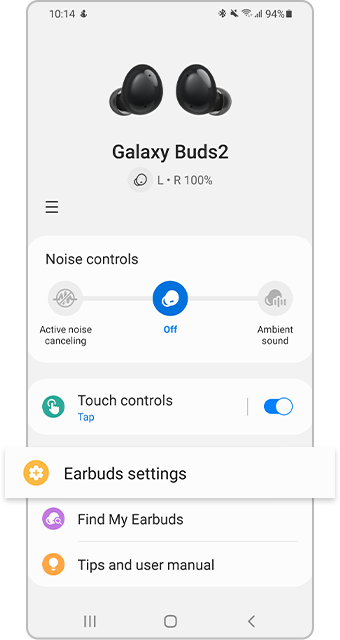
- Open the Galaxy Wearable app on your smartphone or tablet.
- Connect your Galaxy Buds to your device via Bluetooth.
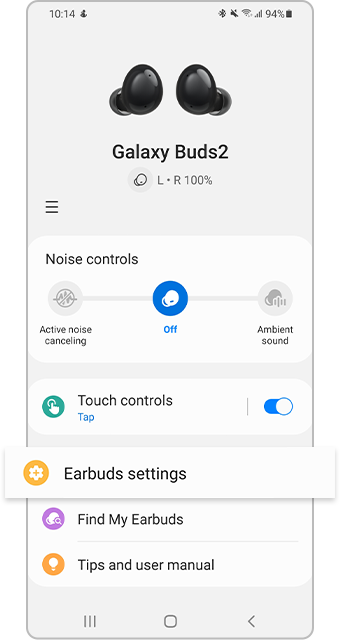
- Tap on the earbuds' name in the app.
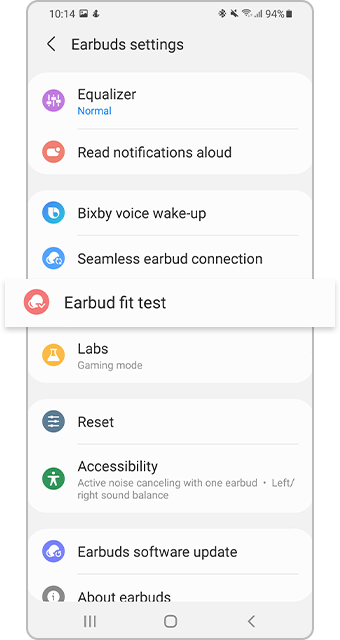
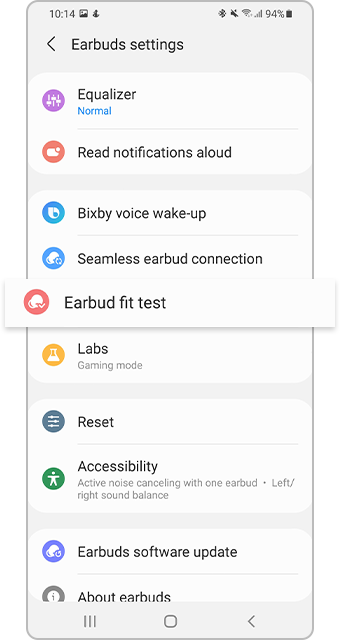
- Select "Earbud fit test" from the settings menu.
- Insert the earbuds into your ears securely.
- Follow the on-screen instructions to complete the test.
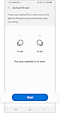
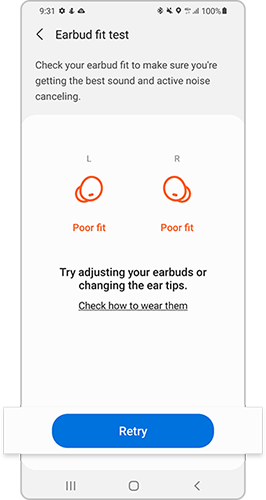
During the test, the earbuds emit a chime sound to analyze sound leakage. The app will recommend the best ear tip size for each ear based on the results.
4. Additional Things to Check
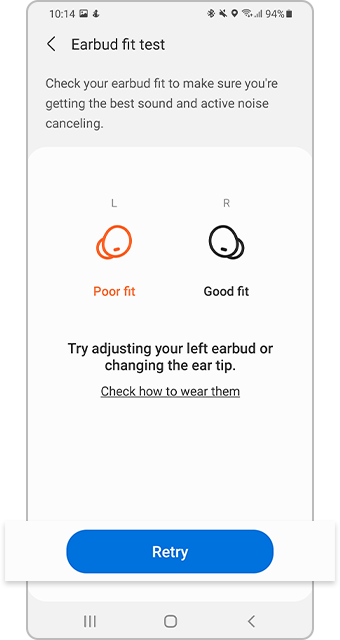
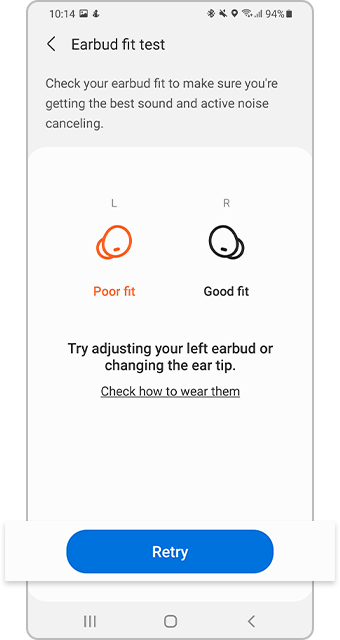
If the fit test shows a "Poor fit," try the following adjustments:
- Change ear tip sizes—your left and right ears may require different sizes.
- Reinsert the earbuds, ensuring they sit comfortably and securely.
- Retry the fit test after making adjustments.
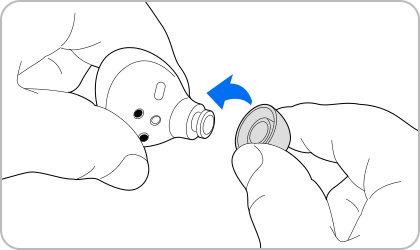
Ensure the ear tips are properly attached to the earbuds. A gap between the ear tip and earbud can cause sound leakage and reduce performance.
5. Why the Issue Happens
- Earbuds may not fit properly due to anatomical differences in ear shape and size.
- Worn-out or incorrect ear tips can compromise fit and sound quality.
- Outdated software versions may limit access to the fit test feature.
6. Related Samsung Support Topics


Thank you for your feedback!
Please answer all questions.