How to fix apps keep crashing and freezing?
Apps may crash or freeze due to unstable internet, outdated software, or low storage space. Follow the steps below to resolve the issue.
Optimize your internet connection
A weak or unstable connection can cause apps to crash.
- Turn off mobile data or your Wi-Fi router for a few minutes
- Restart your device
- Turn mobile data or Wi-Fi back on
- Try switching to a different network if the issue continues
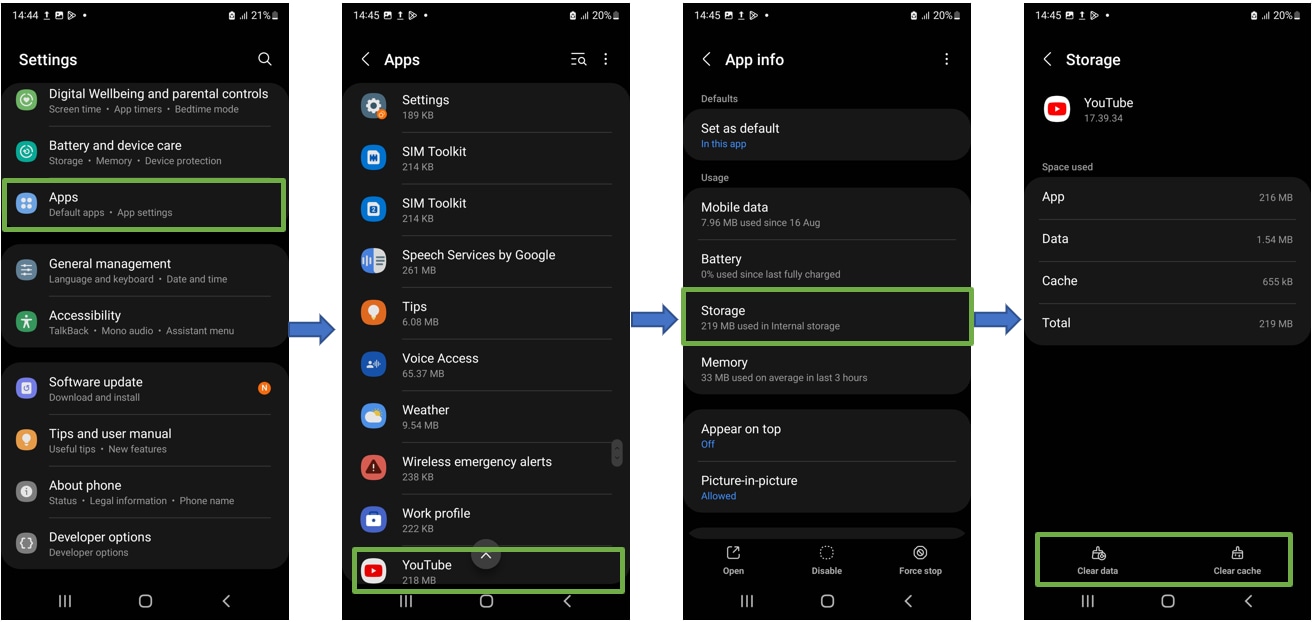
- Clear app cache and data
1. Go to Settings > Apps
2. Select the app causing the issue
3. Tap Storage
4. Tap Clear cache or Clear data
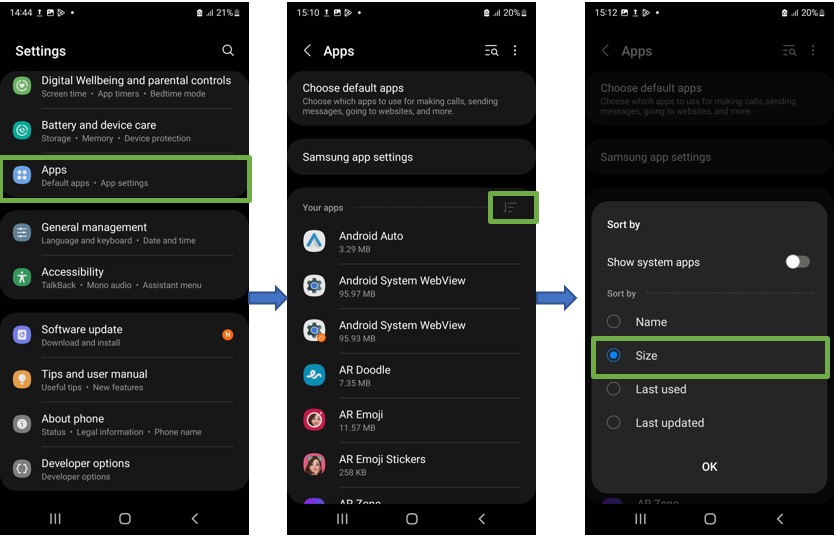
To check storage usage:
1. Go to Settings > Apps
2. Tap the More options menu (three dots)
3. Sort apps by size
To free up space:
1. Go to Settings > Apps
2. Select an app you no longer need
3. Tap Uninstall

If the issue continues, you may need to reset your device.
1. Go to Settings > General management
2. Tap Reset
3. Select Factory data reset
4. Follow the on-screen instructions
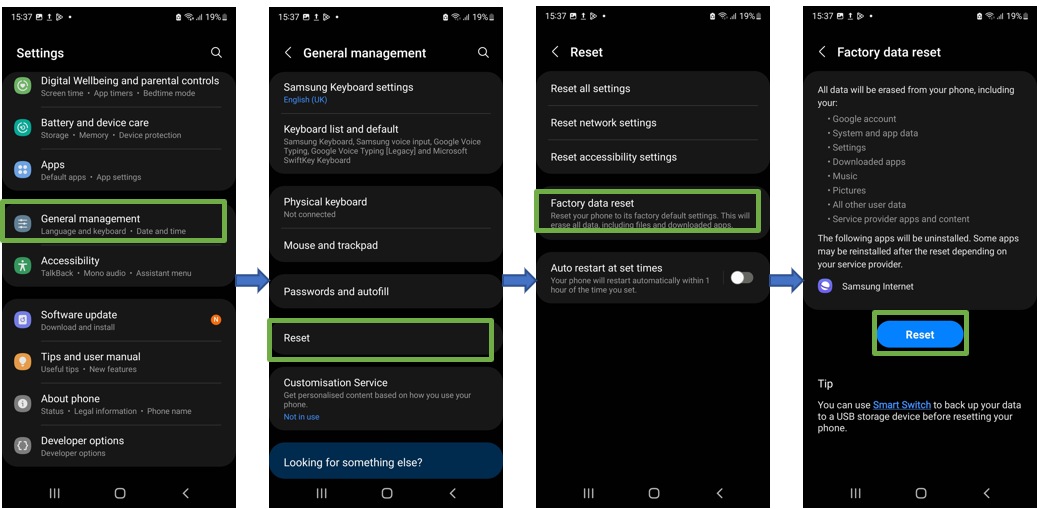
Note: A factory reset will delete all data on your device. Make sure to back up your important data before proceeding.
If you're experiencing unusual behavior on Samsung mobiles, tablets, or wearables, you can send us an error report or ask us a question in the Samsung Members app.
This allows us to take a closer look at what is happening. The data is anonymized and only held for the duration of the investigation. Find out more about sending an error report through the Samsung Members app.
Thank you for your feedback!
Please answer all questions.