How to set up Call settings on Android phone
Android phones provide multiple call settings that allow you to manage blocking, ringtones, call behavior, and how calls appear on screen. Follow the steps below to configure your call settings.
Blocking unknown/hidden numbers
1. Open the Phone app and tap More options (three dots) > Settings.
2. Tap Block numbers.
3. Turn on Block unknown/hidden numbers.
4. Add specific numbers if needed.

Call alerts and ringtones
1. Open the Phone app and tap More options > Settings.
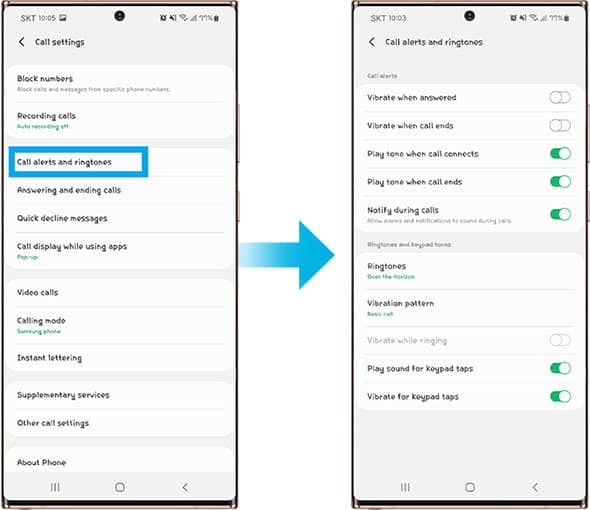
2. Tap Call alerts and ringtones.
3. Adjust ringtone, vibration, and keypad tones.
Answering and ending calls
1. Open the Phone app and tap More options > Settings.
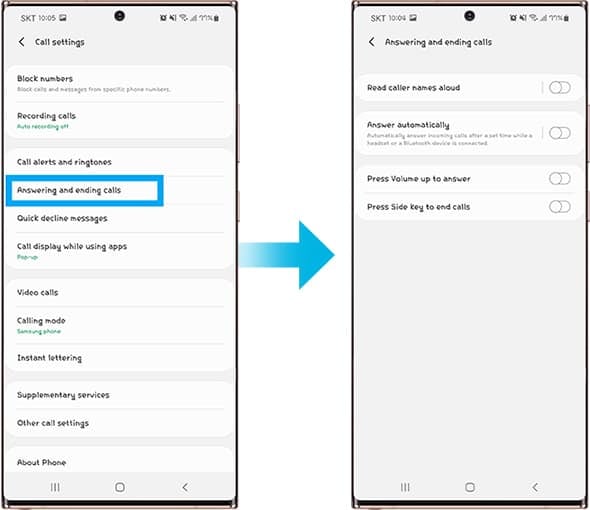
2. Tap Answering and ending calls.
3. Select your preferred call handling options.
Quick decline messages
1. Open the Phone app and tap More options > Settings.
2. Tap Quick decline messages.
3. Edit or customize your rejection messages.

Call display while using apps
1. Open the Phone app and tap More options > Settings.
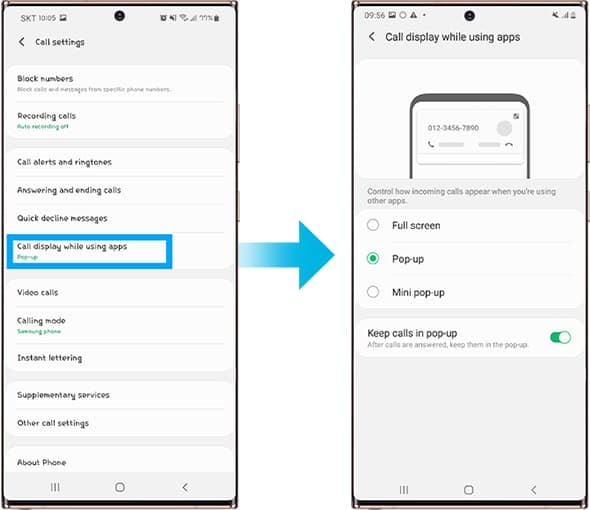
2. Tap Call display while using apps.
3. Choose a display style: Full screen, Pop-up, or Mini pop-up.
4. Enable Keep calls in pop-up if needed.
Notes
- Available options may vary depending on device model, software version, and carrier.
- Some settings may not be supported on all Android devices.

Thank you for your feedback!
Please answer all questions.