How do I use the S Pen on Galaxy S22 Ultra and check its compatibility
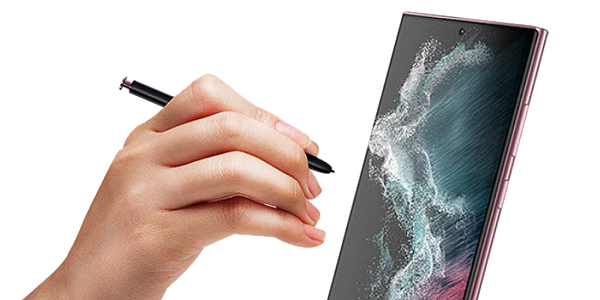
The Galaxy S22 Ultra comes with a built-in S Pen for writing, Air Actions, and remote control features. You can also use it with other devices, but some functions may be limited.
The first built-in S Pen in the S Series
- Remove the S Pen from the device
- Write or draw directly on the screen
- Use handwriting to text to convert writing automatically
Note:
The S Pen allows note-taking, drawing, and quick actions directly on screen.
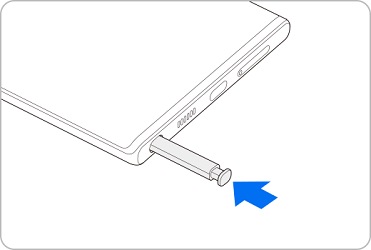
- Insert the S Pen into the slot
- Wait for it to charge automatically
Notes:
Air Actions require the S Pen to be charged.


- To take a series of pictures, press and hold the S Pen button.
- To change the shooting mode, move the S Pen to the left or right while pressing and holding the S Pen button.
- To switch between cameras, press the S Pen button twice.
- Press and hold the S Pen button to launch an app
- Press once to take photos or control media
- Use gestures to control volume or switch modes
Note:
Air Actions use Bluetooth and require connection to the device.


Step 1: Insert the S Pen into the device
Step 2: Open Settings and go to Advanced features
Step 3: Tap S Pen then Air actions
Step 4: Tap More options then Reset S Pen
Note:
Do not remove the S Pen during the reset process.
- Use the S22 Ultra S Pen on other devices for writing only
- Use Note or Tab S Pens on S22 Ultra for writing only
- S Pen from Z Fold3 is not supported
- S Pen Pro supports writing and Air Actions in S Pen mode
Notes:
Air Actions are limited to compatible devices and require Bluetooth support.
Note: Device screenshots and menus may vary depending on the device model and software version.

Thank you for your feedback!
Please answer all questions.