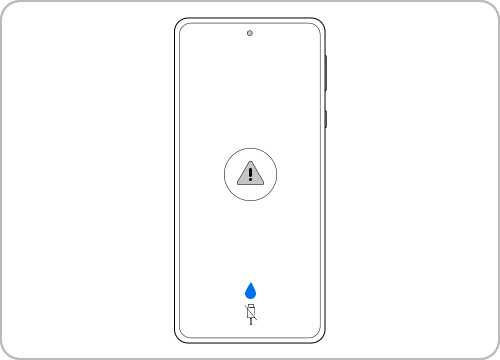
My device displays a water drop icon and will not charge
Last Update date : Apr 28. 2026
If your device shows a water drop icon, it means moisture has been detected in the USB port. Charging is temporarily disabled to protect your device from damage or corrosion.
Note: Do not use excessive force when shaking the device.
Dry the device and USB port
- Unplug the charger from your device.
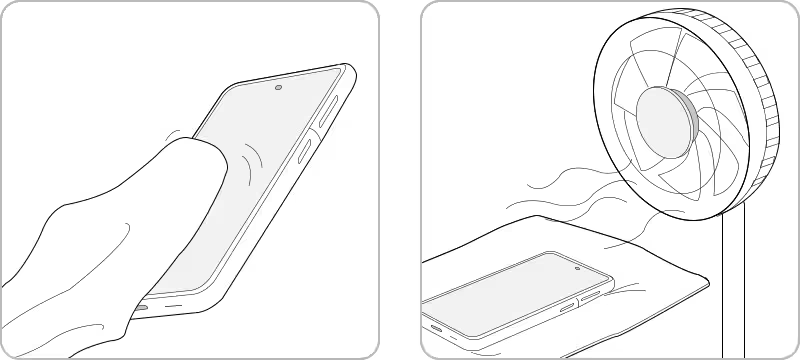
- Gently wipe the device with a dry cloth.
- Lightly shake the device (5–10 times) with the port facing downward to remove moisture.
- Place the device in a well-ventilated area or use a fan to help it dry.
Understand the moisture detection feature
- Devices with IP68 rating include a moisture detection sensor.
- Charging will stop automatically if moisture is detected in the USB port.
- High humidity environments may also trigger the warning even without direct water exposure.
Restart the device after drying
- Once the device is completely dry, restart it.
- Check if the water drop icon disappears and charging resumes.
Clear USB cache if the issue continues
Does your device display the water drop icon even though it is completely dry and free of moisture? If you experience issues with charging even after drying your device, try clearing your USB cache. This should resolve your system error.


Notes
- Ensure the USB port is completely dry before charging.
- Wireless charging can be used while waiting for the port to dry.
- Make sure the device is properly aligned on the wireless charger.
- Foldable devices should be closed and placed correctly on the charger.
- Moisture warnings may appear due to humidity, not just water exposure.
- Device menus may vary depending on model and software version.

Thank you for your feedback!
Please answer all questions.