What are useful audio settings on my Samsung Galaxy phone and how do I use them
Samsung Galaxy phones offer advanced audio features like Separate app sound, Dolby Atmos, and Dual audio. These settings let you control how sound plays across apps and devices.
How to use Separate app sound
Step 1. Open the Settings.
Step 2. Select Sounds and vibration.
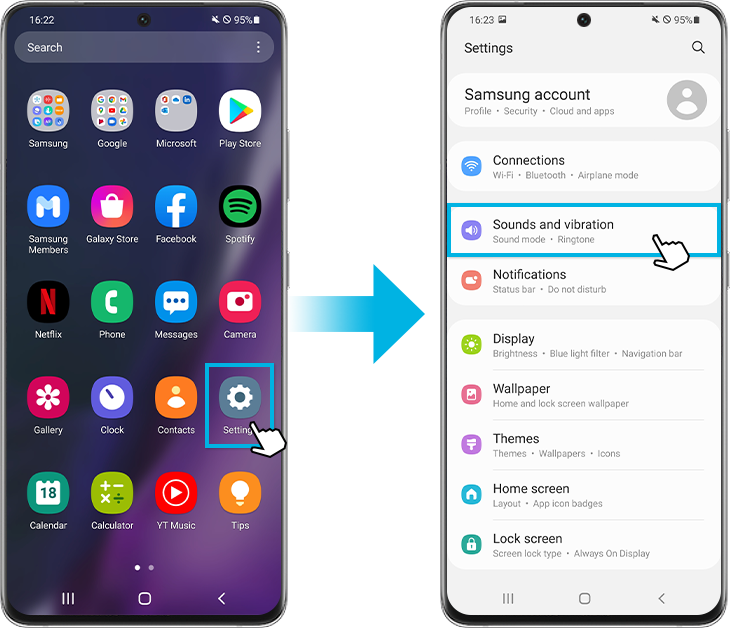
Step 3. Select Separate app sound.
Step 4. Tap the switch to turn on.
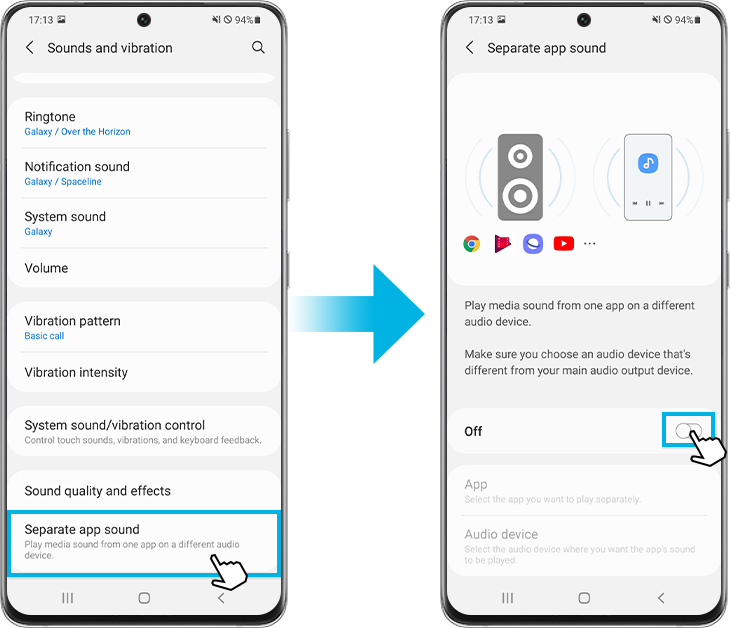
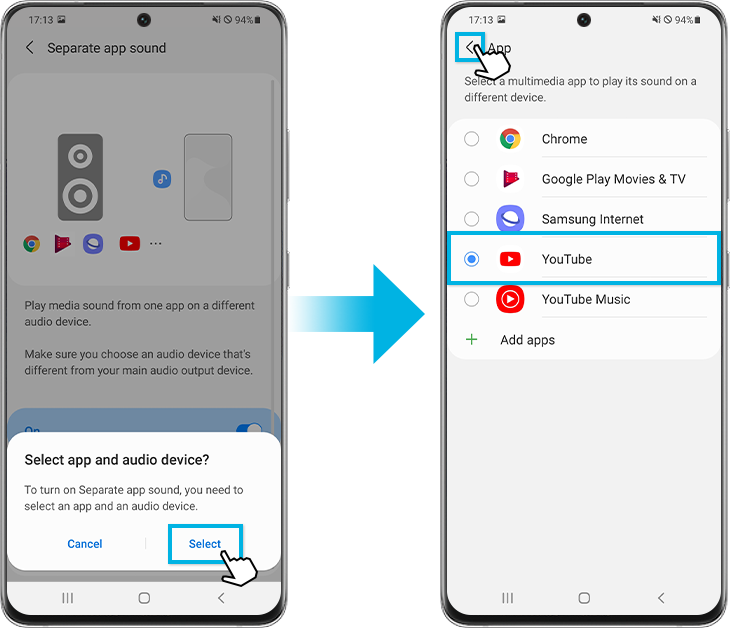
Step 5. Tap Select.
Step 6. Select the multimedia app you would like to hear sound from on a different device. Then, tap Back.
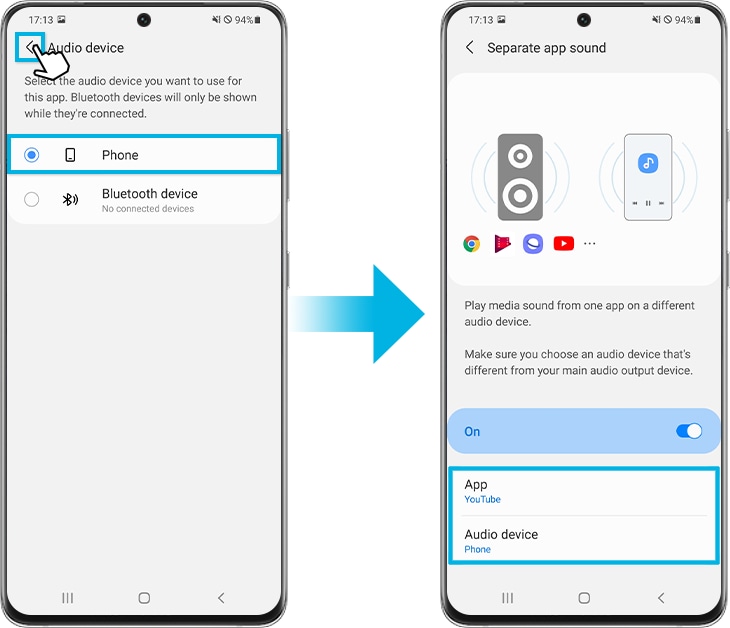
Step 7. Select the Audio device you want to use for this app. Bluetooth devices will only be shown while they’re connected. Then, tap Back.
Note:
This feature lets one app play audio on a different device than the main output.
Personalize sound by setting the device’s sound quality and effects.
Step 1. Open the Settings.
Step 2. Select Sounds and vibration.
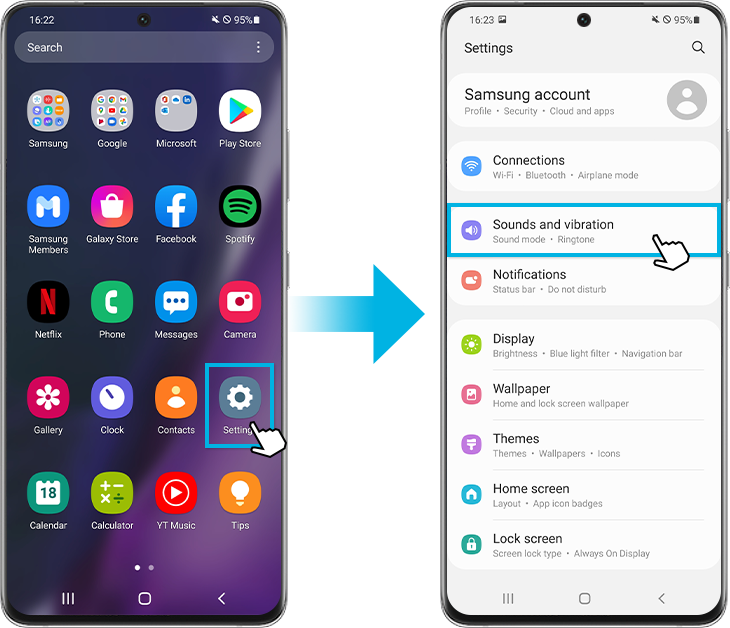
Step 3. Select Sound quality and effects.
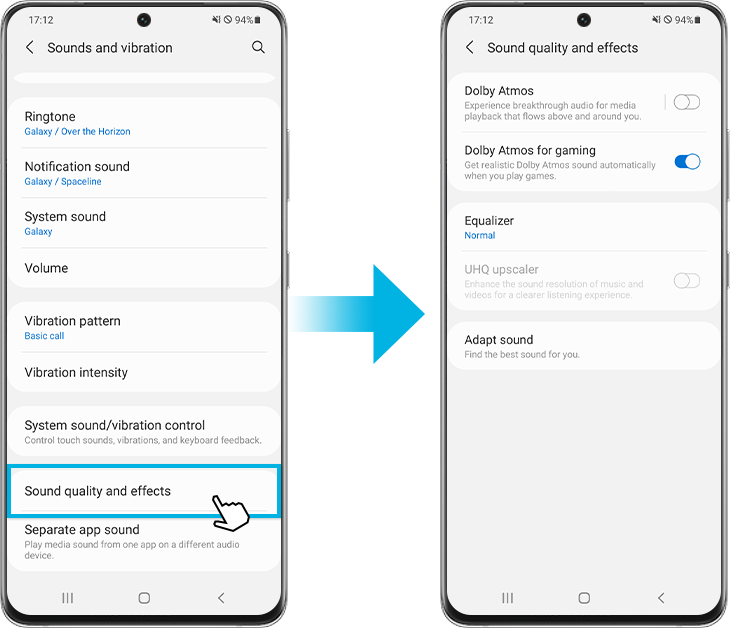
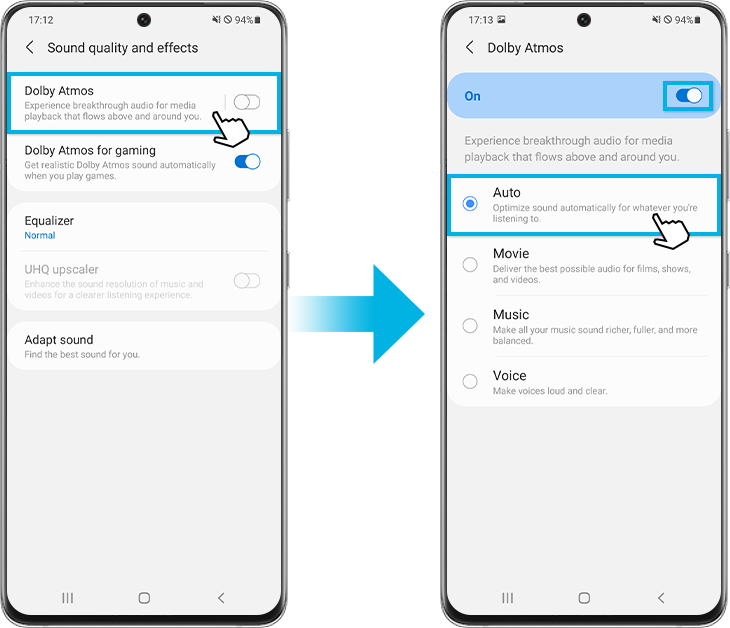
• Dolby Atmos: Select a surround sound mode optimized for various types of audio, such as movies, music, and voice. With Dolby Atmos, you can experience moving audio sounds that flow all around you.
Step 1. Select the Dolby Atmos.
Step 2. Tap the switch to turn on and select your desired option.
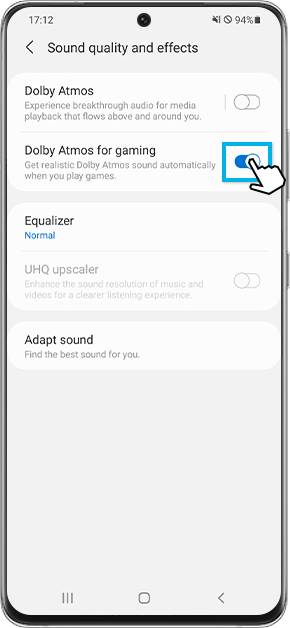
• Dolby Atmos for gaming: Experience the Dolby Atmos sound optimized for games while playing. Tap the switch to turn this on.
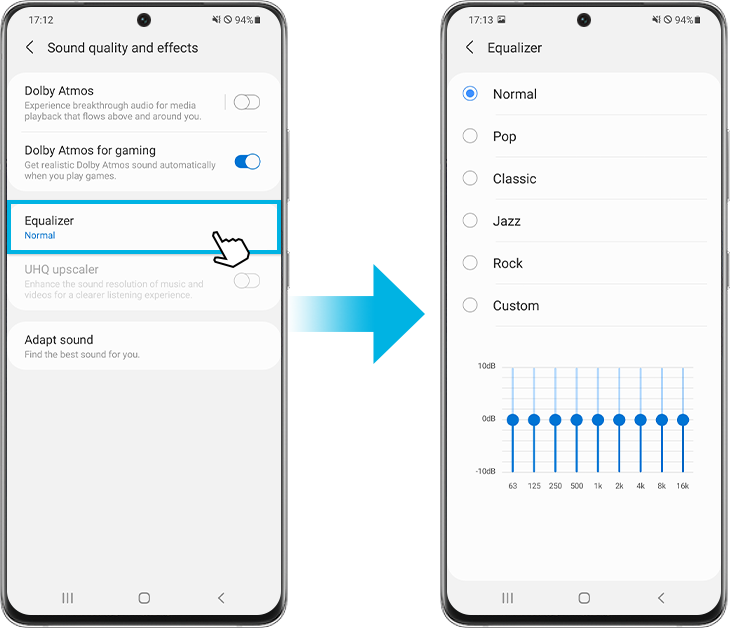
• Equalizer: Select an option for a specific music genre and enjoy optimized sound.
Step 1. Select Equalizer.
Step 2. Select your desired option and adjust frequency.
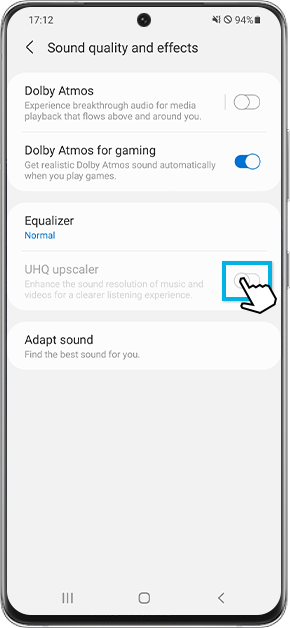
• UHQ upscaler: Enhance the sound resolution of music and videos when using wired earphones. Tap the switch to turn on when wired earphones are connected.
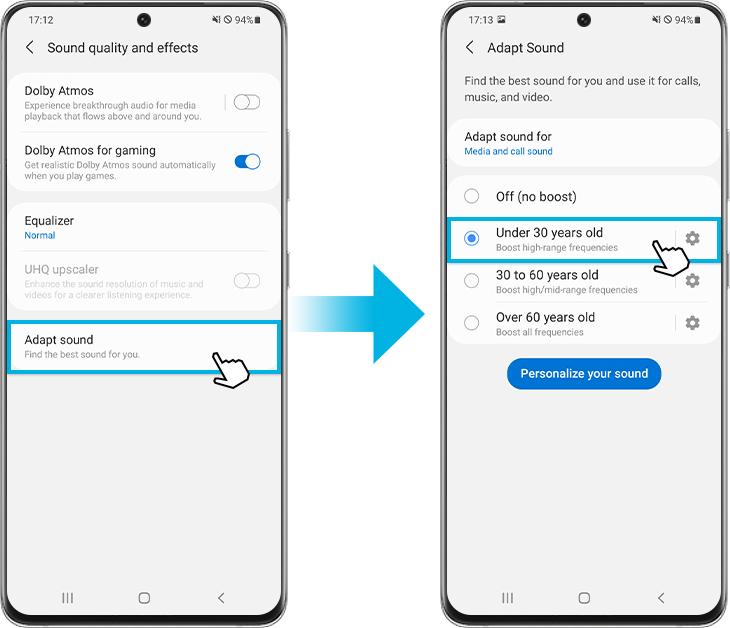
• Adapt sound: Find the best sound for you and use it for calls, music, and video.
Step 1. Select Adapt sound.
Step 2. If needed, tap Allow, and then choose your age group.
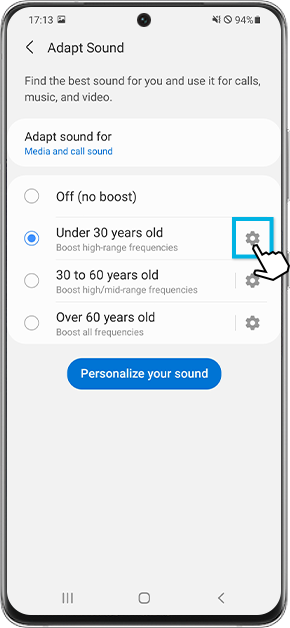
Step 3. To hear a preview of the different options, tap the gear icon and then follow the on-screen instructions.
You can also create a sound profile based on your own hearing ability.
Step 1. Tap Personalize your sound, and then tap Start.
Step 2. Follow the on-screen instructions to take a hearing test and create your very own sound profile.

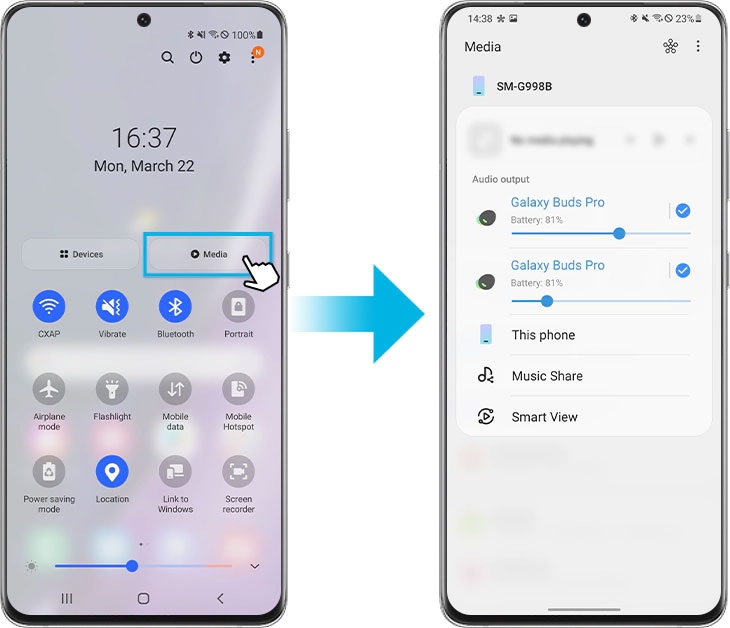
Step 1. Swipe down on your screen to access your Quick Panel and tap on Media.
Step 2. If you have more than one Bluetooth audio device connected, a circle will appear next to each one. Checking off the devices will allow you to play the same media on multiple devices simultaneously and easily adjust the volume.
Notes:
- Dual audio allows playback on two devices at the same time. Availability may vary by model.
- If audio features are missing, check your device model and software version for compatibility.
Note:
- Some features are available for certain models only due to hardware limitations, please check the settings in your device to see whether the function is available or not.
- Device screenshots and menu may vary depending on the device model and software version.

Thank you for your feedback!
Please answer all questions.