Why is the proximity sensor not working on my Samsung phone
Last Update date : Apr 28. 2026
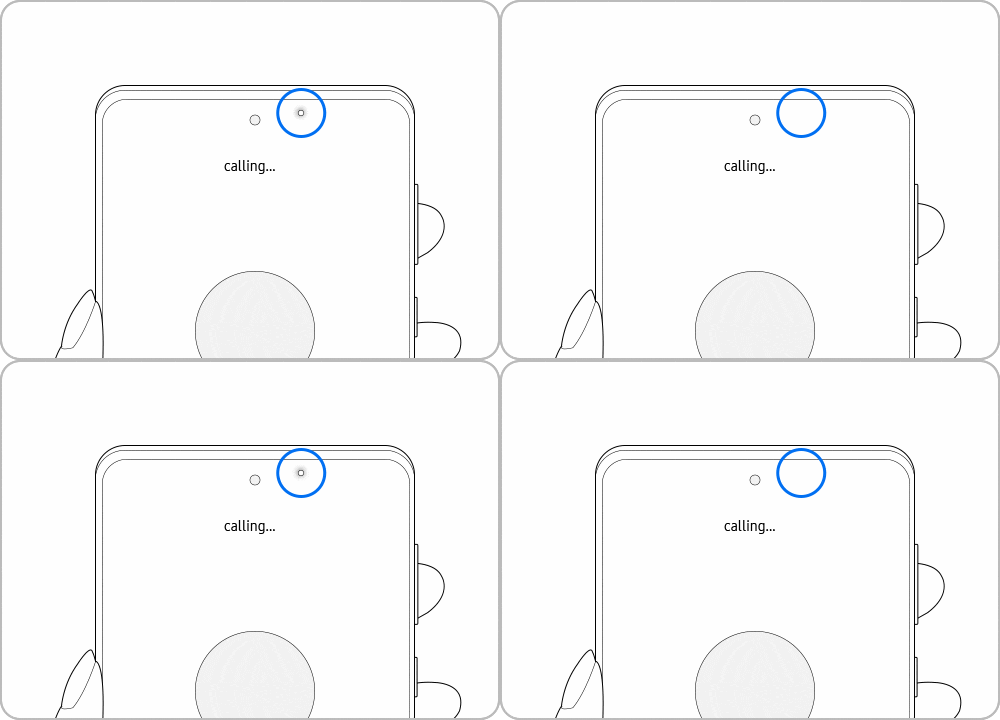
If your Samsung phone screen does not turn off during calls, the proximity sensor may be blocked or affected by settings. Follow these steps to fix the issue.
Check 1. How to set [Double tap to turn on screen]
If the screen doesn’t turn on during or after calls, turn off the Double tap to turn on screen feature.


Check 2. Clean the sensor with a soft cloth
The proximity sensor is located at the top of the phone, although the exact position will vary by model. Clean the front of the device with a clean, soft cloth.
Note:
- The proximity sensor may not work properly due to static electricity from hair or accessories such as screen protectors.
- When talking on speakerphone or through Bluetooth earphones, the proximity sensor will be deactivated. The lock screen (Display Off) function will not work, so you can use your display during the call. The proximity sensor will work on calls not made through speakerphone or Bluetooth.
Check 3. Diagnosing issues with the proximity sensor from the Samsung Members App




Check 4. Remove any accessories
Step 1: Remove any screen protector or case
Step 2: Check if the sensor works without accessories
Check 5. Restart the phone
Step 1: Swipe down from the top of the screen
Step 2: Tap the Power icon
Step 3: Tap Restart
Note: Device screenshots and menus may vary depending on the device model and software version.

Thank you for your feedback!
Please answer all questions.