How to use the PC on TV on your Samsung Smart TV

Last Update date : Apr 27. 2026

The PC on TV feature lets you connect your computer, laptop, or mobile device to your Samsung Smart TV. It allows you to work, study, or use apps like Microsoft 365 directly on the TV screen for a larger and more comfortable viewing experience.

Main ways to use PC on TV

You can access PC on TV through four main options:

  • Easy Connection to Screen (remote PC access)
  • Screen Sharing (PC mirroring via Wi-Fi)
  • Samsung DeX (use your phone as a PC)
  • Microsoft 365 (web-based Office apps)


There are 4 main uses with the PC on TV function.
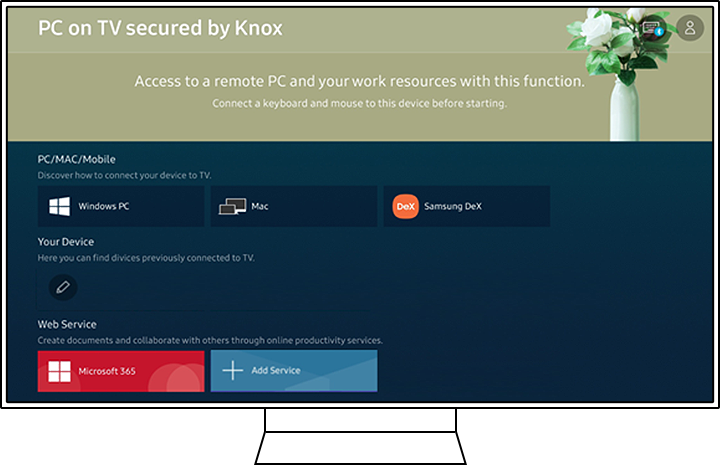
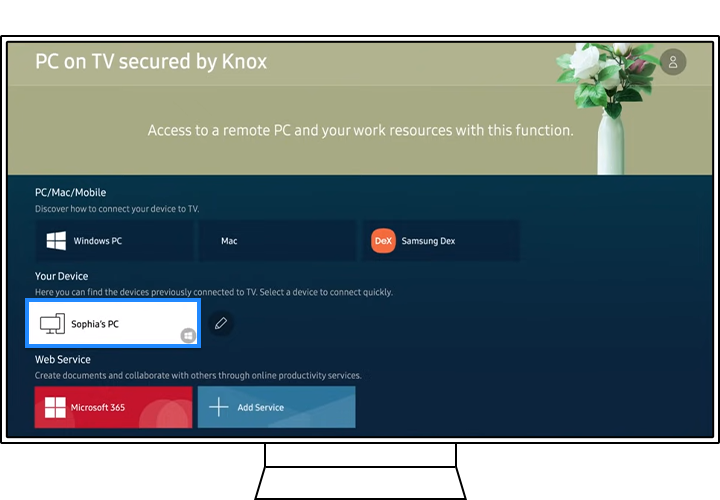
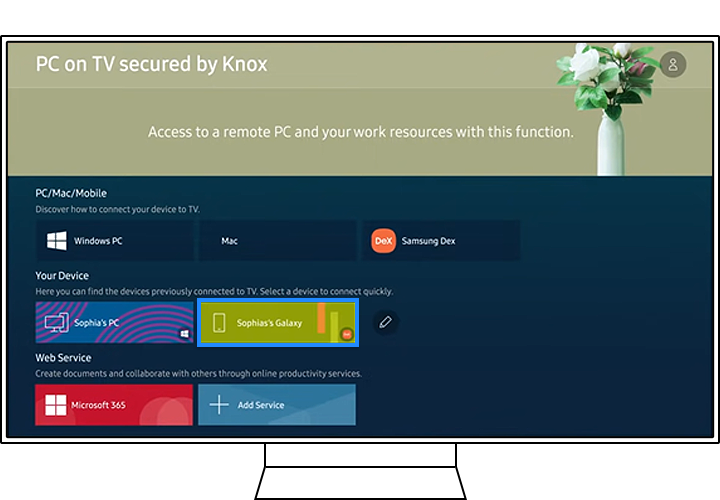
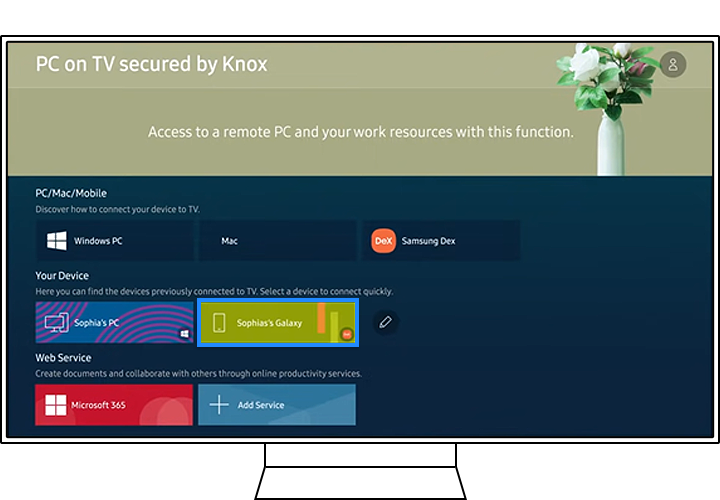
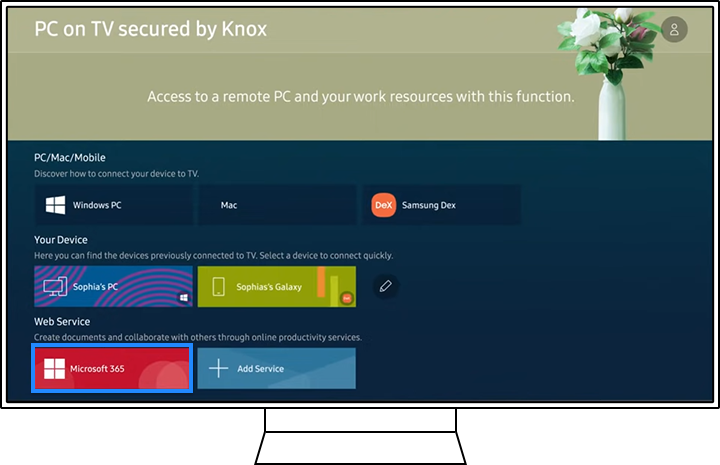
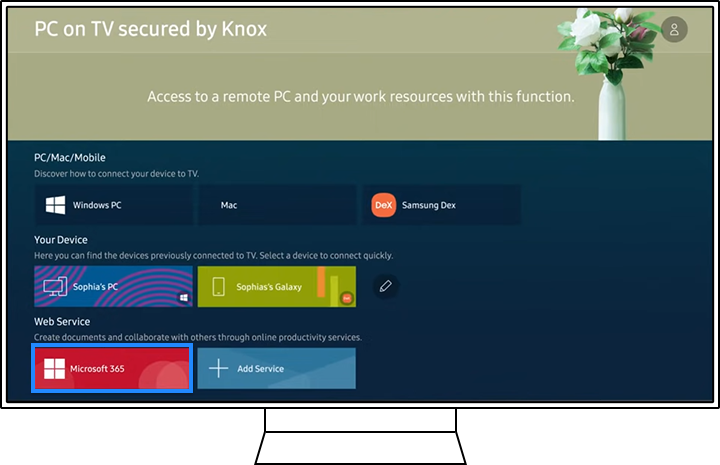
Select Source in the Smart Hub menu, and then choose PC on TV. Select Source in the Smart Hub menu, and then choose PC on TV.

Step 1. Step 1. Select Source in the Smart Hub menu, then choose PC on TV.

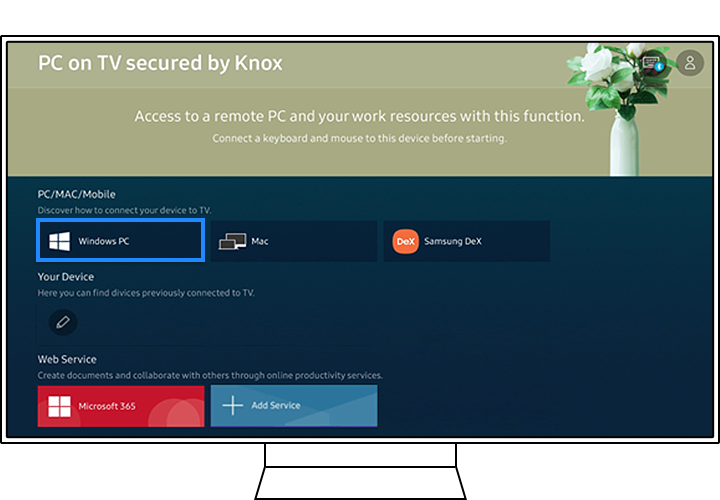
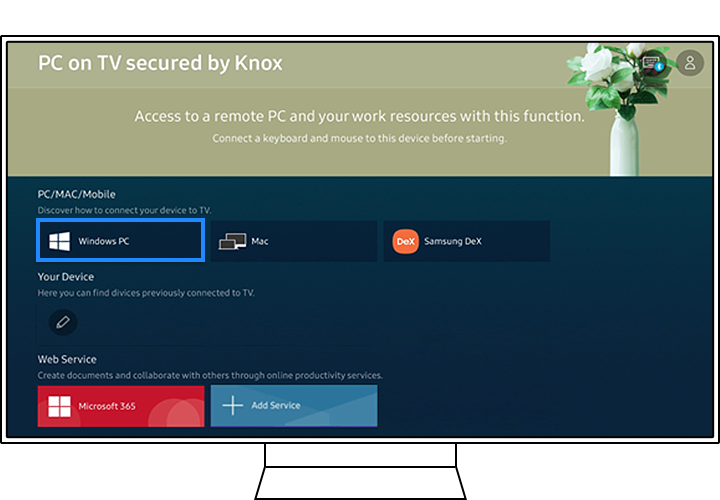
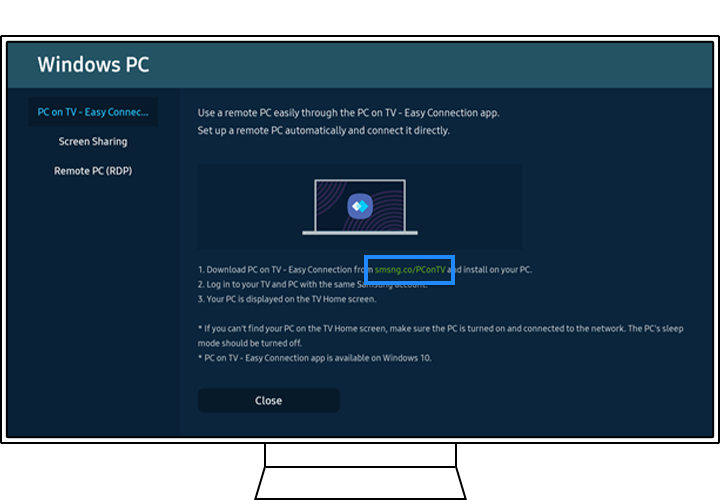
Select Windows PC in the PC on TV menu panel. Then the Windows PC guide will appear. Select Windows PC in the PC on TV menu panel. Then the Windows PC guide will appear.

Step 2. Select Windows PC in the PC on TV menu panel. Then the Windows PC guide will appear.

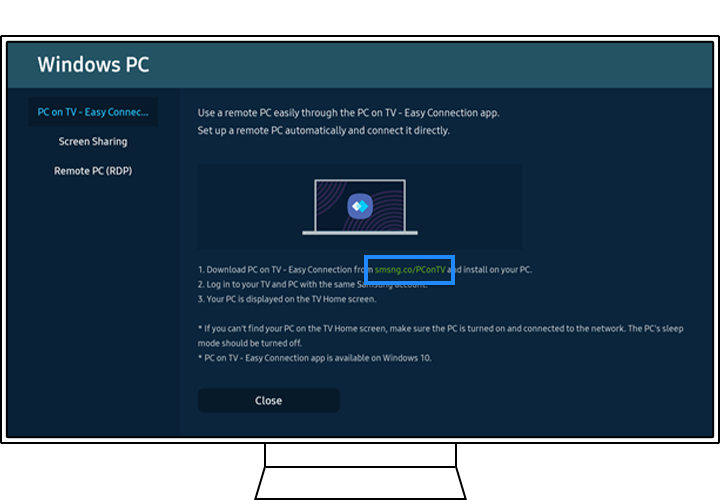
download app download app

Step 3. Download an app to your PC using the link shown on the guide screen.

sign in to samsung account sign in to samsung account

Step 4. Log in with the same Samsung account used on your TV.

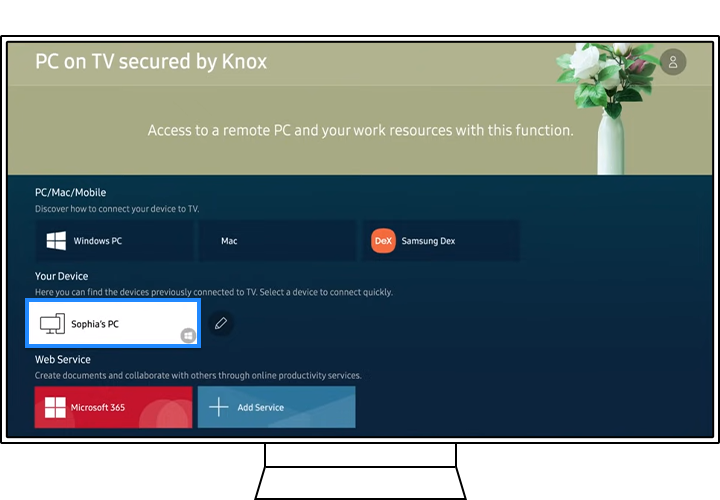
Select the connected PC’s Icon if shown on the TV. Select the connected PC’s Icon if shown on the TV.

Step 5. Select the connected PC icon if it appears on the TV screen.

Note: Easy Connection is supported on Windows 10.

How to activate Screen Share

On your PC, select Management Center or Device in the notifications area of the taskbar. On your PC, select Management Center or Device in the notifications area of the taskbar.

Step 1. On your PC, open Management Center or Device from the notifications area on the taskbar.

Select Connect or Press and then choose your TV to complete the connection. Select Connect or Press and then choose your TV to complete the connection.

Step 2. Select Connect, then choose your Samsung TV to complete the connection.

Note:

Screen Sharing is supported on Windows 10 and mirrors your PC screen in real time.

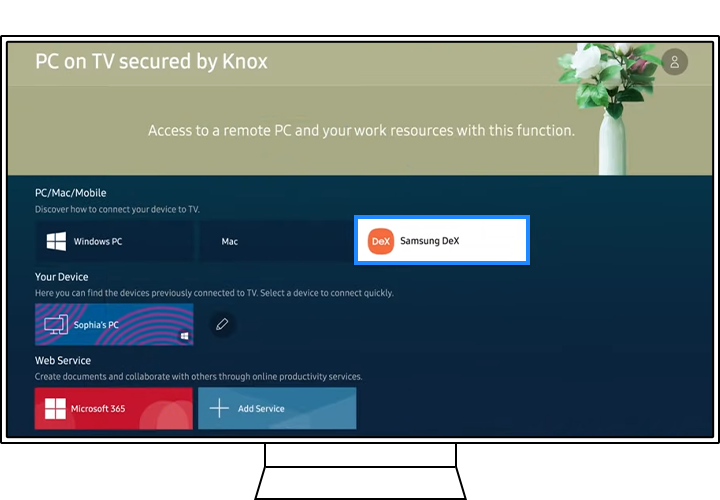
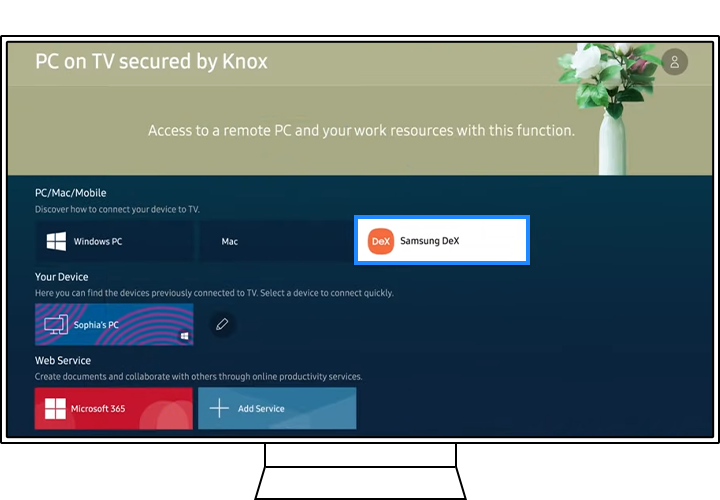
Select Samsung Dex from the PC on TV menu. Select Samsung Dex from the PC on TV menu.

Step 1. Select Samsung DeX from the PC on TV menu.

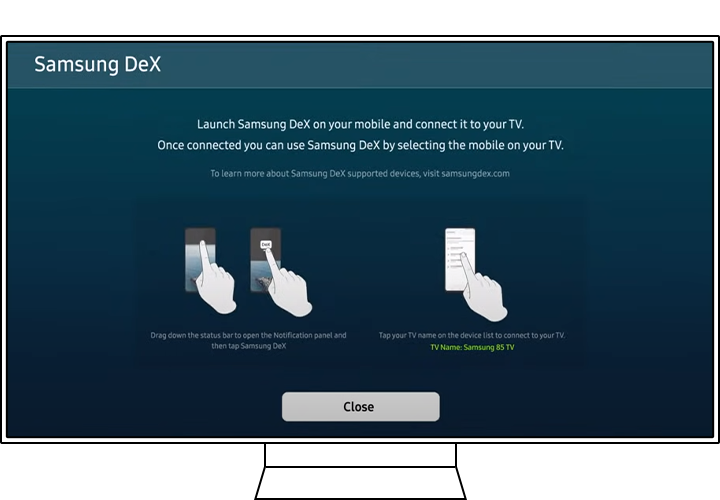
And, the onscreen guide will appear. And, the onscreen guide will appear.

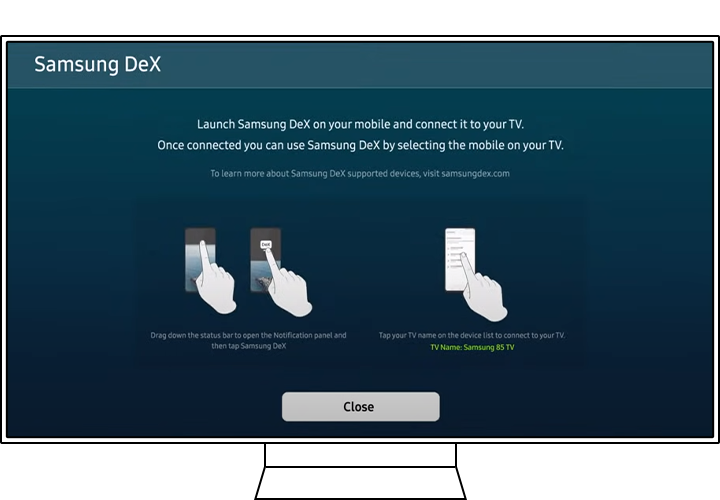
And, the onscreen guide will appear.

As the onscreen guide shows, pull down the notifications bar on your phone and tap the DeX button. As the onscreen guide shows, pull down the notifications bar on your phone and tap the DeX button.

Step 2. Follow the on-screen guide and open the notifications panel on your phone, then tap DeX.
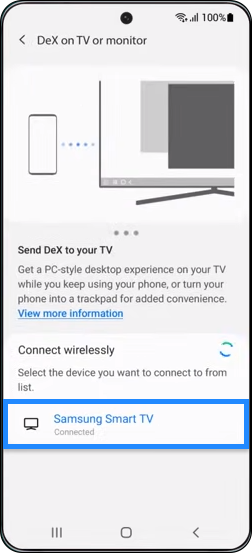
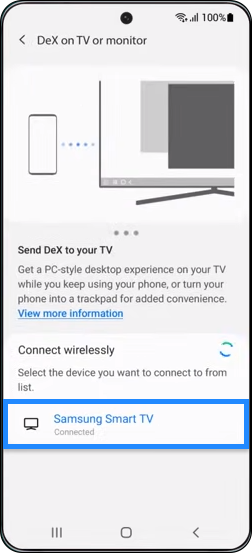
Choose a TV to connect. Choose a TV to connect.

Step 3. Choose a TV to connect to.
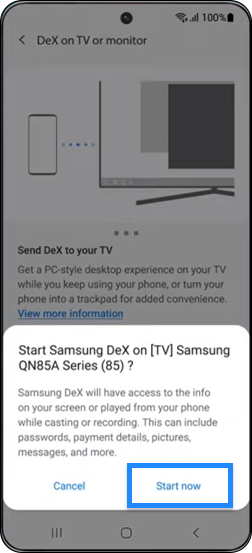
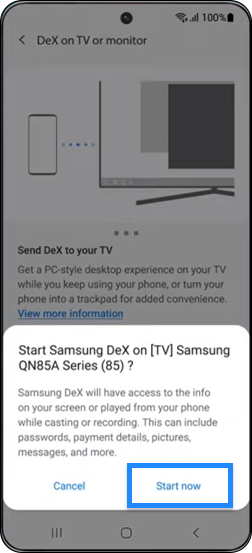
Then tap the Start Now button. Then tap the Start Now button.

Step 4. Tap Start Now.

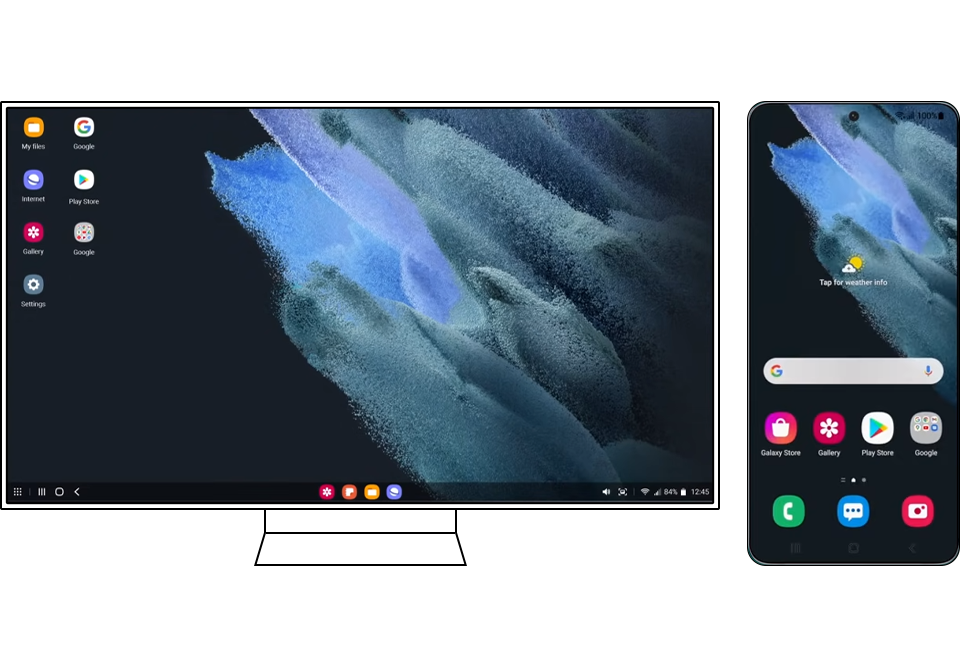
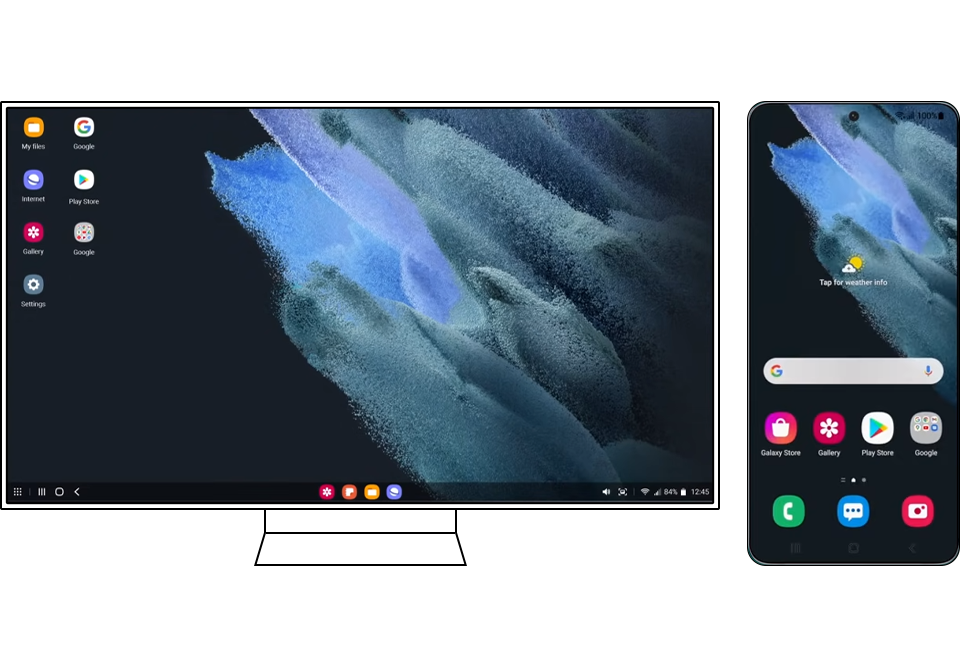
After you complete all of steps above, your TV screen will switch over to your Samsung DeX screen. After you complete all of steps above, your TV screen will switch over to your Samsung DeX screen.

After completing the steps above, your TV will switch to Samsung DeX mode.

Note: Wireless DeX must be supported on your Galaxy device.

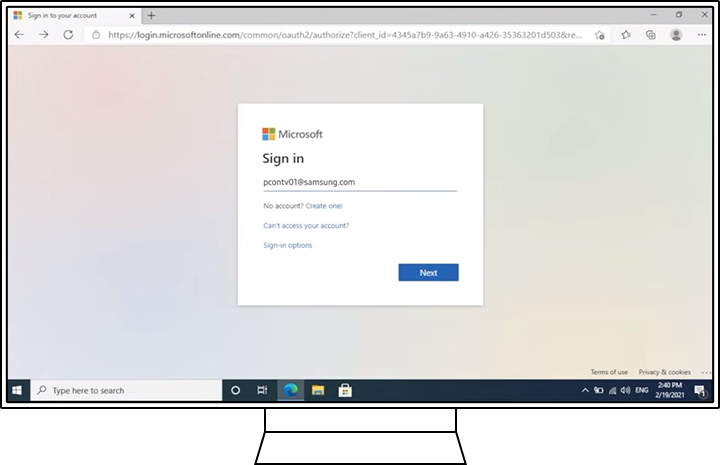
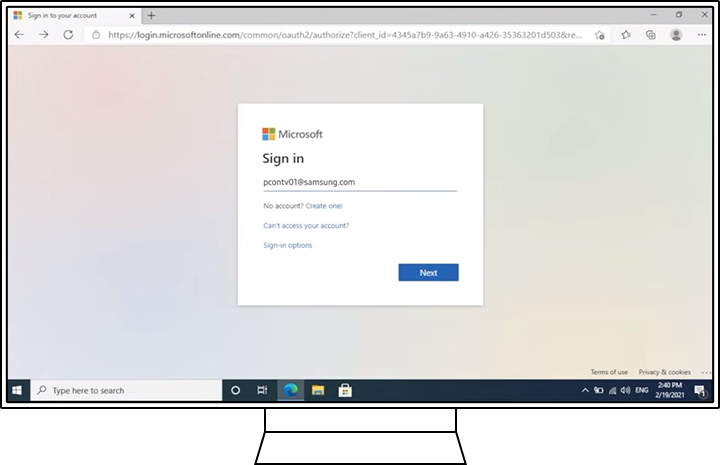
How to access Microsoft 365

Note: This feature works through the TV web browser and cloud services.

Notes

  • Features may vary depending on TV model and software version.
  • A stable Wi-Fi connection is required for best performance.
  • Some features may require a keyboard and mouse for easier control.

Thank you for your feedback!