НОВИНКА

37" ViewFinity S8 S80UD UHD Monitor

{{priceAnchor.priceWrapper.info.noLineOrignal}}

{{priceAnchor.priceWrapper.info.totalPrice}}
{{priceAnchor.priceWrapper.info.totalPriceMonthly}}

{{priceAnchor.priceWrapper.info.ceExchangePrice}}

{{priceAnchor.priceWrapper.info.orignalPriceAddText}}
{{priceAnchor.priceWrapper.info.lowestWasPricetext}}
{{priceAnchor.priceWrapper.info.orignalPrice}}
{{priceAnchor.priceWrapper.info.savePrice}}
{{priceAnchor.priceWrapper.info.disclaimer}}

Оберіть Діагональ

37" ViewFinity S8 S80UD UHD Monitor
37"

{{item.name}}

{{item.summaryPrice}}

Клас енергоефективності

{{price.priceWrapper.info.totalPrice}} {{price.priceWrapper.info.vatText}}

{{price.priceWrapper.info.orignalPriceAddText}}

{{price.priceWrapper.info.lowestWasPricetext}}

{{price.priceWrapper.info.orignalPrice}} {{price.priceWrapper.info.savePrice}}

Earn 5% back in rewards

{{price.priceWrapper.info.walkoutQtyText}}

{{price.priceWrapper.info.homeDeliveryQtyText}}

{{price.priceWrapper.info.salesPitch}}

{{price.priceWrapper.info.text}}

{{price.priceWrapper.info.text2}}

{{price.priceWrapper.info.text3}}

{{price.priceWrapper.info.shippingOrBack}}

{{price.priceWrapper.info.taxPriceDisplay}}

{{upgrade.title}}

{{upgrade.learnMoreCta.text}}

{{upgrade.description}}

{{upgradeResult.displayModelName}}

{{upgradeResult.discountText1}}

{{upgradeResult.description1}}

{{upgradeResult.description2}}

{{offerFinance.title}}

{{offerFinance.learnMoreCta.text}}

{{offerFinance.description}}

{{galaxyForever.title}}

{{galaxyForever.learnMoreCta.text}}

{{galaxyForever.description}}

{{galaxyForeverResult.displayModelName}}

{{galaxyForeverResult.discountText1}}

{{galaxyForeverResult.description1}}

{{galaxyForeverResult.description2}}

Оберіть колір

Оберіть колір скіна

Скін продається окремо

  • {{item.name}}

    Немає в наявності

Сучасний дизайн The Frame

  • {{item.name}}

    Немає в наявності

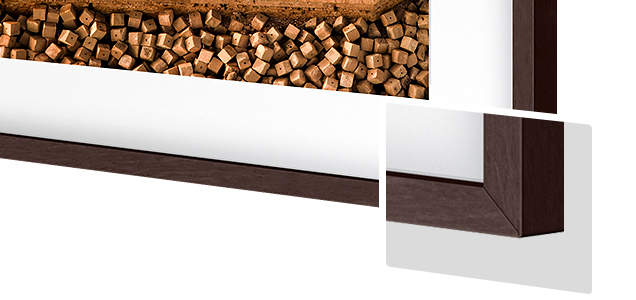
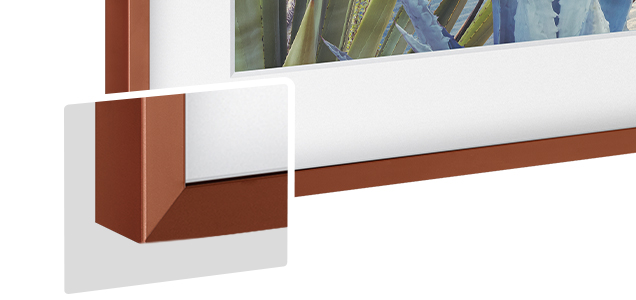
Рамка The Frame зі скошеними краями

  • {{item.name}}

    Немає в наявності

Колір скіна

  • {{item.name}}

    Немає в наявності

{{shippingOrBack.shippingOrBack}}
{{deliveryMessage.deliveryMessage}}

{{tradeIn.title}}

{{tradeIn.learnMoreCta.text}}

{{tradeIn.description}}

You have maximum number of Trade-in in cart already. If you wish to add in Trade-in, please remove from cart.

{{tradeInResult.displayModelName}}

{{tradeInResult.discountText1}}

{{tradeInResult.discountText2}}

{{tradeInResult.discountText3}}

{{tradeInResult.discountText4}}

{{tradeInResult.discountText5}}

{{tradeInResult.discountText6}}

{{tradeInResult.specialDiscountText}}

{{tradeInResult.description}}

{{tradeInResult.contentText}}

Dealer stock quantity

You can check the stock quantity for each region

Please select city

Only {0} left in stock.

Sorry, this product is not currently available in selected city.

{{assuredBuyBack.title}}

{{newAssuredBuyBack.title}}

{{newAssuredBuyBack.learnMoreCta.text}}

{{newAssuredBuyBack.description}}

Please select Samsung Assured Buyback or no coverage

{{care.title}}

{{care.learnMoreCta.text}}

{{care.description}}

Оберіть «Samsung Care+» або «Ні», щоб продовжити

  • {{item.specialText}}

{{warranty.title}}

{{warranty.learnMoreCta.text}}

{{warranty.description}}

{{warrantyResult.displayModelName}}

{{warrantyResult.discountText1}}

{{warrantyResult.description1}}

{{warrantyVd.description}}

{{warrantyVdResult.title}}

{{warrantyVdResult.priceDisplay}}

{{delivery.headline}}

{{delivery.errorMessage}}

Apply

{{deliveryResult.priorityText}}

{{deliveryResult.mainText}}

{{deliveryResult.subText}}
Standard installation charges may apply.Click here for more details.

{{deliveryResult.decText}}

{{item.disclaimer}}

{{tariffOption.headline}}

Дізнатися більше

{{tariffOption.description}}

{{tariffOptionResult.displayModelName}}

{{tariffOptionResult.discountText1}}

{{tariffOptionResult.description1}}

{{tariffOptionResult.description2}}

{{tariffOptionResult.description}}

{{tariffOptionResult.price}}

{{tariffOptionResult.disclaimer}}

{{embedAddon.title}}

{{embedAddon.description}}

  • {{item.imgAlt}} {{item.imgAlt}}
    {{item.iconTitle}}

    {{item.name}}

    {{item.modelCode}}

    {{item.description}}

    {{item.finalPrice}}

    {{item.originalPrice}} {{item.savePrice}} Немає в наявності
  • {{item.imgAlt}} {{item.imgAlt}}
    {{item.iconTitle}}

    {{item.name}}

    {{item.description}}

    • {{item.dotList1}}
    • {{item.dotList2}}
    • {{item.dotList3}}

    {{item.finalPrice}}

    {{item.originalPrice}} {{item.savePrice}} Немає в наявності
{{message.item.offerTitle}} {{message.item.offerTooltip}} {{message.item.linkText}}

{{message.item.tcCTAText}}

{{message.item.periodText}}

{{finance.item.emiText}} {{finance.item.emiText}} {{finance.item.offerTooltip}} {{finance.item.cta.label}}

Характеристики

The monitor is shown with a photo editing software on it, editing an image of colorful balls and blocks. A square inside outlines part of the image, with the text "FHD" on it, showing that FHD would only show part of the screen. The text "QHD" shows that QHD would only show part of the screen. And, the text "UHD" is in the bottom right of the monitor, showing the full size is UHD.

Роздільна здатність UHD

A laptop, monitor, keyboard, mouse and mobile phone are all connected on a desk by a wire. Above the monitor, there are 4 icons, which are USB-C, LAN, Display Port, USB-A and USB-B.

Порт USB-C

The neck stand is inserted down to the bottom stand. And the neck stand turns to the monitor's rear side and it is finally attached to the rear of the monitor. “Easy Setup!’ message is shown. And the next of the monitor “No tools needed” icon included.

Підставка для легкого встановлення

In the top left of a grid, the monitor is shown from the side, with the text "TILT" next to it. The monitor head is shown tilting. The top right of the grid shows the monitor from the top down with the word "Swivel" next to it. The monitor is shown swiveling. The bottom left of the grid shows the front of the monitor on its stand, reading "Height Adjustable Stand."

Ергономічний дизайн

Функції

Розширюйте межі своєї творчості

Основні характеристики

An icon of UHD is shown

Роздільна здатність UHD

Неймовірна чіткість зображення 3840×2160

An icon of USB-C port is shown

Порт USB-C

Зручна передача даних і заряджання через один кабель

An icon of Easy Seup Stand is shown

Підставка для легкого встановлення

Швидке й зручне встановлення

An icon of Ergonomic Design is shown

Ергономічний дизайн

Створено для вашого комфорту

Кожна деталь має значення

Роздільна здатність UHD

Професійна якість зображення. Роздільна здатність UHD (3840×2160 пікселів) забезпечує високу щільність зображення, що дозволяє побачити більше деталей. Це ідеальний вибір для професійної роботи з кольорами, створення складних проєктів, технічних схем або динамічного відеоконтенту. Більше екранного простору й точніше зображення – для ефективнішого робочого процесу.

* Зображення змодельовані з ілюстраційною метою.

Підвищений рівень реалістичності завдяки розширеній палітрі кольорів

1,07 мільярда кольорів і підтримка HDR10

Ширша гама кольорів для досягнення неймовірної точності та деталізації. Технологія HDR10 забезпечує майже безмежну кількість відтінків і реалістичну передачу кольору: темні ділянки стають ще глибшими, а яскраві – ще насиченішими. Кожен візуальний елемент сприймається природно – саме так, як задумав автор.

* Зображення змодельовані з ілюстраційною метою.

Універсальність підключення та зручне налаштування

Порти USB-C і LAN

Все необхідне – в одному пристрої. Порт USB-C підтримує одночасне заряджання (до 90 Вт) і передачу даних. Вбудований LAN-порт забезпечує стабільне дротове Ethernet-з’єднання для ноутбуків.

Керуйте кількома пристроями одночасно

Вбудований KVM-перемикач

Вбудований KVM-перемикач дозволяє одночасно під'єднати два пристрої до монітора й керувати ними з однієї клавіатури та миші. Ви можете обрати зручний режим: розділений екран, «Картинка в картинці» або «Картинка поруч із картинкою». Це ідеальне рішення для багатозадачності, яке допомагає зменшити кількість пристроїв і легко перемикатися між джерелами вхідного сигналу.

1) A monitor is seen, with a keyboard and mouse in front of it,  a PC to its left and a laptop to its right. When KVM switch turns on, the PC is connected by a line reading "Source A", and the left of the monitor screen is activated. When KVM switch turns on once again, the laptop by a line that says "Source B", and the right side of the monitor screen is activated.  2) For PBP, the monitor screen is divided in half, and the left screen is affected by Source A and the right screen is affected by Source B. 3)For PIP, the right screen becomes smaller to represent sub screen, by affecting by Source B. And the rest of the screen becomes the main one, while is still affected by Source A. 1) A monitor is seen, with a keyboard and mouse in front of it,  a PC to its left and a laptop to its right. When KVM switch turns on, the PC is connected by a line reading "Source A", and the left of the monitor screen is activated. When KVM switch turns on once again, the laptop by a line that says "Source B", and the right side of the monitor screen is activated.  2) For PBP, the monitor screen is divided in half, and the left screen is affected by Source A and the right screen is affected by Source B. 3)For PIP, the right screen becomes smaller to represent sub screen, by affecting by Source B. And the rest of the screen becomes the main one, while is still affected by Source A.

Керуйте кількома пристроями одночасно

Вбудований KVM-перемикач

Вбудований KVM-перемикач дозволяє одночасно під'єднати два пристрої до монітора й керувати ними з однієї клавіатури та миші. Ви можете обрати зручний режим: розділений екран, «Картинка в картинці» або «Картинка поруч із картинкою». Це ідеальне рішення для багатозадачності, яке допомагає зменшити кількість пристроїв і легко перемикатися між джерелами вхідного сигналу.

Керуйте кількома пристроями одночасно

Вбудований KVM-перемикач

Вбудований KVM-перемикач дозволяє одночасно під'єднати два пристрої до монітора й керувати ними з однієї клавіатури та миші. Ви можете обрати зручний режим: розділений екран, «Картинка в картинці» або «Картинка поруч із картинкою». Це ідеальне рішення для багатозадачності, яке допомагає зменшити кількість пристроїв і легко перемикатися між джерелами вхідного сигналу.

Просте встановлення без інструментів

Підставка для легкого встановлення

Ідеальне робоче місце – за лічені хвилини. Підставка Easy Setup дозволяє швидко встановити монітор без використання інструментів і гвинтів. А коли потрібно змінити конфігурацію робочого простору, достатньо лише натиснути кнопку – і ви легко адаптуєте монітор до своїх потреб.

The neck stand is inserted down to the bottom stand. And the neck stand turns to the monitor's rear side and it is finally attached to the rear of the monitor. “Easy Setup!’ message is shown. And the next of the monitor “No tools needed” icon included. The neck stand is inserted down to the bottom stand. And the neck stand turns to the monitor's rear side and it is finally attached to the rear of the monitor. “Easy Setup!’ message is shown. And the next of the monitor “No tools needed” icon included.

Більше гнучкості для комфортного перегляду

Ергономічний дизайн

Ідеальне ергономічне рішення для робочого середовища. Налаштуйте екран саме так, як вам зручно: регулюйте висоту, кут нахилу та поворот – для максимального комфорту в будь-яких умовах.

Менше втоми для ваших очей

Технологія інтелектуального захисту зору з міжнародною сертифікацією TUV

Менше втоми – більше продуктивності. Для роботи в нічний час яскравість і колірна температура автоматично підлаштовуються під умови освітлення. Технологія інтелектуального захисту зору від Samsung отримала сертифікат TUV. Режим захисту очей знижує рівень мерехтіння екрана та мінімізує вплив синього світла.

1) The monitor onscreen brightness becomes adjusted following the exterior light's brightness. TUV Rheinland logo with Intelligent Eye Care certified is included on the right bottom of the monitor. The logo shows the site address, www.tuv.com 1) The monitor onscreen brightness becomes adjusted following the exterior light's brightness. TUV Rheinland logo with Intelligent Eye Care certified is included on the right bottom of the monitor. The logo shows the site address, www.tuv.com

Менше втоми для ваших очей

Технологія інтелектуального захисту зору з міжнародною сертифікацією TUV

Менше втоми – більше продуктивності. Для роботи в нічний час яскравість і колірна температура автоматично підлаштовуються під умови освітлення. Технологія інтелектуального захисту зору від Samsung отримала сертифікат TUV. Режим захисту очей знижує рівень мерехтіння екрана та мінімізує вплив синього світла.

Відповідально спроектовано та побудовано

Перероблені матеріали

Монітор Samsung ViewFinity, сертифікований TCO, ENERGY STAR та EPEAT Gold, а також має сертифікат TUV щодо викидів вуглецю, містить понад 50% переробленого пластику. На пластику монітора не використовуються хімічні спреї, що спрощує його переробку. Крім того, стики пакувальної коробки склеєні, а не скріплені скобами, що усуває необхідність видалення скоб під час розбирання.

* Відсоток переробленого матеріалу, який може відрізнятися залежно від компонента, розраховується на основі загальної ваги пластику, використаного у виробі (вага перероблених матеріалів/загальна вага пластику). * Статус реєстрації EPEAT залежить від країни. Будь ласка, перевірте статус реєстрації для вашої країни на сайті www.epeat.net.