Brief widgets on your Samsung Galaxy devices Lock screen
Important Note: The information on this page is for Hong Kong products only. Models, sequences or settings will vary depending on location and/or where the product had been purchased. To be redirected to your local support page please click here.
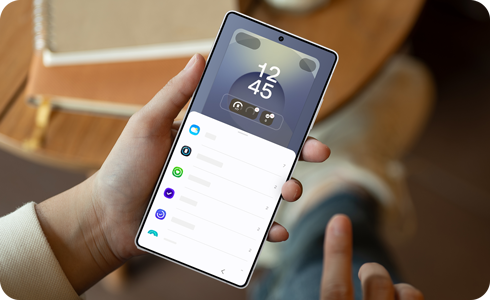
Brief widgets are the widgets you can add to your Lock screen. By choosing the widget style, you can customise your lock screen to make it easy to view information and access apps quickly. Follow this guide to learn how to set up Brief widgets for your device.
Notes:
- The features included in Lock screen widgets have been incorporated in Brief widgets, and the FaceWidget feature has been simplified.
- Some apps added to the lock screen may use their features differently.
- The apps supported by the Brief widget feature may vary over time, as they can be added, removed, or updated.
Each app that is supported by the Brief widgets feature has several style options to choose from. This lets you customise how the information is displayed on your lock screen.
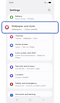

Step 1. Open Settings > Tap Wallpaper and style.
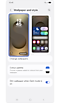

Step 2. Select the current lock screen.
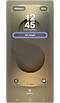

Step 3. Tap Add widgets.
Note: You can also press and hold the lock screen to open the Lock screen settings.
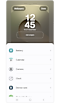

Step 4. Tap the desired Brief widget to view the style options.
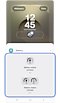

Step 5. Select the preferred widget style.
* Tap the minus icon to remove a widget.


Step 6. Tap Done to apply the changes to your lock screen.
Note: The widget icon may appear differently depending on the software version.
If the above information does not match what your product is showing, you may check the User Manual for your product. If you are unable to solve the problem, please contact us for further assistance.
Thank you for your feedback!
Please answer all questions.
RC01_Static Content : This text is only displayed on the editor page