Galaxy Battery protection feature in One UI 6.1
Important Note: The information on this page is for Hong Kong products only. Models, sequences or settings will vary depending on location and/or where the product had been purchased. To be redirected to your local support page please click here.
Keeping your battery at a full 100% charge for a long time can reduce its lifespan. Learn how to optimise your battery with battery protection features to make it last longer.
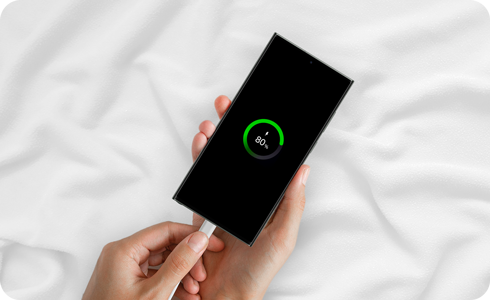
Battery protection features
On Galaxy models with One UI 6.1 or later, there are three battery protection features: Basic, Adaptive, and Maximum.
Basic: When your battery is charged to 100%, charging will stop until the battery level drops down to 95% and then charging will start again.
Adaptive: Use Maximum while you’re asleep and switch to Basic before you wake up. Sleep time is estimated based on your phone usage patterns.
Maximum: Your battery will stop charging when it reaches 80%.
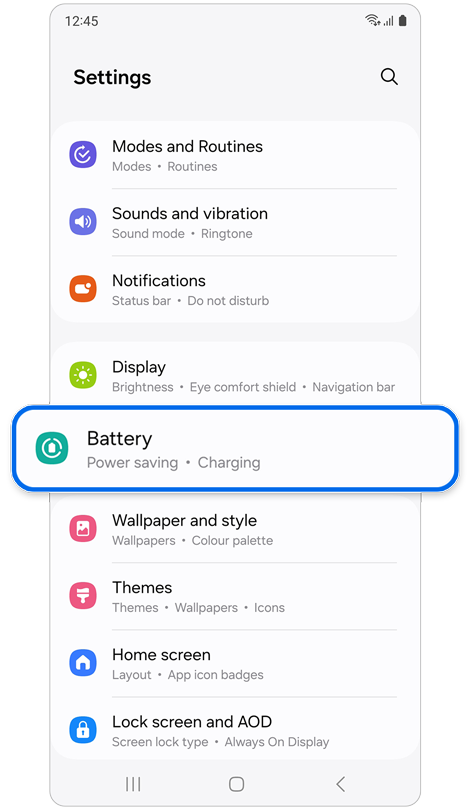
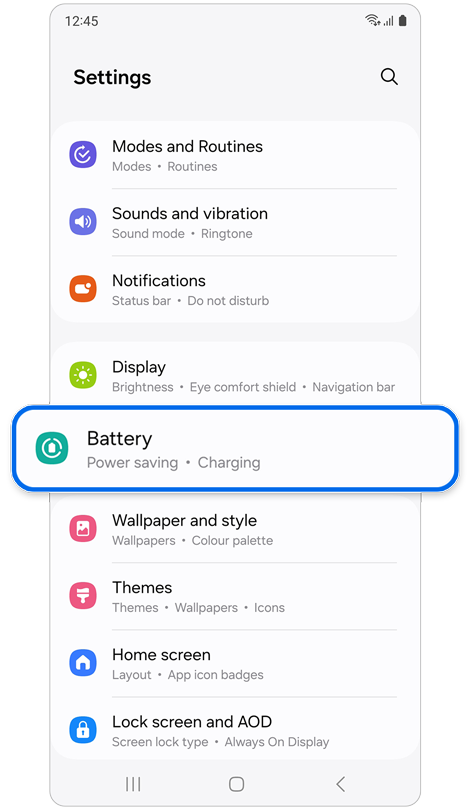
Step 1. Open Settings > Battery.
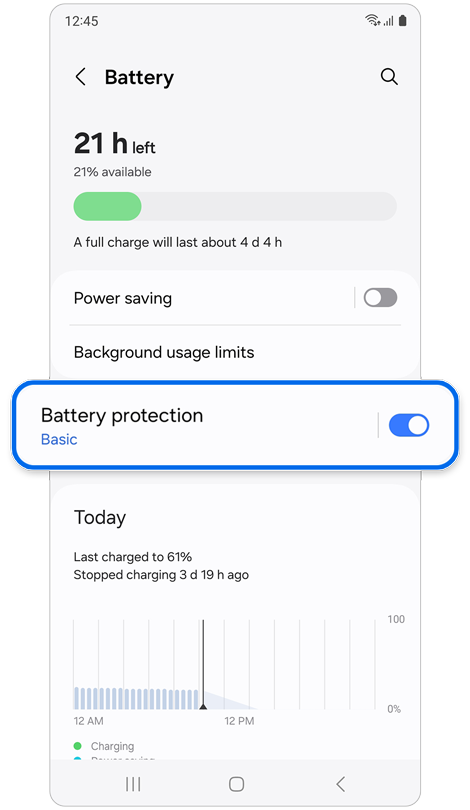
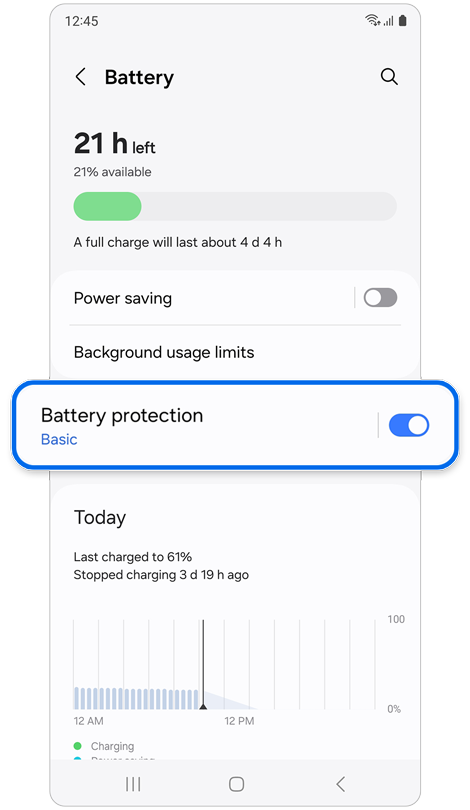
Step 2. Tap Battery protection.
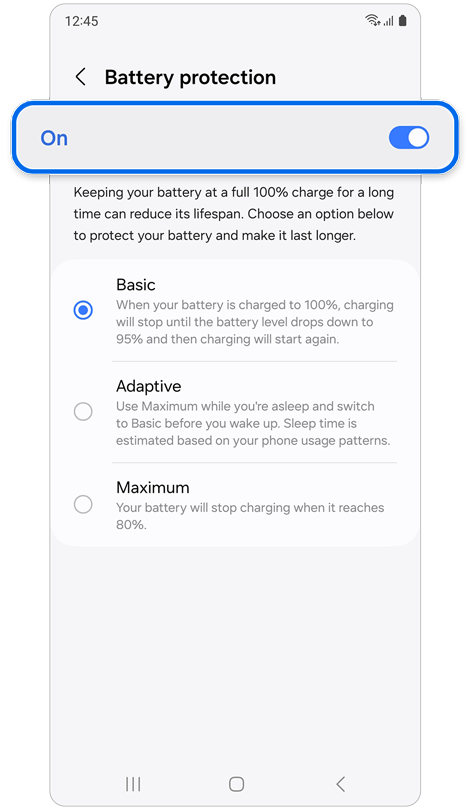
Step 3. Turn on the switch and select an option.
Note: On models with an operating system below One UI 6.1, the only option to extend the lifespan of your battery is to limit the maximum charge to 85%.
Additional information about Adaptive battery protection
This feature automatically recognises your sleep patterns and charges to 100% an hour before you wake up.
* Adaptive battery protection might not work well if you have irregular sleep patterns.
Note: The battery charging optimisation feature may vary depending on the Galaxy phone model.
If the above information does not match what your product is showing, you may check the User Manual for your product. If you are unable to solve the problem, please contact us for further assistance.
Thank you for your feedback!
Please answer all questions.
RC01_Static Content : This text is only displayed on the editor page