How do I change the source and target language and translate a text with "S Translator"?
Important Note: The information on this page is for Hong Kong products only. Models, sequences or settings will vary depending on location and/or where the product had been purchased. To be redirected to your local support page please click here.
To translate a text by S Translator please see the below advice:
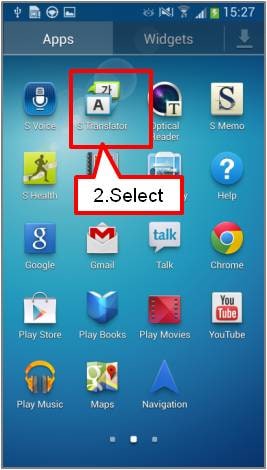
1. On the Home screen, tap Apps

2. Tap on S translator
3.1 Select Source language (the text you want to translate) and
3.2 Target language (the language you want the translation to appear in)

4.1. Tap in the area below the Source language chosen. A pop keyboard will appear to enable you to enter the text you wish to translate
4.2. Tap the translate icon
4.3. Translated output language will be displayed

If the above information does not match what your product is showing, you may check the User Manual for your product. If you are unable to solve the problem, please contact us for further assistance.
Thank you for your feedback!
Please answer all questions.
RC01_Static Content : This text is only displayed on the editor page