How to customize your frequently used menus on your Samsung TV
Important Note: The information on this page is for Hong Kong products only. Models, sequences or settings will vary depending on location and/or where the product had been purchased. To be redirected to your local support page please click here.
Watch the video on "How to customize your frequently used menus on your Samsung TV":
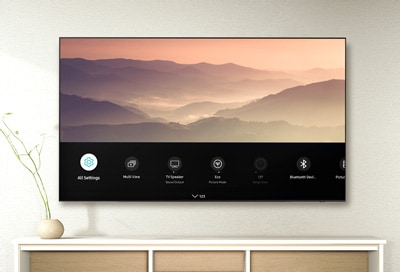
You can rearrange and organize your frequently used menus on your 2023 Samsung TV for quick and easy access.
Customize menus and keep your favorite features at your fingertips to create a TV interface that aligns seamlessly with your entertainment needs. Follow these instructions to explore how to make every interaction an efficient yet personalized viewing experience.

Continuing to press this button will let you cycle through Settings, the virtual number pad, and the color (option) pad.


This button may vary depending on your TV model, but it is usually represented by an icon or labeled accordingly.


If the above information does not match what your product is showing, you may check the User Manual for your product. If you are unable to solve the problem, please contact us for further assistance.
Thank you for your feedback!
Please answer all questions.
RC01_Static Content : This text is only displayed on the editor page