How to disable the Voice Guide feature on Samsung Smart TVs
Important Note: The information on this page is for Hong Kong products only. Models, sequences or settings will vary depending on location and/or where the product had been purchased. To be redirected to your local support page please click here.
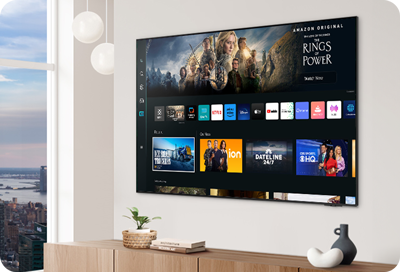
Samsung Smart TVs include a Voice Guide feature, which will verbally explain on-screen options, settings, and other content. The Voice Guide feature can be disabled on your Samsung Smart TV using two different methods. Follow the steps below to easily disable Voice Guide on your Samsung TV.
Step 1.
Go to Settings > All Settings.


Step 2.
Select General & Privacy.


Step 3.
Select Accessibility.


Step 4.
Select Voice Guide Settings.


Step 5.
Turn off Voice Guide to disable.


You can also access the Accessibility Shortcuts Menu quickly without going through the Settings path.
Step 1.
Press and hold the Volume button on your Smart Remote for 2 seconds to access the Accessibility Shortcuts menu.


Step 2.
Turn off Voice Guide to disable.


Watch the video on "How to disable the Voice Guide feature on Samsung Smart TVs":
Note: The screens displayed in the video are for illustrative purposes.
Checking other Voice Response settings
If your TV still provides a verbal response after disabling the Voice Guide feature, please check if the voice response is coming from other voice-related functions such as Bixby or Vision AI Companion. Follow the steps below to check the settings and turn off the feature if necessary.
If you have enabled Bixby, the intelligent voice assistant on your TV, it may respond to your command by voice. Try switching the Voice Response setting off and see if it can solve the problem.
Step 1.
Go to Settings > All Settings
Step 2.
Select Advanced Features.


Step 3.
Select Voice.


Step 4.
Select Bixby Settings.


Step 5.
Go to Bixby Feedback.


Step 6.
Try turning off Voice Response to see if it can solve the problem.


Note: Bixby Feedback will not be available if your Bixby Language is set to Cantonese.
If you have enabled Vision AI Companion, the new AI assistant on your TV, it may response to your command by voice. Try switching the Spoken Response setting off and see if it can solve the problem.
Step 1.
Press and hold the Home button on your Smart Remote for 2 seconds to enter Vision AI Companion Home screen.


Step 2.
Navigate to the right and select Settings.


Step 3.
Try turning off Spoken Response to see if it can solve the problem.


Note: Vision AI Companion is not supported at this moment if your Bixby language is Cantonese.
- Device screenshots, function availability, settings paths, menu options and layout may vary depending on the model, software version, region, service provider, and network settings.
- A Samsung Account is required to access the full range of smart features available through your device including network-based smart services and apps.
- Agreement of the Smart Hub Terms and Conditions and Privacy Policy is required before use.
If the above information does not match what your product is showing, you may check the User Manual for your product. If you are unable to solve the problem, please contact us for further assistance.
Thank you for your feedback!
Please answer all questions.
RC01_Static Content : This text is only displayed on the editor page