How to resolve issues with no sound when connecting a Samsung TV and soundbar using HDMI
Important Note: The information on this page is for Hong Kong products only. Models, sequences or settings will vary depending on location and/or where the product had been purchased. To be redirected to your local support page please click here.
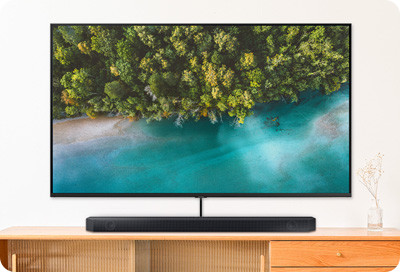
If you cannot hear any sound coming from your Samsung soundbar when it is connected to a Samsung TV using an HDMI cable, there are a few steps you can take that may help diagnose and solve the issue.
Watch the video on "How to resolve issues with no sound when connecting a Samsung TV and soundbar using HDMI":


Notes:
- On 2024 and later models, you will need to select the ARC or eARC source.
- Depending on the model, you can also change the source using the soundbar's Multi Function button or Source button.
If you select D.IN mode, the soundbar will automatically set the source to TV ARC or TV eARC after a few seconds.


If you still do not hear any sound, please follow the next steps.


If you still do not hear any sound after connecting using eARC, you will need to check the HDMI-eARC Mode setting.


- The images and available functions may vary depending on the model, country, service provider, and network settings.
- The screens displayed in the video are for illustrative purposes.
- The UI is subject to change without prior notice.
- A Samsung Account is required to access to full range of smart features available through your device including network-based smart services and apps.
- Agreement of the Smart Hub Terms and Conditions and Privacy Policy is required before use.
If the above information does not match what your product is showing, you may check the User Manual for your product. If you are unable to solve the problem, please contact us for further assistance.
Thank you for your feedback!
Please answer all questions.
RC01_Static Content : This text is only displayed on the editor page