How to find the Android OS version in Galaxy devices
इस लेख को हिंदी में देखने के लिए कृपया यहाँ क्लिक करें
If you're trying to figure out what version of the Android operating system your device is running, there are a couple of ways you can check. You might be trying to download an app that there is a recommended OS version for or trying to get an idea of what features are available for your device. You can also take a look at the page on How to check for software updates - however please note that upgrades to the operating system are device dependent, and you may not be able to update to the latest OS if your device is a couple of years old.
Note: Available screens and settings may vary by software version and phone model.
| Android version | Marketing name |
|---|---|
| 16 | Android 16 |
| 15 | Android 15 |
| 14 | Android 14 |
| 13 | Android 13 |
| 12 | Android 12 |
| 11 | Android 11 |
| 10 | Android 10 |
| 9 | Android Pie |
| 8 | Android Oreo |
| 7 | Android Nougat |
| 6 | Android Marshmallow |
| 5 | Android Lollipop |
| 4.4 | Android Kitkat |
| 4.3 | Android Jellybean |
| 4.2 | |
| 4.1 | |
| 4 | Android Ice cream sandwich |
| 2.3 | Android Gingerbread |
The Android Operating system is software that is developed by Google, and then customised for Samsung devices. The names might sound like gibberish, but they're just named after candy and sweets following the alphabet.


1. Tap on Settings.


2. Select Software update.


3. Tap on more option at top right.


4. Select Software information.


5. You can find the Android version currently running in your device.
You've probably got your home screen organised just the way you like it, with a nice background and widgets - so it can be tricky to tell the OS just by looking. The easiest way to quickly determine what version of Android your mobile phone is running is to check how the Settings app actually looks. It's largely the same across all devices and it's one of the only apps that hasn't changed over time. Open the Settings app on your phone and compare with the images below to find out what Operating System your device is running:
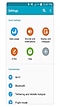

Android version - 6
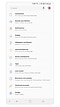

Android version - 7 & 8


Android version - 9
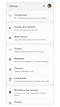

Android version - 10
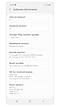

Android version - 11


Android version - 12
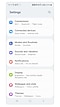

Android version - 13
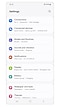

Android version - 14
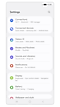

Android version - 15


Android version - 16
Thank you for your feedback!
Please answer all questions.
Contact Info
Digital Service Center
![DSC icon image]()
![DSC icon image]()



Scan to access
WhatsApp
![WhatsApp image icon]()
![WhatsApp image icon]()


Languages offered : English/ हिन्दी/ Indian Regional Languages
Available 24 Hours / 7 days
WhatsApp@ 1-800-5-726-7864

Scan to access


Face-to-Face Support
![Image of location icon]()
![Image of location icon]()


Remote Service
![Image of RM icon]()
![Image of RM icon]()


Phone Support (India)
![image of phone dialer]()
![image of phone dialer]()


Phone Support (Bangladesh, Sri Lanka, Nepal)
![Image of caller icon]()
![Image of caller icon]()
RC01_Static Content : This text is only displayed on the editor page