How to update the Samsung TV's firmware using a USB drive
इस लेख को हिंदी में देखने के लिए कृपया यहाँ क्लिक करें
It is very important to update your TV’s firmware to the latest version. You can update your TV through a USB drive or network, and even if neither method works, there is also a way to use Remote Management. Follow the guide below to update the TV firmware via a USB drive.
Keep the firmware up to date
There are some benefits that you can get when you update your TV’s firmware. First and foremost, it is able to add newly released features to your TV. Even if your TV is not the newest model, you can use the latest features through the firmware update. It can also fix various bugs. The new firmware may contain a solution to your problem.

Note: Most TVs will get updates that offer new features for about two years. Updates after that are generally for fixing issues.
How to update using a USB drive
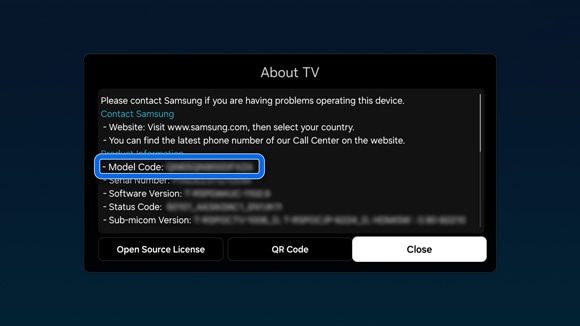
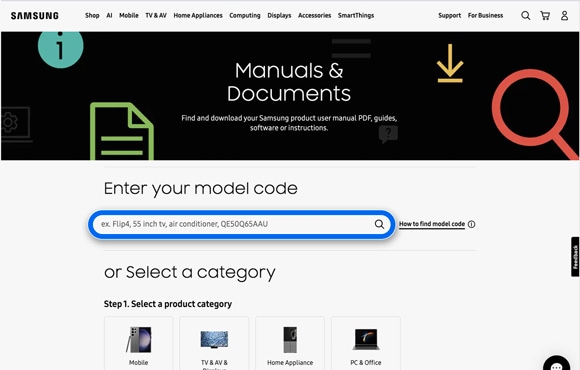
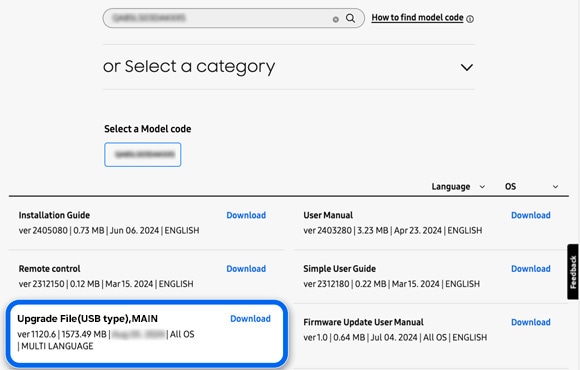
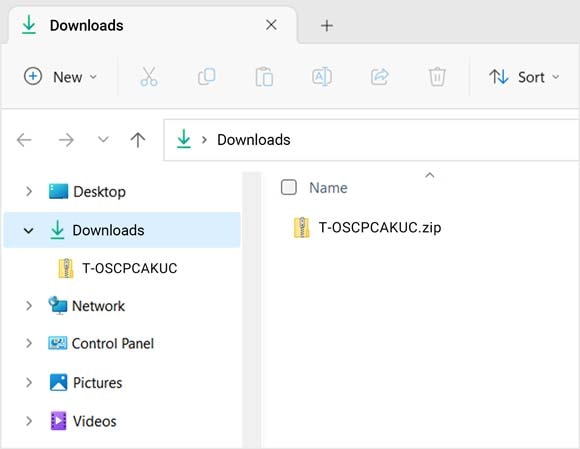
If your TV is not connected to the Internet, it is a good idea to update your TV via a USB drive. For this, you will need a USB drive and a PC with an Internet connection. Try the following steps.
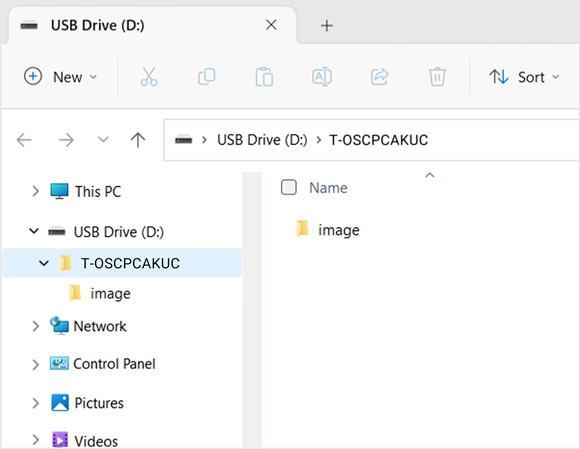

Note:
- Do not turn off the TV, unplug the power, or pull out the USB drive during the update. It could cause a firmware error.
- You can find the model code in the Support menu > About this TV. You can also check it by visiting the page.
- The device screenshots and menu are only a sample in English - they are also available in the language of your country.
Other topic you may interested in:
Thank you for your feedback!
Please answer all questions.
Contact Info
Digital Service Center
![DSC icon image]()
![DSC icon image]()



Scan to access
WhatsApp
![WhatsApp image icon]()
![WhatsApp image icon]()


Languages offered : English/ हिन्दी/ Indian Regional Languages
Available 24 Hours / 7 days
WhatsApp@ 1-800-5-726-7864

Scan to access


Face-to-Face Support
![Image of location icon]()
![Image of location icon]()


Remote Service
![Image of RM icon]()
![Image of RM icon]()


Phone Support (India)
![image of phone dialer]()
![image of phone dialer]()


Phone Support (Bangladesh, Sri Lanka, Nepal)
![Image of caller icon]()
![Image of caller icon]()
RC01_Static Content : This text is only displayed on the editor page