Connect Phone


Unlock the potential of your Samsung Smart TV. Seamlessly connect it to your
mobile device and enjoy an immersive, intuitive experience with content mirroring,
convenient remote control and personalized photo viewing.
Unlock the potential of your Samsung
Smart TV. Seamlessly connect it to your
mobile device and enjoy an immersive,
intuitive experience with content mirroring,
convenient remote control and
personalized photo viewing.


Control your TV from your phone
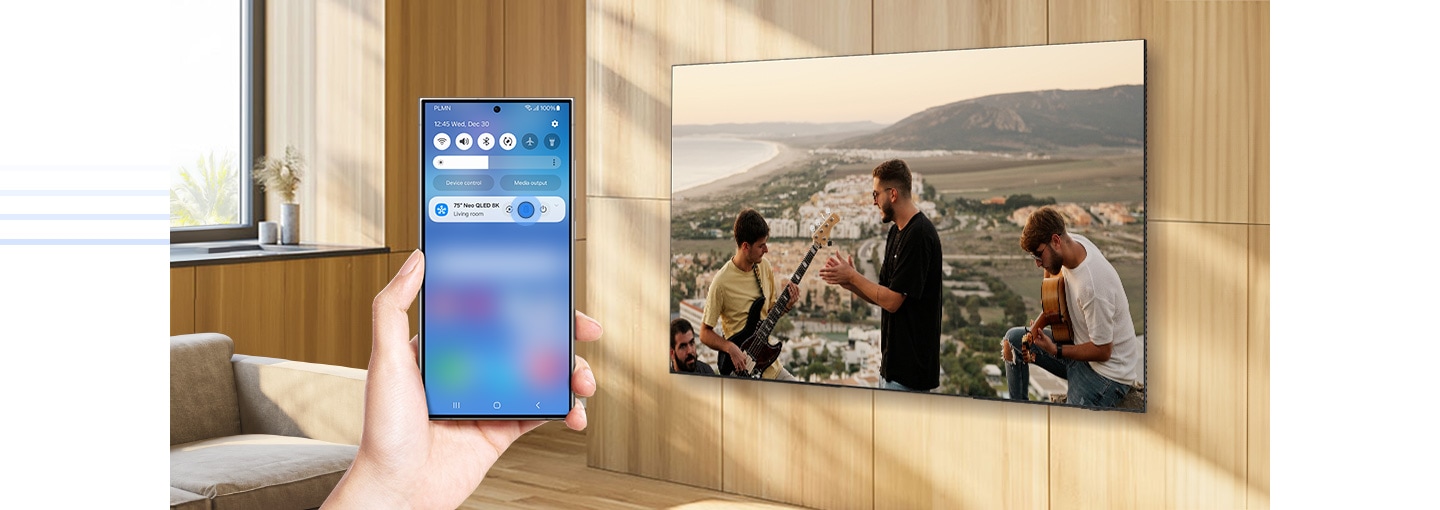

Quick Remote
Through your mobile device, you can access key Samsung Tizen TV features such as media, features, ambient mode and menu. Quick Remote1 can also act as your TV remote, allowing you to change channels, adjust the volume and more right from your phone.


Mirroring
Experience the immersive delight of a spacious screen with Mirroring2. Whether you're watching a movie or indulging in your favorite TV show, mirror your phone's screen onto your Samsung Smart TV. Sit back, relax and enjoy the content on a larger display using Smart View.


Stream the entertainment you
love from your phone to your TV
AirPlay®
With Apple AirPlay6 you can watch movies and shows from your favorite apps or share what’s on your Apple device, including photos, personal videos, games and more.


Google Cast™
Google Cast7 lets you stream your favorite entertainment from any phone right to your TV. Easily control your TV with apps you already know and love from your mobile devices.


Showcase your favorite photos right on your TV


Google Photos & iCloud Photos
Add a personal touch to your living space by displaying personal photos or family portraits. Your Samsung Smart TV lets you easily display photos from Google Photos and iCloud Photos via SmartThings.3
in one screen


Multi View
Watch what’s on your TV and your mobile device at the same time on a large screen. Whether it’s live stats for sports or game walkthroughs, simply connect your phone to unlock a whole new level of multi-screen capabilities. Also enjoy optimized multitasking as you add up and customize your content combinations.4


Explore Smart TVs
-
Overview
-
Screen Size


- Overview : Infinite blacks with self-lit display
- Screen Size : 1.08 m (43) To 2.09 m (83)


- Overview : Our most advanced TV experience
- Screen Size : 1.08 m (43) To 2.92 m (115)


FAQ:
All About Samsung Screen Mirroring
-
What is Screen Mirroring?Screen mirroring allows you to display your smartphone’s screen on a larger screen, such as a Smart TV. Everything visible on your phone, whether it is an app, photo, or video-will appear on the TV in real time. Any action performed on your phone will be simultaneously reflected on the larger screen.
-
How do I use screen mirroring on a Samsung Smart TV?Note: Make sure your TV is turned on and connected to the same Wi-Fi network as your phone. Your phone must support a mirroring function, such as Screen Mirroring or Smart View. To check if your phone supports a mirroring function, please refer to your phone's user manual. SmartView is not a downloadable app; it is located in the Quick settings panel on your phone.
On Galaxy devices, the screen mirroring feature is called Smart View.
1. On your phone, open the Quick settings panel by swiping down from the top of the screen.
2. Tap the Smart View icon.
3. Tap your TV from the list of Available devices.
4. Tap Start now.
(Note: If prompted, enter the PIN on your TV or allow access on your TV to complete the connection.)
5. Your phone’s screen will now appear on the TV.
(Note: You may be prompted to change the aspect ratio on the TV. Tap Change on your phone if desired.)
For iOS devices, the screen mirroring feature is called AirPlay, and it does the same exact thing - mirror images, videos and other media. Using AirPlay is similar to using Smart View, but there are a few differences.
1. On your iPhone, open the Control Center by swiping down from the top right of the screen.
2. Tap the Screen Mirroring icon.
3. Select your TV from the list of Available devices.
4. When the pop-up appears, enter the AirPlay Code displayed on the TV screen into your iPhone.
5. Your phone’s screen will now appear on the TV. -
What TVs are compatible with Samsung Smart View?Smart View is supported on all Samsung Smart TVs. However, availability and functionality may vary depending on the model and year of manufacture. Ensure your TV and mobile device are connected to the same Wi-Fi network for seamless screen mirroring.
-
How do I use Multi View on a Samsung Smart TV?Multi View allows you to enjoy multiple types of content simultaneously on your TV screen. You can view media from different sources—such as apps, mobile devices, or HDMI inputs—at the same time using a split-screen view.
Note: The number of supported screens and available apps/sources may vary depending on the TV model and are subject to change. Select Samsung Neo QLED 8K models (QN900/800 series) support up to four split screens. A Samsung account may be required.
Steps to use Multi View:
1. From the Home screen, press the Left button on your remote.
2. Navigate to and select Settings.
3. Select Multi View.
4. Your previously used media source will appear. Choose the sources you want to add to Multi View.
5. A second screen will be added. To add more content, press the Down button on your remote and select the app or source you want to add or remove. -
What TVs are compatible with Samsung Multi View?Multi View is supported on most Samsung Neo QLED, OLED, and QLED TVs released from 2020 onwards.
For Samsung Crystal UHD TVs, Multi View availability may vary depending on the model and region. Please refer to the specific product details page for accurate compatibility information. -
How do I get photos from Google Photos to appear on Samsung Smart TV?You can view your Google Photos on a Samsung Smart TV using the SmartThings app. Follow the steps below:
Steps to display Google Photos:
1. Open the SmartThings app on your mobile device.
2. Scroll to the Art section at the bottom of the screen and tap the “+” (Add) icon.
3. Tap the three-dot menu (⋯) on the right, then select Cloud Media App.
4. Link your Google Photos account. Once connected, your Google Photos library will appear in your mobile gallery within the app.
5. Select the photos you want to display, and they will be shown on your Samsung Smart TV.
Discover more of Samsung Smart TV
- Images simulated for illustration purposes. Any changes in UI or appearance and design specifications may occur without prior notice. UI may vary by region.
- The detailed specifications may vary depending on the model so refer to the product details page for more information.
- Quick Remote: Push notifications for mobile remotes for TVs are available on (Mobile) Android OS 10.0 and higher versions with (TV) 2020 Samsung TVs and later models, and operates when the mobile device is near the TV. Samsung Smart TV feature access is available on (TV) 2024 Samsung TVs and later models with (Mobile) Android OS 10.0 and higher versions or iOS 15.0 and higher versions.
- Mirroring: To use the Mirroring feature, your mobile device must support Screen Mirroring or Smart View. iOS devices use AirPlay. This feature is supported on Tizen OS-based Smart TVs released in 2015 and later and requires the TV to be logged in to a Samsung account. Certain third-party apps and services may be limited in the use of this feature according to their policies.
- Google Photos & iCloud Photos: This feature is available with the SmartThings mobile app (version 1.8.25.23 and later) on Samsung TVs released in 2022 and later. Wi-Fi, Bluetooth or other Internet connection, compatible Android or iOS device and SmartThings app required.
- Multi View: Number of available views and supported apps or sources depends on the TV model and may be changed without notice. Requires Samsung account. The Multi View feature is supported on Samsung Smart TVs released in 2020 and later. Support varies by model, so please refer to the relevant product detail pages for more information. For TVs from 2025, the Multi View feature is available on Q7F and higher models. The Multi View feature is available on Android mobile devices with Android OS 4.2 and higher, and iOS mobile devices with iOS 12.3 and higher, when used on QN70F and higher TV models. The Q7F and Q8F only support Android mobile devices with Android OS 4.2 and higher.
- Photos sent from mobile to TV may remain on the TV.
- AirPlay : AirPlay requires iOS 12.3 or higher versions, or macOS 10.14.5 or higher versions. To use Apple AirPlay on your Samsung TV, make sure Menu › Settings › All Settings › Connection › Apple AirPlay Settings is enabled. The TV and Apple devices should be on the same Wi-Fi network to use AirPlay. Compatible devices only. The AirPlay feature is supported starting from the 2018 Smart TV models. More details at https://support.apple.com/102661. Apple, AirPlay and Apple TV are trademarks of Apple Inc., registered in the U.S. and other countries. AirPlay is third party service that may be discontinued at any time by the third party.
* Subscription required for Apple TV+ - Google Cast : Google Cast requires an Android™ phone with Android 6 or later or an iPhone with iOS 12.0 or later. Phone, tablet or computer and your TV must be on the same Wi-Fi network. Tap the Cast icon in the app and select the Samsung TV to start casting. More details at https://support.google.com/chromecast/answer/3006709. Available starting from the 2024 smart TV models. Currently available with 2025 U8000F and above models. This feature will be availble to a wider range of models through software updates. Feature availability may vary depending on model, region, product launch year and other factors. Google Cast is third party service that may be discontinued at any time by the third party.
- Android, Google Cast, and Google Photos are trademarks of Google LLC.
* Images shown here are for representational purpose only, actual may vary. All features, specifications and prices are subject to change without prior notice. Model availability may vary from location to location.
