SolarCell Remote

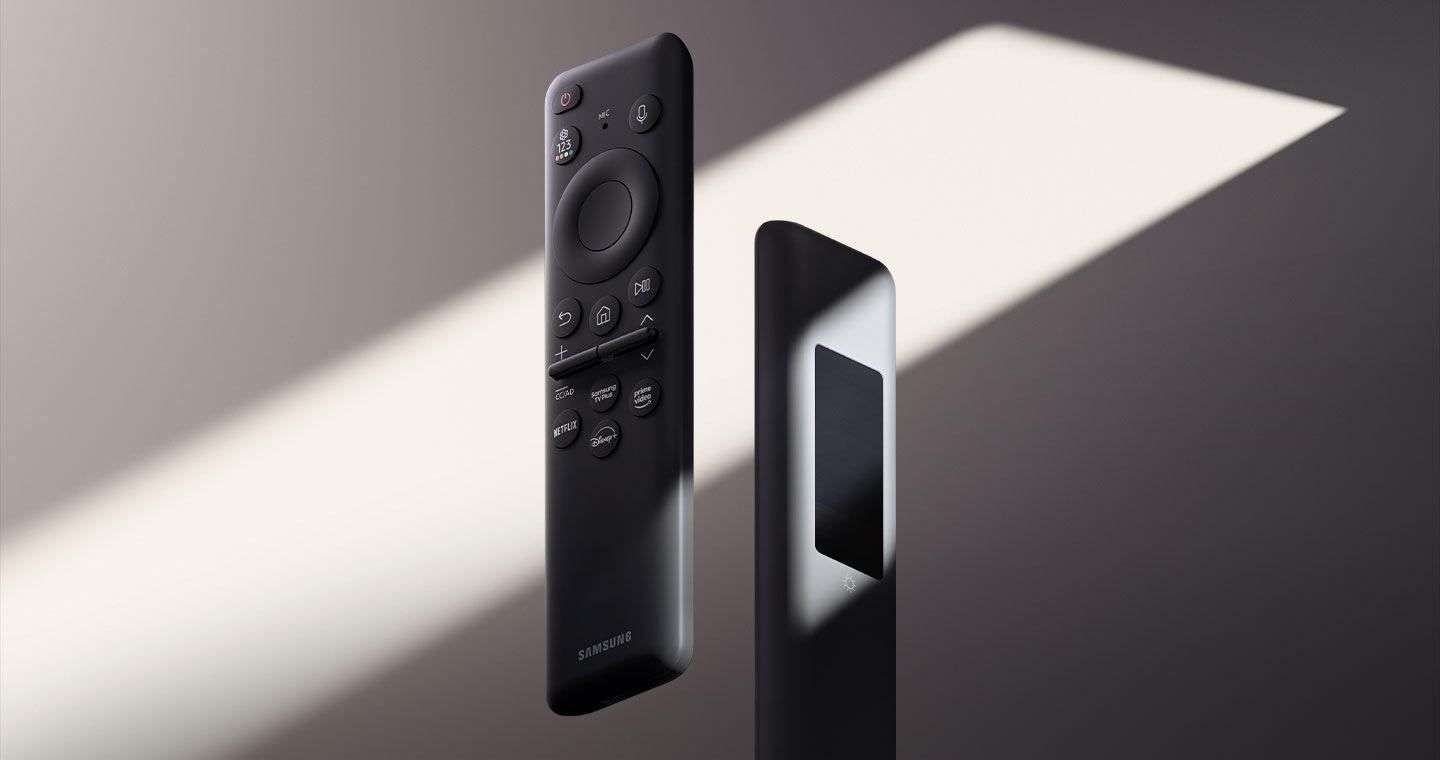
Build a smarter future with the SolarCell Remote. Say goodbye to disposable batteries and embrace sustainable power. With a single press, enjoy your favorite content and discover new smart features.


Remote controller charged with
sunlight and indoor lighting


SolarCell Remote
Embrace sustainability with the SolarCell Remote.1 Equipped with a built-in solar panel on its back, this innovative remote offers convenient charging without the need for disposable batteries.
Apps are just
a button press away
Easier Control
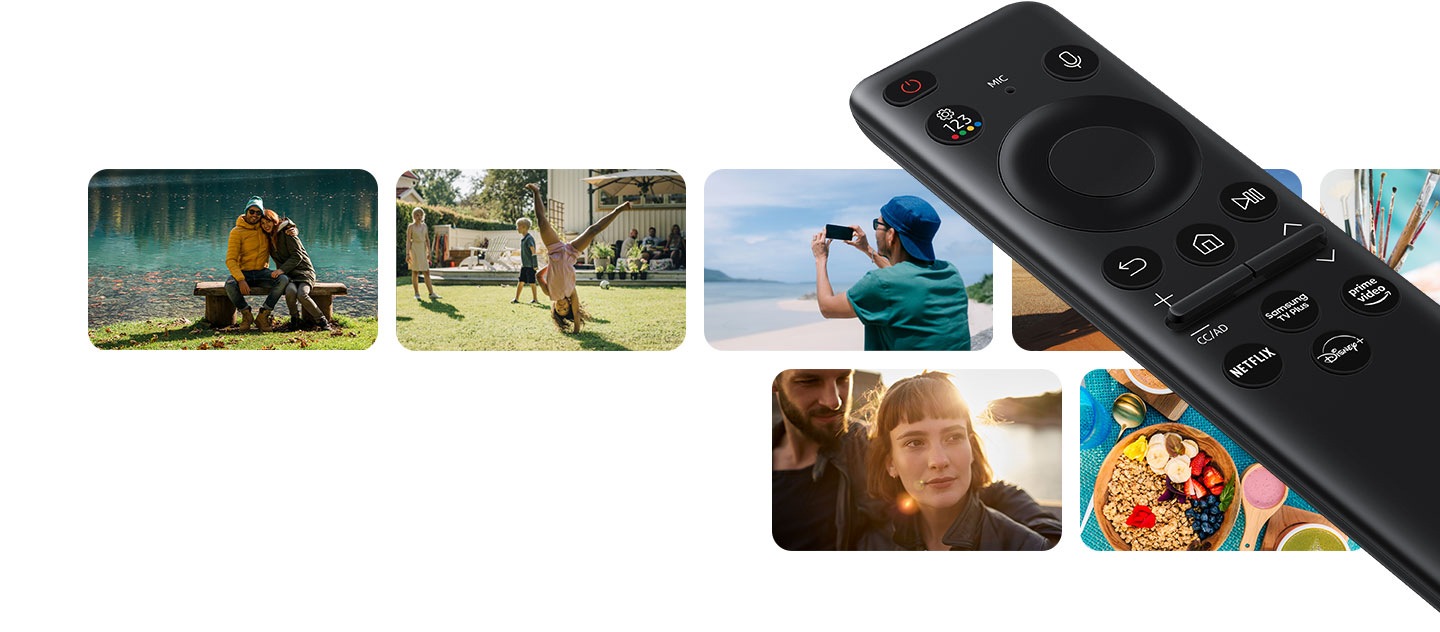
Easily access content you love with a dedicated button that takes you directly to your favorite OTT services.

Just say
what you want
Multiple Voice Assistants2
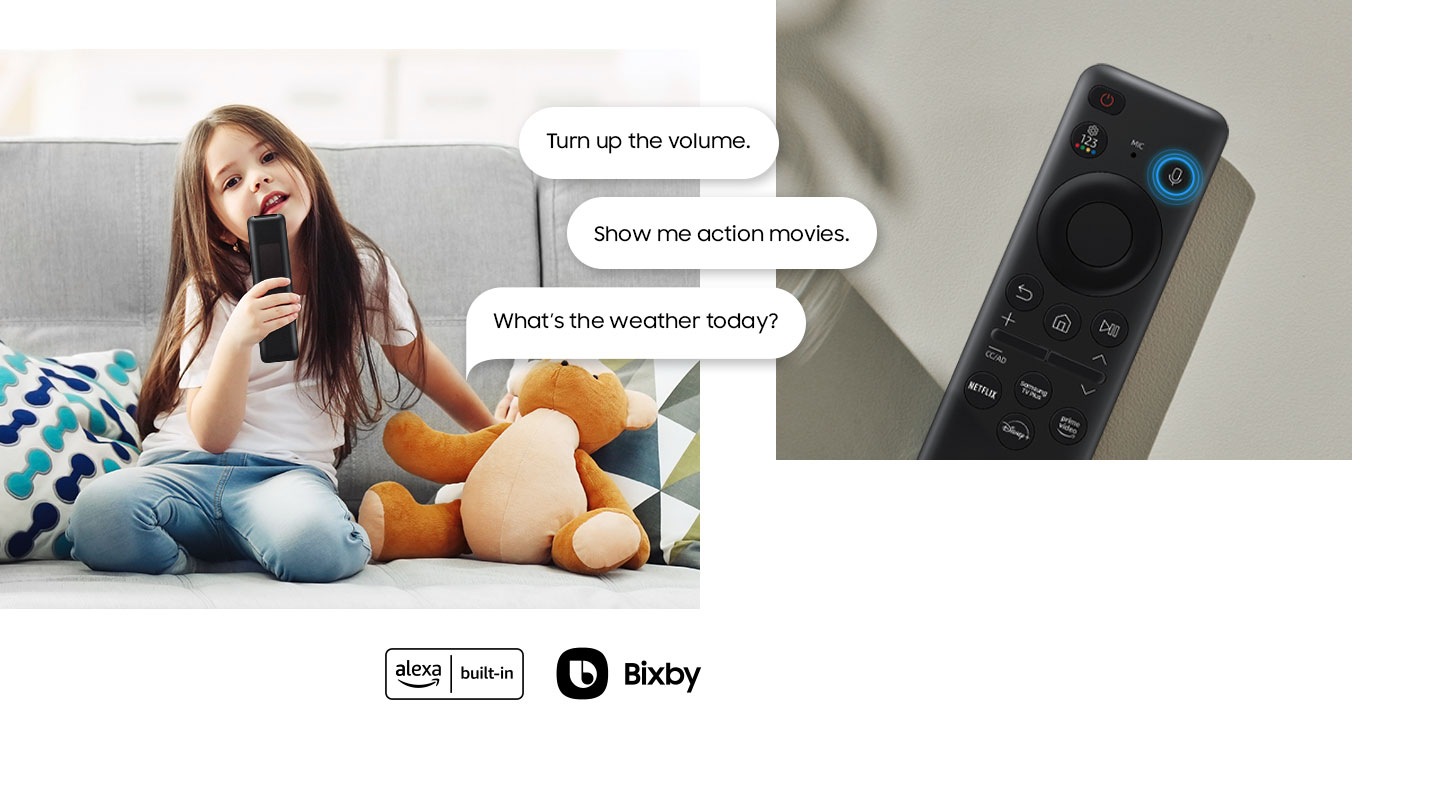
Bixby or Amazon Alexa - take your pick with just a simple command to your SolarCell Remote. Use these voice assistants to search for shows, open apps and enjoy a whole new level of convenience at your fingertips.

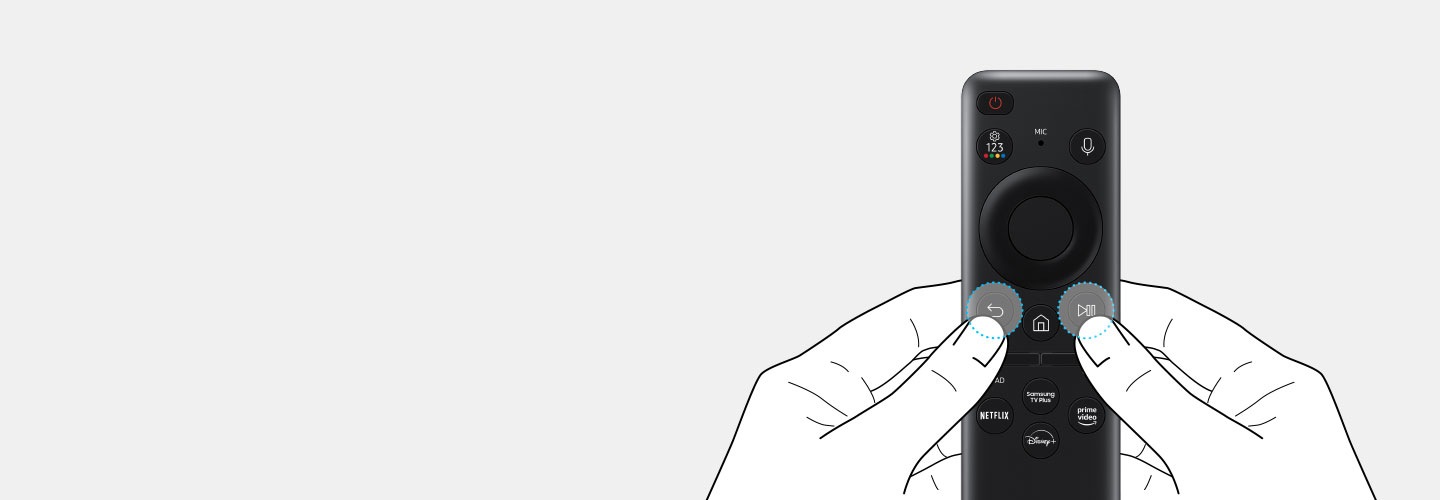
How to pair a SolarCell Remote to your Samsung TV
- 1. Turn on your TV.
- 2. Point the remote at your TV.
- 3. Press and hold the [Return] and
[Play/Pause] buttons simultaneously. - 4. Release the buttons when you
see a message on the TV
indicating that your remote is connected.

Explore Smart TVs

Discover more of Samsung Smart TV
Frequently Asked Questions
-
How do I use the Samsung SolarCell Remote?The Samsung SolarCell Remote is a remote for Samsung TVs that's powered by light. It features a built-in solar panel that can be charged by sunlight or indoor light, eliminating the need for disposable batteries.
To pair your SolarCell Remote with your Samsung TV, simply turn on your TV and press any button on the remote. The two should automatically connect.
If pairing doesn’t happen or the connection is lost, follow the simple steps below..
1) Point the remote at your TV.
2) Press and hold the Return and Play/Pause buttons at the same time.
3) When a message appears on the TV confirming that the remote is connected, release the buttons.
You can charge your SolarCell Remote in two convenient ways.
To charge with light, simply place the remote with the back facing upward — either under a ceiling light in a well-lit room or near a window with natural light. The solar panel at the back will absorb the light and charge the remote automatically.
For faster charging, plug a USB Type-C cable into the port at the bottom of the remote.
-
How do I pair my Samsung Solar Remote with my TV?To pair your SolarCell Remote with your Samsung TV, simply turn on your TV and press any button on the remote. The two should automatically connect.
If pairing doesn’t happen or the connection is lost, follow the simple steps below.
1) Point the remote at your TV.
2) Press and hold the Return and Play/Pause buttons at the same time.
3) When a message appears on the TV confirming that the remote is connected, release the buttons.
-
How do I reset my Samsung Solar Remote?You can reset your Samsung SolarCell Remote by following the simple steps below.
1) On the remote, press and hold the Return and Play/Pause buttons at the same time for at least 3 seconds.
2) When the red light on the top of the remote flashes, the TV screen will display a message indicating that the remote is reconnecting to get back in sync with your TV.
-
How do I charge my Samsung SolarCell Remote?You can charge your SolarCell Remote in two convenient ways.
To charge with light, simply place the remote with the back facing upward — either under a ceiling light in a well-lit room or near a window with natural light. The solar panel at the back will absorb the light and charge the remote automatically.
For faster charging, plug a USB Type-C cable into the port at the bottom of the remote.
-
How do I check the battery level of my Samsung SolarCell Remote?To check the battery level of your Samsung SolarCell Remote, please follow the simple steps below.
1) Press the Home button on your remote.
2) Go to Settings, then select ""All Settings"".
3) Navigate to ""General & Privacy"", and choose ""Remote Control"" to view the battery level.
-
How big is the Samsung SolarCell Remote?At just 14.5 cm x 3.5 cm x 1.0 cm (LxWxH), the Samsung SolarCell Remote fits comfortably in the palm of your hand. It also includes voice recognition and dedicated shortcut buttons for Samsung TV Plus, Ott — so it’s built for convenience as well as comfort.
- SolarCell Remote: To charge the remote using solar energy, place the TV remote down with the solar panel facing up. It can be positioned in your living room while the lights are turned on, or near a window to absorb natural sunlight. In case the remote's battery is depleted, you can charge it using a USB-C cable. To check the remaining battery level of the remote control, refer to the TV Menu (Settings > General Settings > Power & Energy Saving > Available Remote Battery). The design and button layout of the SolarCell remote may vary depending on the region. For specific availability, so please refer to the product details page.
- Multiple Voice Assistants: Samsung reserves the right to change, suspend or discontinue voice assistant services, either partially or entirely, at any time and at its sole discretion, without prior warning or notice. The content, TV services and capabilities depicted in images may not be available in all regions and territories. A Samsung account is required. Bixby voice commands support English (US/UK), French, Spanish, German, Italian, Chinese and Korean. Note that not all accents, dialects and expressions are recognized. Amazon, Alexa and all related logos are trademarks of Amazon.com, Inc. or its affiliates.
* Images shown here are for representational purpose only, actual may vary. All features, specifications and prices are subject to change without prior notice. Model availability may vary from location to location.
