How do I delete all of my personal information from my device?
Before selling or switching your Galaxy device, it is important to remove all personal data. This can be done by backing up your data, removing accounts, and performing a factory data reset.
Back up your data before a factory data reset
3. Connect your device to the PC using a USB cable.
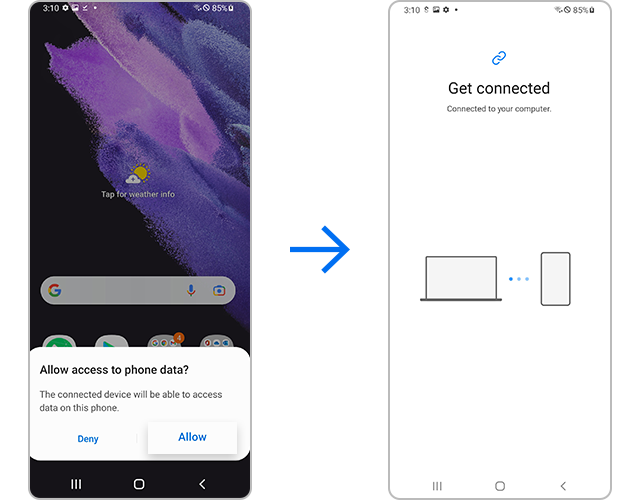
4. Tap Allow on your device when prompted.
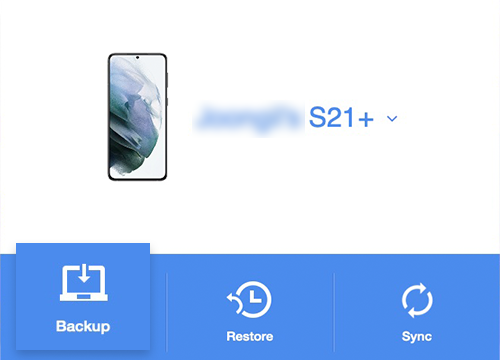
5. On the PC, select Backup.
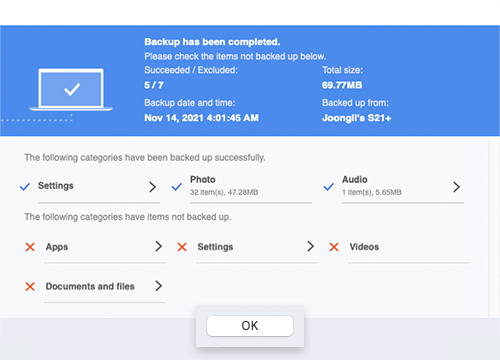
6. Wait for the backup process to complete, then click OK.
1. Download Smart Switch on your PC.
2. Install and open Smart Switch.
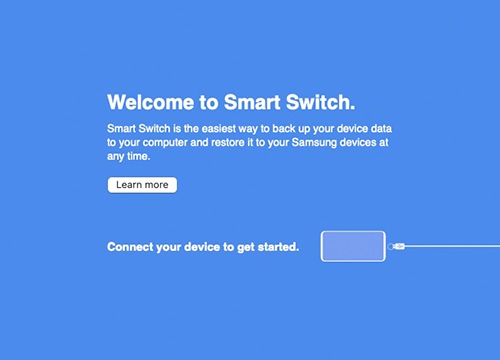
3. Tap Allow on your device when prompted.
4. On the PC, select Backup.
6. Wait for the backup process to complete, then click OK.
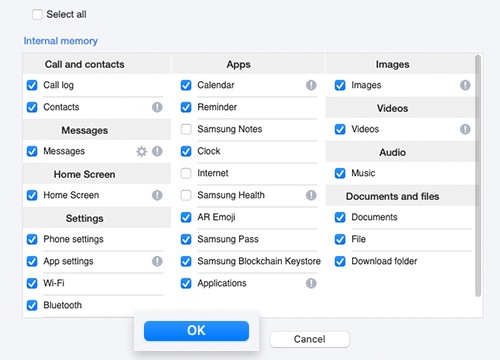
Step 6. Your PC will automatically start the backup process. Depending on the size of data to back up, it may take a few minutes. Once completed, click on OK.
Note:
- Some items like Secure Folder or hidden files may not be backed up.
Check 2. Delete a Google account


Note: Remove all Google accounts to avoid verification issues after reset.
Perform a factory data reset


Notes
- A factory reset removes apps, files, and personal data from internal storage.
- Data stored on an SD card is not deleted automatically; remove or format it separately.
- Factory Reset Protection (FRP) may require your Google account credentials after reset.
- Make sure you remember your account details before resetting the device.
- Device menus may vary depending on model and software version.

Thank you for your feedback!
Please answer all questions.