Why won’t my Samsung phone connect to a Wi-Fi network
Wi-Fi connection issues are usually caused by router problems, incorrect settings, or app conflicts. Checking the network, restarting devices, or resetting settings can fix it.
What to do if the Wi-Fi network is not detected?
Step 1: Check that the router is powered on and connected to the internet
Step 2: Move closer to the router
Step 3: Reduce the number of connected devices if possible
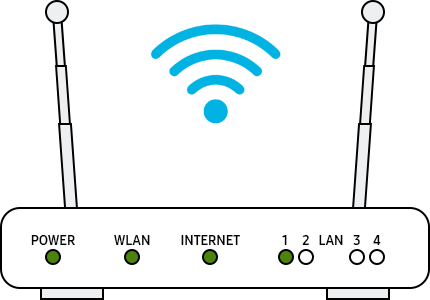
Note:
- The router display may vary from device to device. Check with your router provider.
Try restarting your Galaxy phone, router, and modem.
Step 1. To restart your phone, tap the Power icon in the Quick panel, then tap Restart.
Step 2. Turn your router and modem off and on again. When turning the router and modem off, unplug the power plug and plug it back in, and then turn on the power.
Step 3. After you restart each device, see if you fixed the issue.
Follow the steps below to reset the network settings and turn on Wi-Fi again.
Step 1. Go to Settings, and then select General management.
Step 2. Find and select Reset.
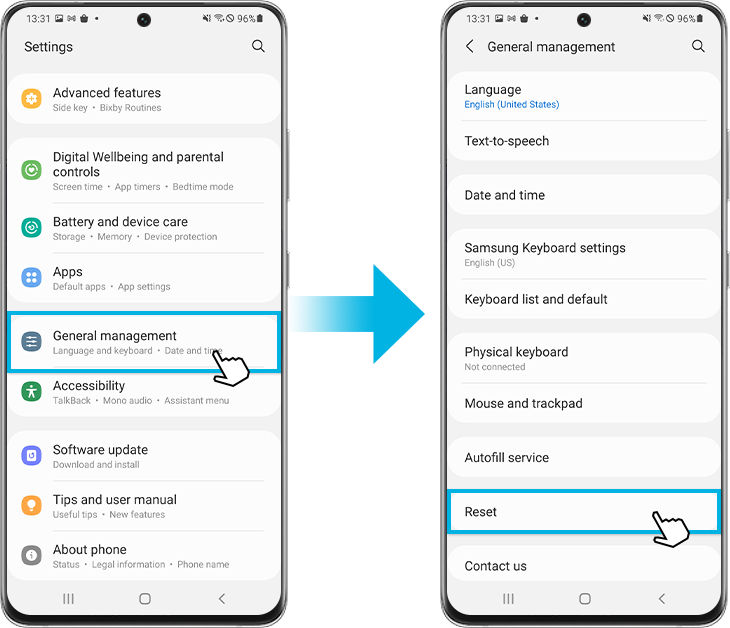
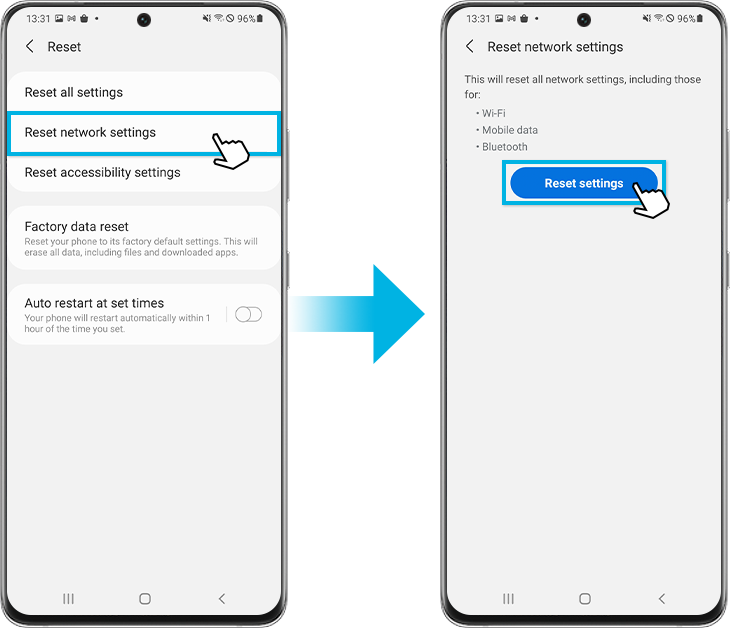
Step 3. Choose Reset network settings.
Step 4. Tap on the Reset settings button.
Step 5. Tap on the Reset button.
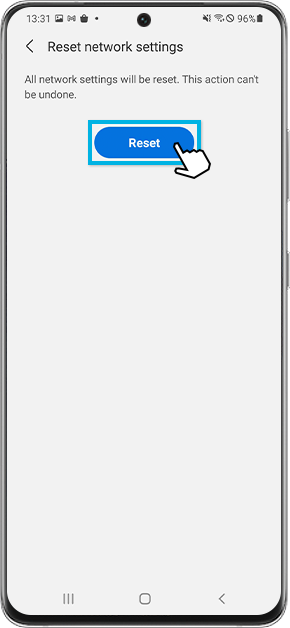
Note:
- When you reset the network settings, the Wi-Fi information, mobile data, and Bluetooth connection are reset.
Step 1. Open Quick settings. Tap the Power icon at the top of the screen.
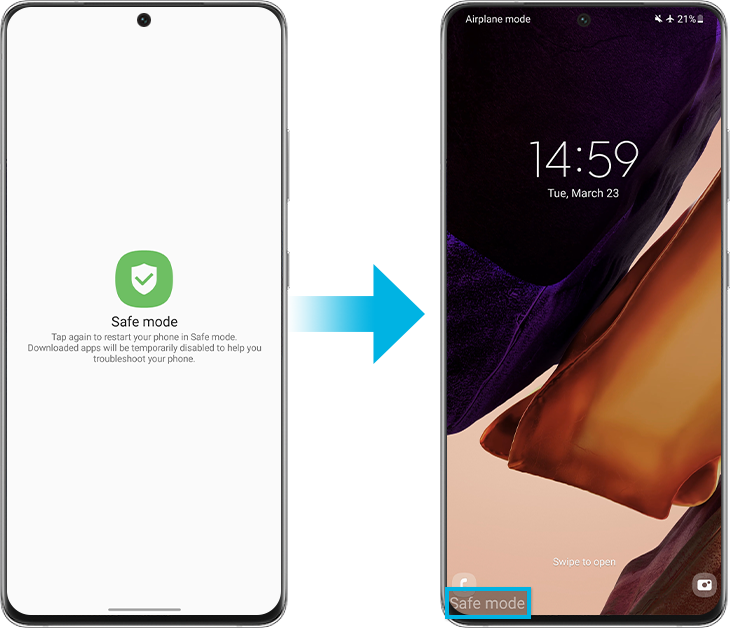
Step 2. Touch and hold Power off until the Safe mode icon is displayed.
Step 3. Tap Safe mode to start your device in Safe mode. If you've entered Safe mode successfully, you will see Safe mode displayed at the bottom of the screen.
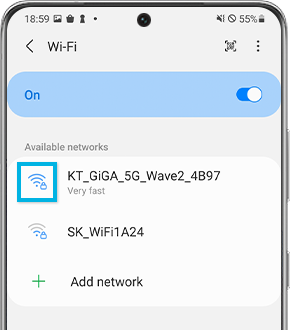
Step 1: Select the Wi-Fi network
Step 2: Enter the correct password carefully
Step 1. Go to Settings, and then select General management.
Step 2. Select Reset, and then tap on Factory data reset.
Step 3. Scroll down the page and tap on the Reset button.
Step 4. Tap on the Delete all button.
Note:
- Factory data resetting a mobile device is not reversible.
- Make sure that all of your information is saved to a backup somewhere else before attempting to reset your phone.
Note:
- If you're connected to a Wi-Fi network but cannot get online, try using the Wi-Fi network on another device. If other devices also cannot access online, that network service may be faulty, so contact your Internet provider for help.
- Device screenshots and menus may vary depending on the device model and software version.

Thank you for your feedback!
Please answer all questions.