How to use and set up fingerprint recognition to unlock the Galaxy S22 Series
Fingerprint recognition provides a fast and secure way to unlock your Galaxy S22 Series device while protecting your personal data. You can easily register, manage, and use your fingerprint for everyday access.


How to show or hide the fingerprint icon
1. Go to Settings > Biometrics and security > Fingerprints.
2. Unlock the screen using your preset lock method.
3. Tap Show icon when screen is off and choose your preferred option.
How to delete registered fingerprints
1. Go to Settings > Biometrics and security > Fingerprints.
2. Unlock the screen using your preset lock method.
3. Select a fingerprint and tap Remove.
How to turn off Fingerprint always on
1. Open Settings and tap Biometrics and security.
2. Tap Fingerprints.
3. Turn off Fingerprint always on.
1. Go to Settings > Biometrics and security > Fingerprints.
2. Unlock the screen using your preset lock method.
3. Turn on Fingerprint unlock.
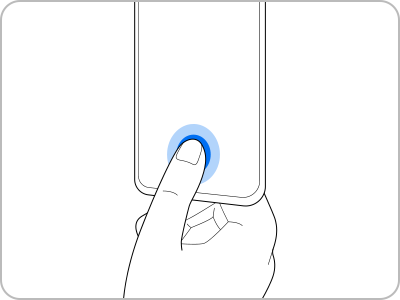
Then, place your finger on the fingerprint sensor on the lock screen to unlock your device.
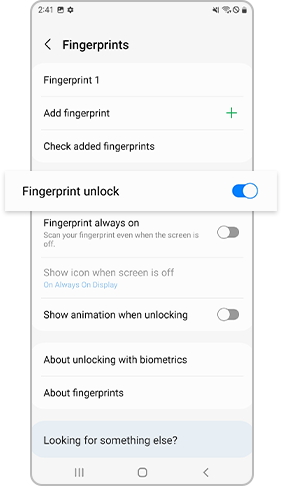
How to show or hide the fingerprint icon
1. Go to Settings > Biometrics and security > Fingerprints.
2. Unlock the screen using your preset lock method.
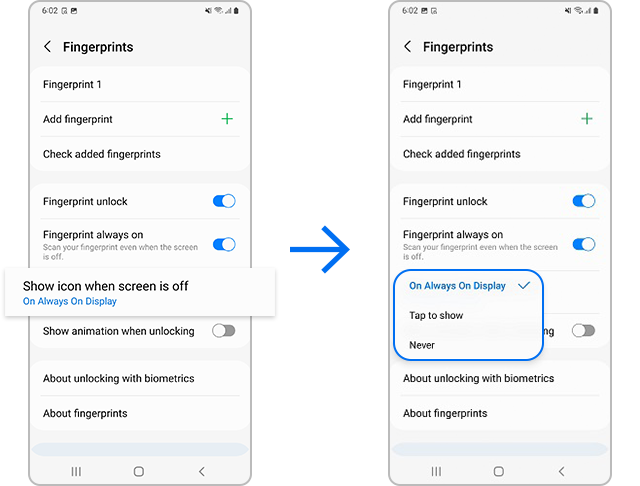
3. Tap Show icon when screen is off and choose your preferred option.
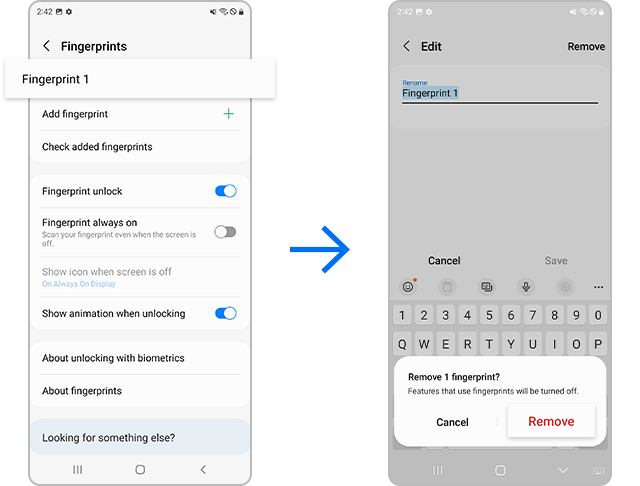
How to delete registered fingerprints
1. Go to Settings > Biometrics and security > Fingerprints.
2. Unlock the screen using your preset lock method.
3. Select a fingerprint and tap Remove.
How to turn off Fingerprint always on
1. Open Settings and tap Biometrics and security.
2. Tap Fingerprints.
3. Turn off Fingerprint always on.
Notes
- Do not use fingerprint recognition under water.
- Make sure your fingers and the screen are clean and dry.
- The fingerprint sensor is located at the bottom center of the screen.
- Screen protectors or scratches may affect recognition accuracy.
- For better results, register the fingers you use most often.
- You may be required to use a PIN, pattern, or password in certain situations for security reasons (such as after restarting the device or after a long period of inactivity).
- Recognition may not work immediately if used right after turning the screen on or off.

Thank you for your feedback!
Please answer all questions.