Troubleshooting a problem when using Smart View
Smart View allows you to mirror your Samsung phone screen to a TV over Wi-Fi.
1. Swipe down to open the Quick panel.
2. Touch and hold the Wi-Fi icon.

3. Make sure your phone and TV are connected to the same Wi-Fi network.
1. Open the Quick panel and tap Smart View.
2. Select your TV from the list.
3. If prompted, tap Allow on your TV.

1. Go to Settings on your TV, and select Support.
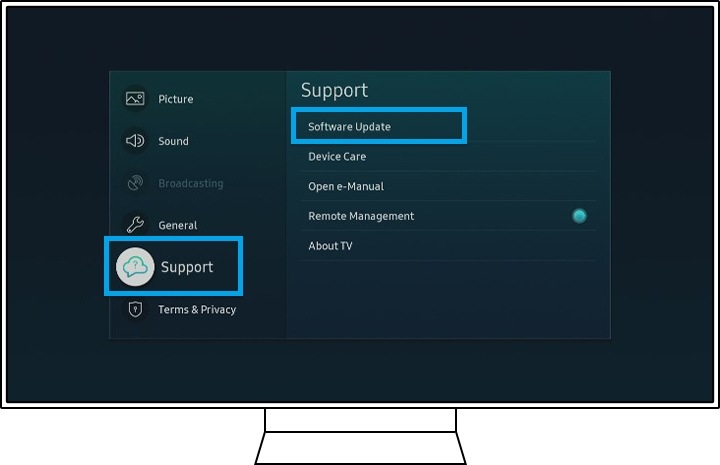
2. Tap Software Update, and select Update Now.
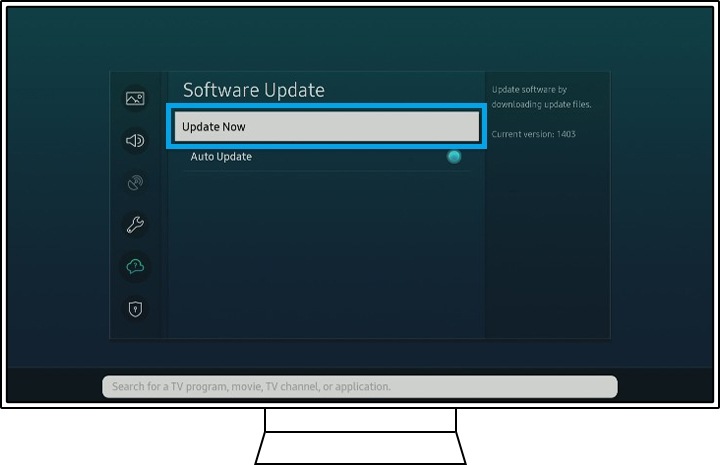
3. Wait for the update to complete and the TV to restart.
Note:
Do not turn off the TV during the update process.
1. Open Smart View from the Quick panel.
2. Tap the Smart View icon.
3. Select Phone aspect ratio.
4. Choose your preferred display size.

1. Go to Settings > General management.
2. Tap Reset > Factory data reset.
3. Scroll down and tap Reset.
4. Tap Delete all.
Note: This will erase all data on your device, so back up your information first.
Notes
- Both devices must support Smart View or Miracast.
- A stable Wi-Fi connection is required for proper screen mirroring.
- Device menus may vary depending on model and software version.

Thank you for your feedback!
Please answer all questions.