Windows 8: Installing Windows 7 with an Easy Windows 8 Recovery Option
Important Note: The information on this page is for Hong Kong products only. Models, sequences or settings will vary depending on location and/or where the product had been purchased. To be redirected to your local support page please click here.
Step 1:
Checking If Your Computer is Ready for Installing Windows 7
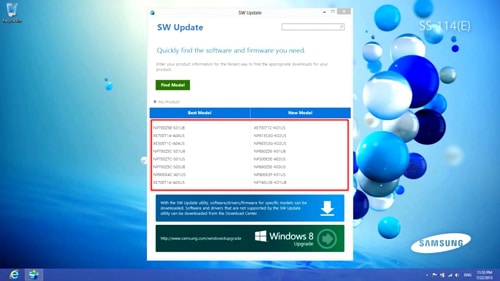
Run ‘SW Update’ → ‘Find Model’ → Check out for Win 7 driver support information.
Step 2:
Updating Your Recovery Program to the Latest
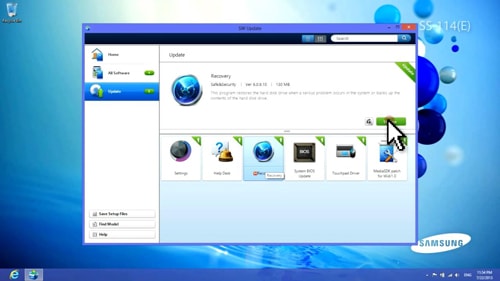
1. Run ‘SW Update’ → ‘Update’ menu → Select ‘Recovery’ → Click ‘Update’.
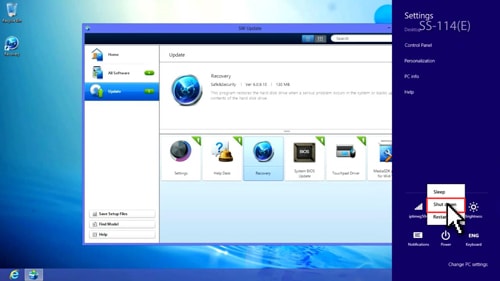
2. Open ‘Charm Bar’ → ‘Settings’ → ‘Power’ → 'Shut down’
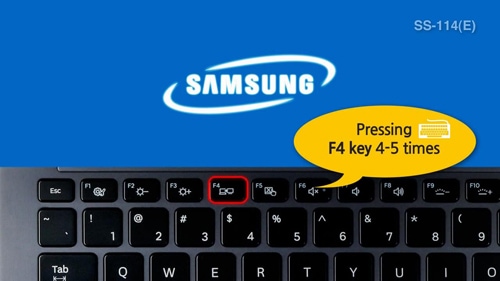
3. After system reboot, press 'F4' key 4-5 times to run ‘recovery’.
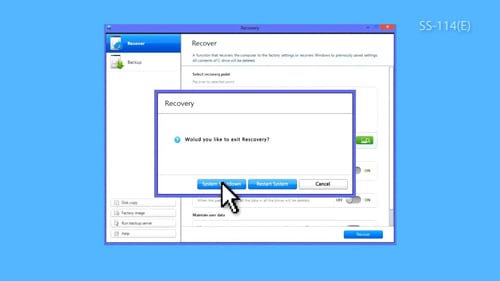
4. Click 'X (Close)' in the upper right corner of the 'Recovery' window
then click 'Shut down' button.
Step 3:
Installing Windows 7
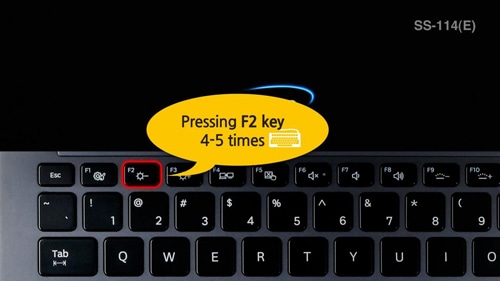
1. Turn the computer on, press 'F2' key 4-5 times to access the
'BIOS Setup'
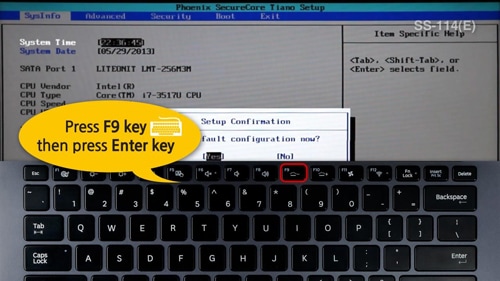
2. Press 'F9' key to initialize the 'BIOS' settings.
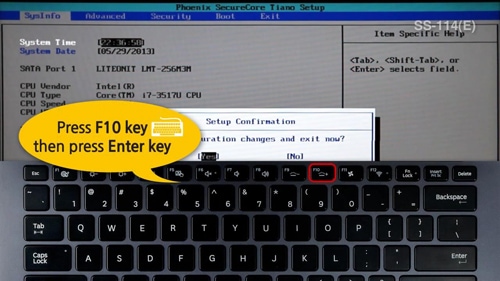
3. Press 'F10' key to save the 'BIOS' settings.
4. Immediately after the reboot, press 'F2' key 4-5 times to
access the 'BIOS Setup'.
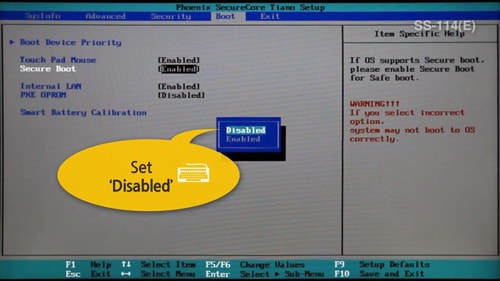
5. Go to ‘Boot’ → ‘Secure Boot: set to [Disabled]’.
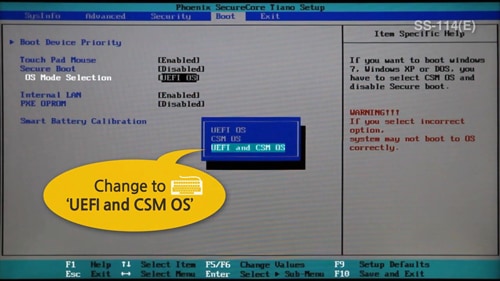
6. ‘OS Mode Selection’ → select ‘[UEFI and CSM OS]’.
7. ‘Advanced’ → ‘Fast BIOS Mode: set to [Disabled]’.

8. Put the Windows 7 DVD in your internal or external ODD.
9. Press 'F10' key to save the 'BIOS' settings.
10. Immediately after the reboot, press 'F2' key 4-5 times to
access the 'BIOS Setup'.
11. ‘Boot’ → ‘Boot Device Priority’ → Move the ‘USB CD’
to the top (number 1) position.
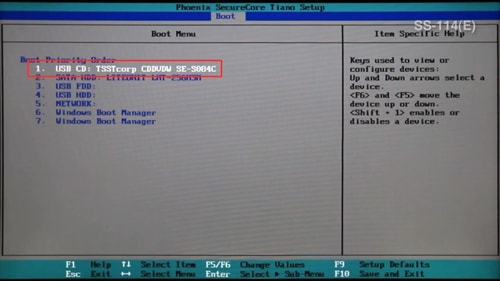
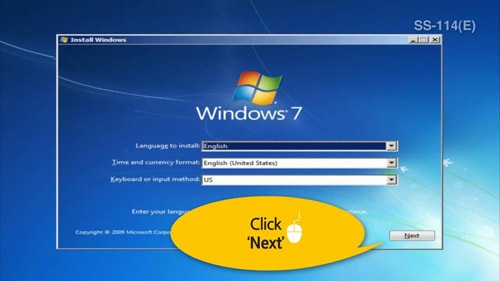
12. After the reboot, Windows 7 installation process continues.
If the above information does not match what your product is showing, you may check the User Manual for your product. If you are unable to solve the problem, please contact us for further assistance.
Thank you for your feedback!
Please answer all questions.
RC01_Static Content : This text is only displayed on the editor page