Galaxy Tab A: What do I do if it is Not Responding?
Important Note: The information on this page is for Hong Kong products only. Models, sequences or settings will vary depending on location and/or where the product had been purchased. To be redirected to your local support page please click here.
You can try to force the device to restart by using the following method. If the problem still exists, there are some other ways to solve it.
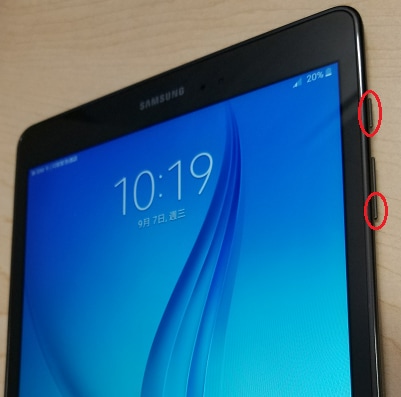
Force to Restart
Please turn off the tablet and turn it on again by:
‧ holding down the Power button and the Volume-down button at the same time for more than 7 seconds.
Other Methods
After restarting the device, if you still find your device freezes sometimes or is sometimes unresponsive, please restart the device again by using the above method and try the following actions to help correct this symptom.
This is to help optimize the device.
(Device Maintenance may not be available depending on device models and Android OS version)
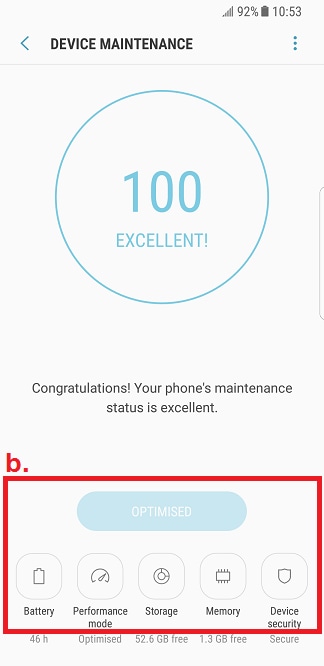
a. Go to Settings and select Device maintenance
b. Select the options at the bottom to optimize your device

Care! Before performing the factory data reset, please remember to make backup copies of all important data stored in the device.
If the above information does not match what your product is showing, you may check the User Manual for your product. If you are unable to solve the problem, please contact us for further assistance.
Thank you for your feedback!
Please answer all questions.
RC01_Static Content : This text is only displayed on the editor page