How to set the display of charging information on your Samsung Galaxy device
Important Note: The information on this page is for Hong Kong products only. Models, sequences or settings will vary depending on location and/or where the product had been purchased. To be redirected to your local support page please click here.
Fast charging has become commonplace, so we have also changed the way charging information is displayed. It appears in a simpler format that removes the fast charging notification and hides the charging indicator within seconds of connecting to a charger. Follow the steps below to learn how to customize the display of the charging indicator.
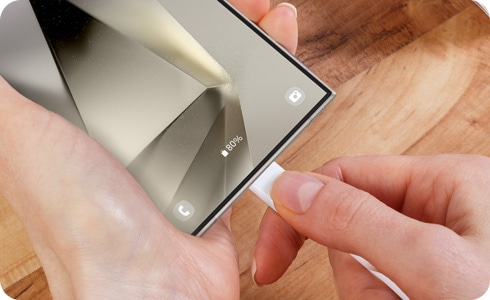
Note: The instructions to enable this feature may vary depending on your device model and software version.
Enabling this option will display your Galaxy device's battery level and the estimated time to full charge on the lock screen.
* This information appears only for 5 minutes after full charging.
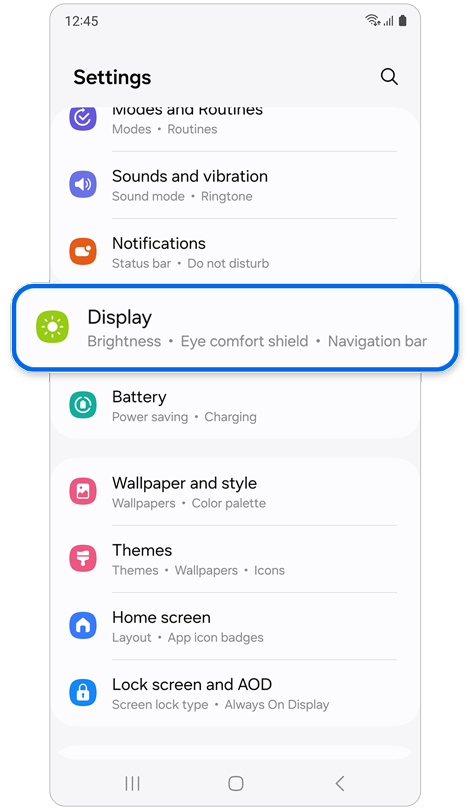
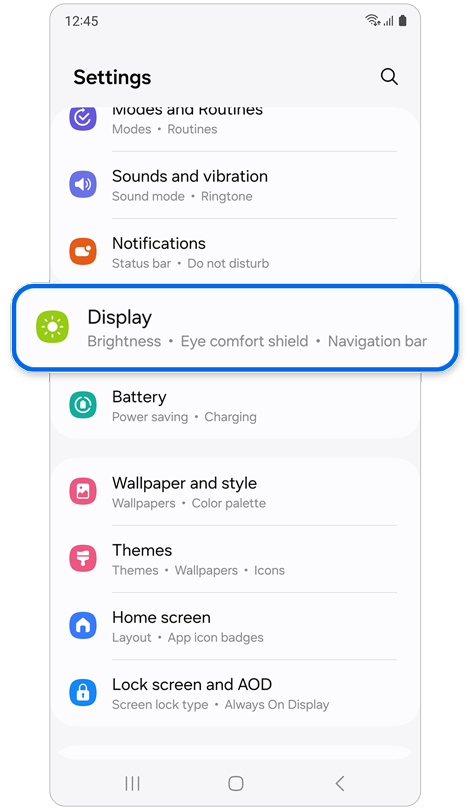
Step 1. Open Settings > Select Display.
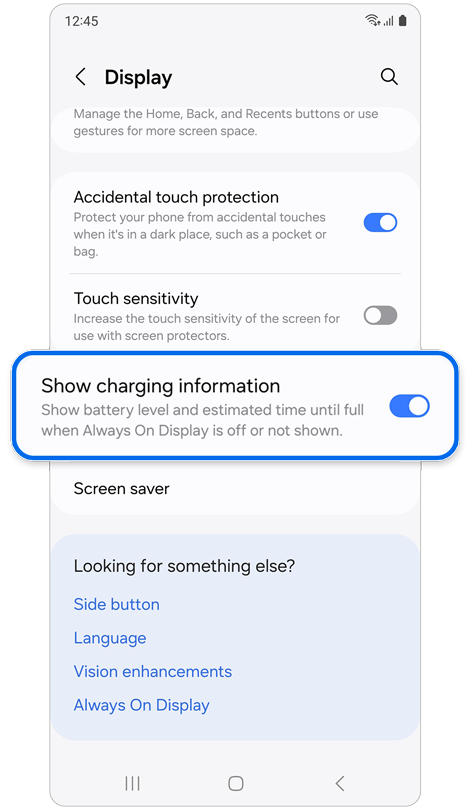
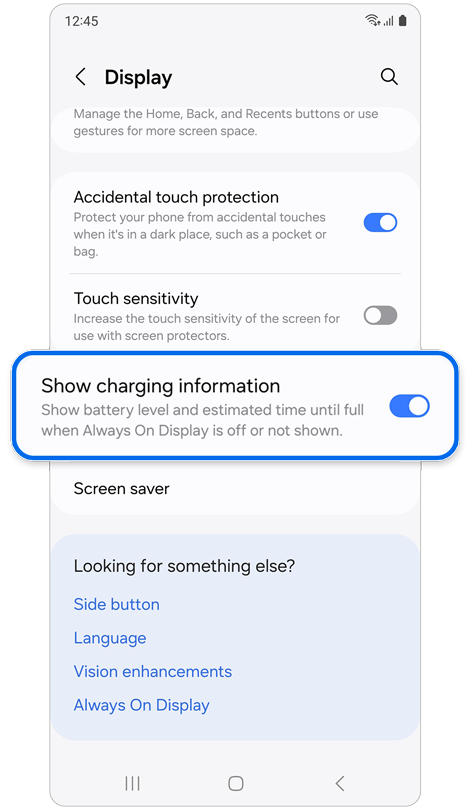
Step 2. Tap Show charging information to enable or disable the option.
If you turn on the “Always On Display” feature, charging information is displayed along with the clock information even after your device is fully charged.
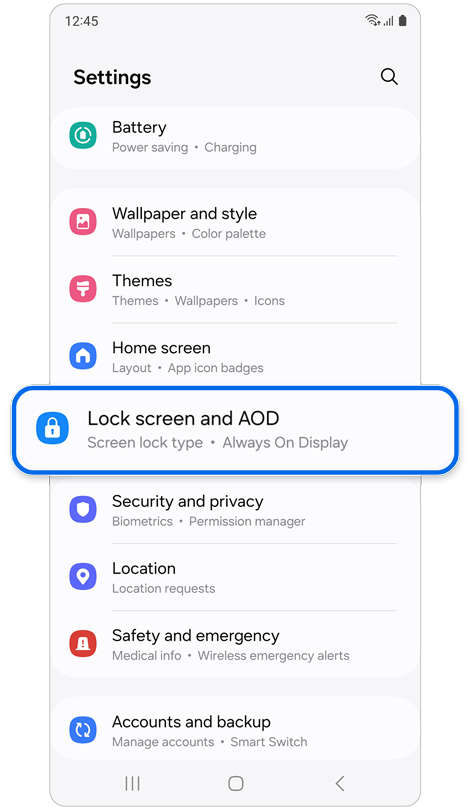
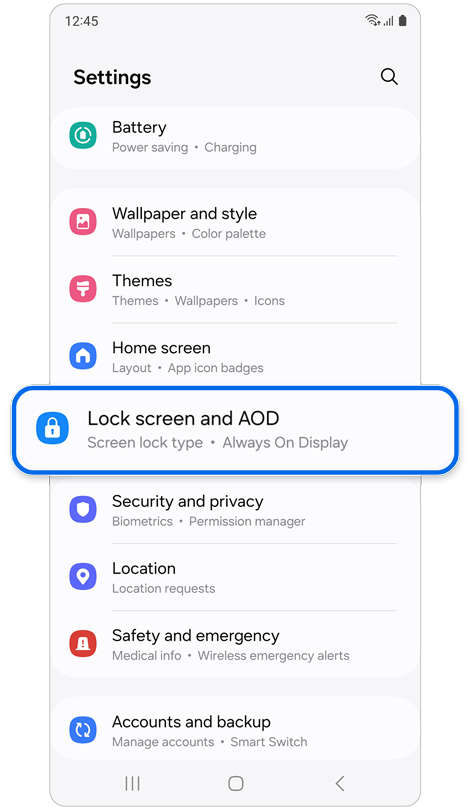
Step 1. Open Settings > Select Lock screen and AOD.
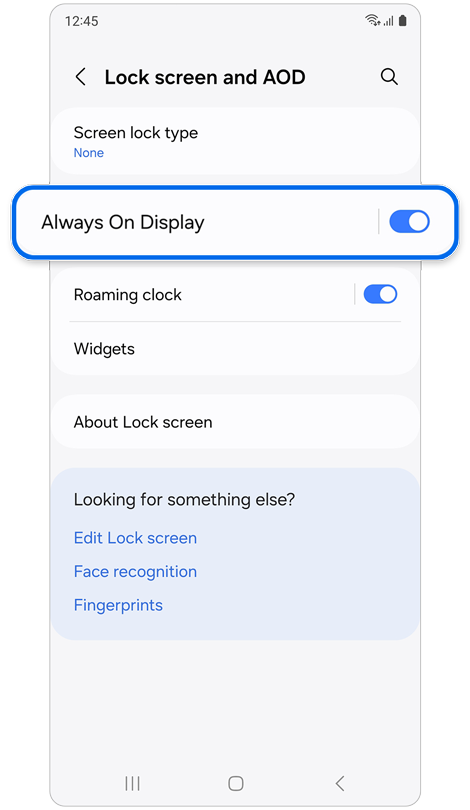
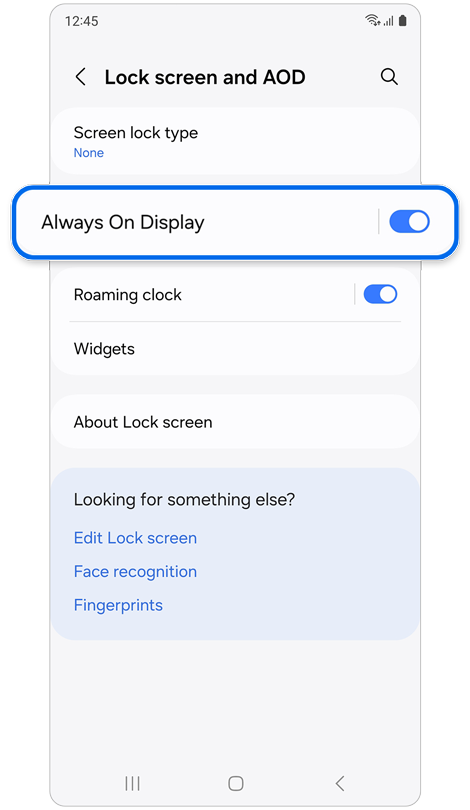
Step 2. Select Always On Display.
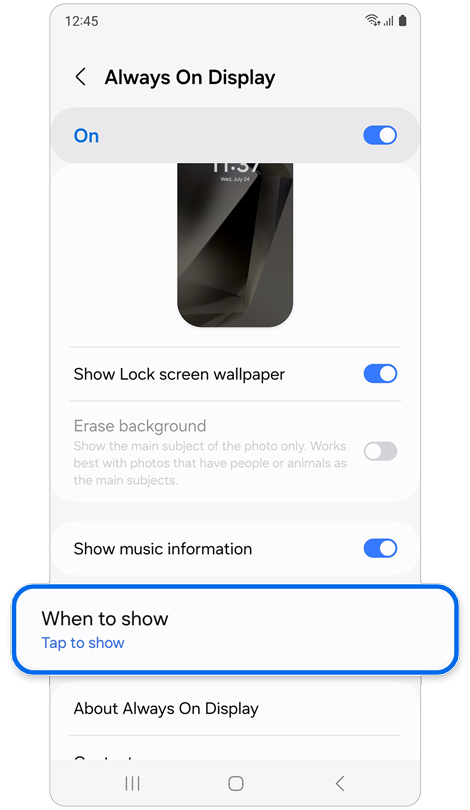
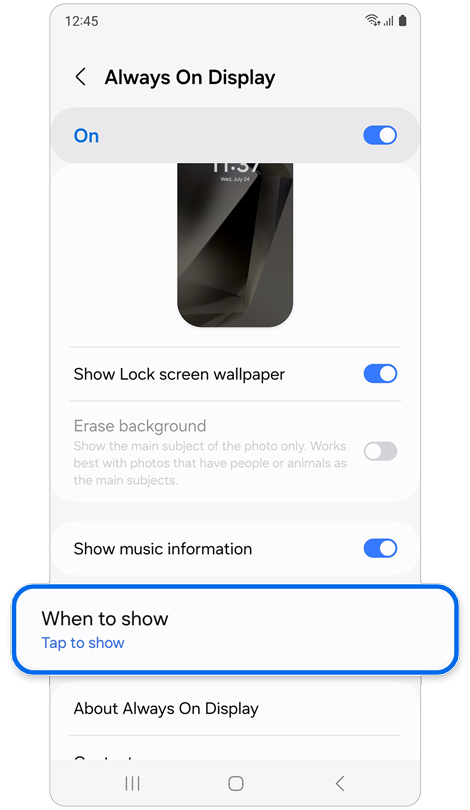
Step 3. Tap When to show.
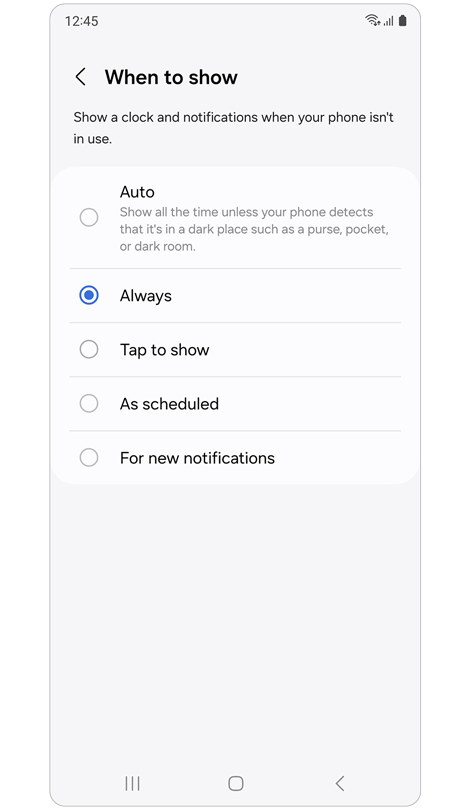
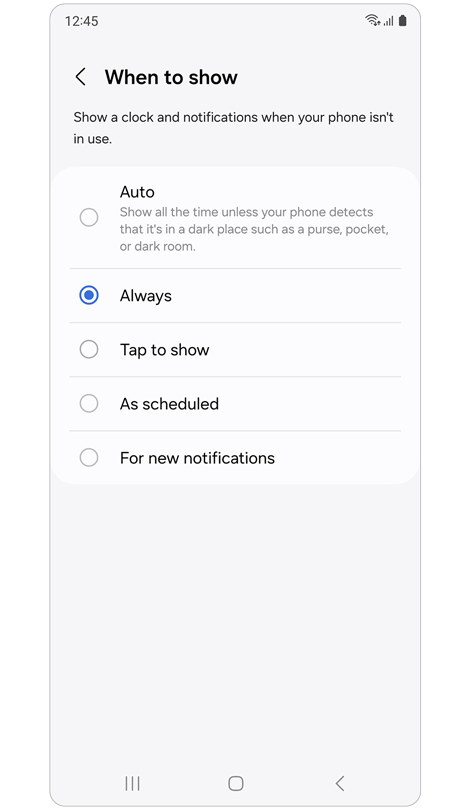
Step 4. Select when you want notifications and a clock to appear while your device isn’t in use.
When you connect the charger, a charging speed notification may appear for a few seconds and then update or disappear. Because the charging speed is continually changing based on the charging condition, it may initially give you incorrect information.
* Below is an example with a normal charger connected. The charging information displayed on your Galaxy device may change based on the charging environment.
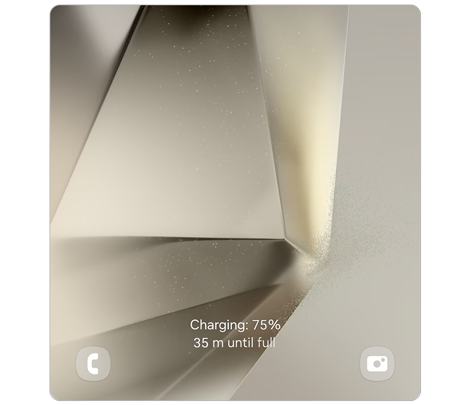
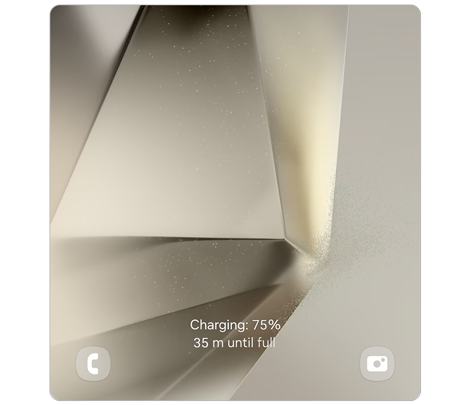
Lock screen: Right after connecting the charger
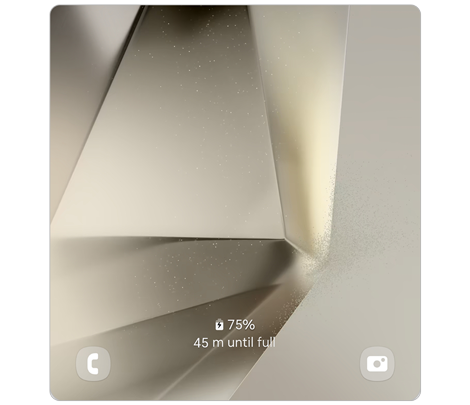
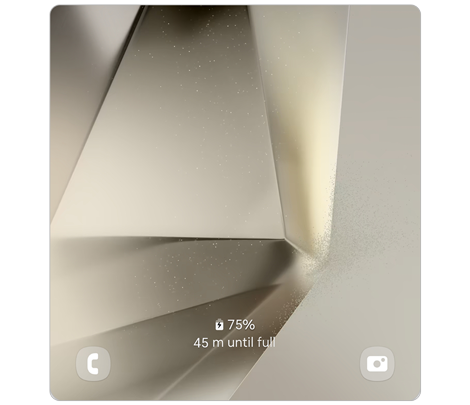
Lock screen: Seconds after connecting the charger
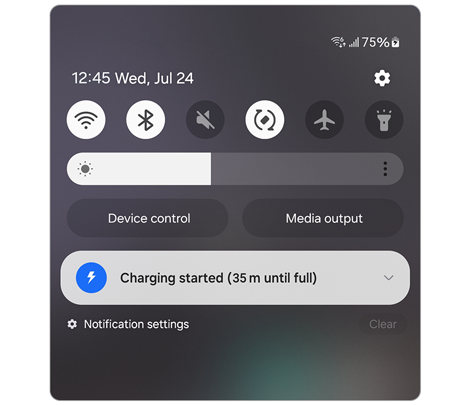
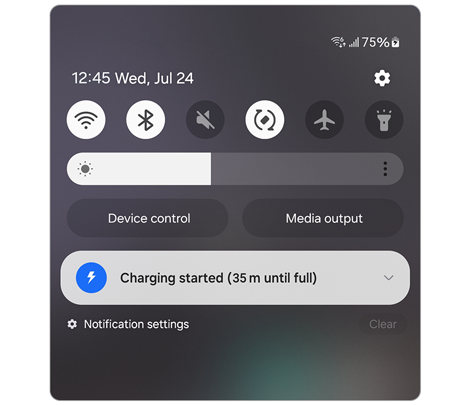
Quick panel: Right after connecting the charger
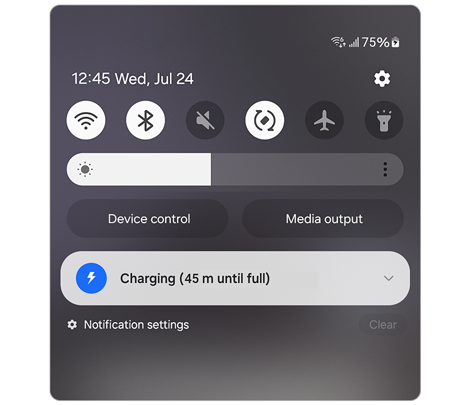
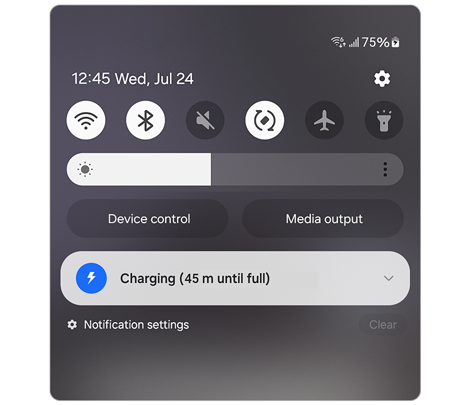
Quick panel: Seconds after connecting the charger
If the above information does not match what your product is showing, you may check the User Manual for your product. If you are unable to solve the problem, please contact us for further assistance.
Thank you for your feedback!
Please answer all questions.
RC01_Static Content : This text is only displayed on the editor page