Controlling your Samsung Smart TV with the SmartThings app mobile remote
Important Note: The information on this page is for Hong Kong products only. Models, sequences or settings will vary depending on location and/or where the product had been purchased. To be redirected to your local support page please click here.
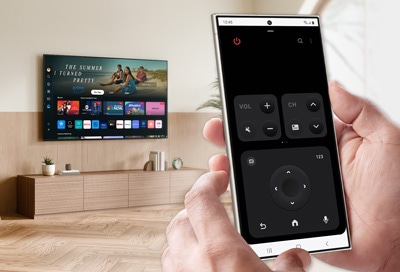
With the mobile remote function in the SmartThings app, you can control and navigate your Samsung TV using your phone! You’ll be able to turn on the TV, browse channels, open apps, and play your favorite programs with ease. The mobile remote control can be customized to include your preferred options as well.
Notes:
- Make sure the SmartThings app is updated to the latest version. To verify this, open the SmartThings app > Tap Menu > Tap Settings (Gear icon) > Tap About SmartThings at the bottom of the screen.
- The supported mobile remote features and UI may vary depending on the SmartThings app version, the remote model, or the TV model.
Before you can use the SmartThings app as a mobile remote control for your Samsung TV, you will need to register the TV to the SmartThings app. Make sure your phone and TV are connected to the same Wi-Fi network to proceed.


Step 1. Launch the SmartThings app and tap + (Add).


Step 2. Tap Add device.


Step 3. You can start registration by Scanning QR code on your product/packaging or Scanning nearby available devices.


Step 4. If you selected Scan nearby, choose the desired device from the list.


Step 5. SmartThings will start and proceed device registration


Step 6. A PIN will appear on your TV. Input the PIN as prompted on your mobile device, then tap Done.


Step 7. Wait for SmartThings to continue the registration.


Step 8. After registration succeeds, you can adjust settings of the added device. Tap Done to complete.
Once your Samsung TV has been added to the SmartThings app, you can begin using the mobile remote control.
You can access the mobile remote control by opening the SmartThings app or by selecting the mobile remote control in the Quick panel on your phone.
Quick access to Mobile Remote:


Step 1. Swipe down from the top right corner of your mobile screen to open the Quick panel.


Step 2. Tap the Mobile Remote icon to activate.
Note: You can also access this option on iOS phones. Tap Allow on the permission notification, and then tap the mobile remote control to begin using the mobile remote.
Access Mobile Remote in SmartThings:


Step 1. Find and tap on the TV Card which you would like to control


Step 2. Tap the Mobile Remote icon to activate.


Step 3. Swipe up on the remote to expand in full view. You can now use your mobile remote to control your TV.


Tap the Power icon to turn on/off the TV


The VOL button lets you increase and decrease the volume, as well as mute the TV’s sound.


The CH button lets you browse channels and open the Guide.


Swipe left on the VOL and CH buttons to view apps, programs, and inputs. Select your desired option to open it on the TV.


Tap the square/4-ways arrow button to switch between touch pad and directional buttons.


Tap the square/4-ways arrow button to switch between touch pad and directional buttons.


While touch pad is on, swipe in any direction on the touchpad to navigate the TV. You can tap once to select something, and tap twice to return to the previous screen.


Tap the 123 icon in the right corner to display the numbers and colors pad.


Tap the Back arrow in the bottom left corner to navigate back one screen on the TV.


Tap the Home icon to return to the TV’s Home screen.


Tap the 3-stars icon to use Vision AI Companion if you have already enabled the function.


Tap the Microphone icon in the bottom right corner to access the TV’s microphone and begin using voice commands with Bixby.
Note: Follow the instructions on your TV to set up Bixby or Vision AI Companion if necessary. This feature may not be supported depending on the region, model and language of your voice assistant.
You can adjust the mobile remote control’s options and customize your Samsung TV experience.

Step 1. Find and tap on the TV Card which you would like to control

Step 2. Tap the Mobile Remote icon to activate.


Step 3. Tap the More options icon (the three vertical dots)


Step 4. Tap Edit.
Note: You can also touch and hold the screen to begin editing the options.


Tap the red minus icon to remove an option from the mobile remote control. You can swipe left or right on the top portion of the screen to view the available options, such as programs and apps.


Tap an option in the bottom portion of the screen to add it to the mobile remote control. For example, you can choose options under “Sources & Apps” or “Media Control”.


Tap Done to finish editing.
Follow below instructions to further customize your mobile remote:


Tap Remote options to open the settings


You can change the theme of your mobile remote on the top section.


Other customization settings such as Remote vibration effect and Accessbility mode are also available below.
The Menu tab lets you quickly configure different options and settings.
Step 1. Find and tap on the TV Card which you would like to control


Step 2. Tap Settings at the bottom right corner


Step 3. You can change your TV settings here.
Note:
- If you are having trouble with your Samsung Smart TV, you should always check to see if there are any software updates available. Downloading the latest update may fix for your problem.
- Device screenshots, function availability, setting path, menu options and layout may vary depending on the device model and software version.
If the above information does not match what your product is showing, you may check the User Manual for your product. If you are unable to solve the problem, please contact us for further assistance.
Thank you for your feedback!
Please answer all questions.
RC01_Static Content : This text is only displayed on the editor page