How to add your Smart TV to the SmartThings app
Important Note: The information on this page is for Hong Kong products only. Models, sequences or settings will vary depending on location and/or where the product had been purchased. To be redirected to your local support page please click here.
By registering your TV on the SmartThings app, you can conveniently control various functions without directly operating the TV or using the remote control. It is also great for enjoying vivid content by easily connecting it to other devices in the house, such as a Soundbar or Bluetooth headphones. Enjoy your Samsung Smart TV smarter with the SmartThings app.
What if you leave the house and forget to turn off the TV or if you want to control the TV in the living room from another room? The SmartThings app is a very smart solution to conveniently control a variety of IoT devices in one place. Smart TVs can also be conveniently managed anytime and anywhere through the SmartThings app.
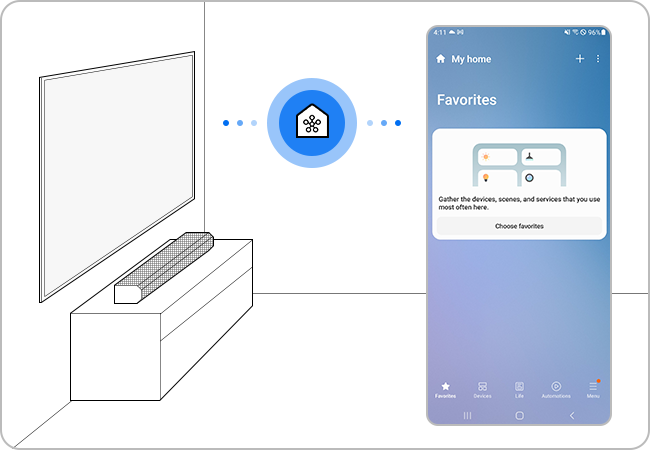
Ensure to meet the requirements for connection
Before connecting your mobile device to your TV, ensure that the following requirements have been met first.
Check your mobile device's operating system
- The SmartThings app is compatible with phones running Android 6.0 or higher as well as iOS 10.0 or higher.
Connect your mobile device to the same network
- Each device must be connected to the same Wi-Fi network.
- On your smartphone: Tap Settings > Connection > Wi-Fi > Select a router to connect to.
Note: TVs that support Bluetooth after 2017 have a BLE (Bluetooth Low Energy) function, so you can search for and set up devices without being connected to the same network.
Install the SmartThings app
- Download and install the SmartThings app from the app store.
- To find the app, use the keyword SmartThings.
Set up your Samsung Account
- You must sign into a Samsung Account before using the SmartThings app.
- The smartphone and TV need to be logged into the same Samsung Account to pair.
- If you have a Samsung smartphone, you can add your Samsung Account in the setting app of your smartphone. Then, it will automatically sign into your Samsung Account.
When you activate the SmartThings app on your mobile device, it will automatically detect a nearby Samsung Smart TV and show a registration pop-up window.


1. Device Icon
You can select your desired icon for this device here.
2. Device Location
You can select the location of the added device here.
3. Device Room
You can select the room of the added device here.
4. Device Name
You can change the name of the added device here. This will also be used as a reference for voice control if voice assistant is enabled.
5. Set as favourite
By turning on the switch, the added device will also appear under the "Favourite" section on SmartThings.
6. Done
Click Done when you finish setting up your device information.
Differences between Location and Room


1. Location
A location is the main category of where your added devices are saved. You can select and view devices in different locations by clicking the location section at the top. Devices saved in other locations will not be displayed in the current location.
If you cannot find your registered device, try switching to a different location.
2. Room
A location can be divided into multiple rooms. You can view an overview of devices saved in different rooms within this location by clicking the "All devices" tab.
If the SmartThings app on your mobile device cannot detect your TV automatically, you can manually register your TV to the app.


Step 1. Launch the SmartThings app and tap Add (the plus icon).


Step 2. Tap Add device.


Step 3. You can start registration by Scanning QR code on your product/packaging or Scanning nearby available devices.


Step 4. If you selected Scan nearby, choose the desired device from the list.


Step 5. SmartThings will start and proceed device registration


Step 6. A PIN will appear on your TV. Input the PIN as prompted on your mobile device, then tap Done.


Step 7. Wait for SmartThings to continue the registration.


Step 8. After registration succeeds, you can adjust settings of the added device.
1. Device Icon
You can select your desired icon for this device here.
2. Device Location
You can select the location of the added device here.
3. Device Room
You can select the room of the added device here.
4. Device Name
You can change the name of the added device here. This will also be used as a reference for voice control if voice assistant is enabled.
5. Set as favourite
By turning on the switch, the added device will also appear under the "Favourite" section on SmartThings.
6. Done
Click Done when you finish setting up your device information.
Differences between Location and Room
1. Location
A location is the main category of where your added devices are saved. You can select and view devices in different locations by clicking the ocation section at the top. Devices saved in other locations will not be displayed in the current location.
If you cannot find your registered device, try switching to a different location.
2. Room
A location can be divided into multiple rooms. You can view an overview of devices saved in different rooms within this location by clicking the "All devices" tab.
Note:
- In the case of TVs manufactured in 2016, when you log in to the TV with the same Samsung Account as the SmartThings app, the device is automatically registered.
- TVs manufactured after 2017 will display a PIN input screen.
If you want to check whether your TV supports the SmartThings app, follow the steps below.


Step 1. Launch the SmartThings app and tap Menu at the bottom right corner


Step 2. Tap Supported devices.


Step 3. You can check supported devices by brand or directly search your device using the Magnifier icon on top right hand corner.
Note:
- If you are having trouble with your Samsung Smart TV, you should always check to see if there are any software updates available. Downloading the latest update may fix for your problem.
- Device screenshots, function availability, setting path, menu options and layout may vary depending on the device model and software version.
If the above information does not match what your product is showing, you may check the User Manual for your product. If you are unable to solve the problem, please contact us for further assistance.
Thank you for your feedback!
Please answer all questions.
RC01_Static Content : This text is only displayed on the editor page