How to set up your Samsung Soundbar
Important Note: The information on this page is for Hong Kong products only. Models, sequences or settings will vary depending on location and/or where the product had been purchased. To be redirected to your local support page please click here.
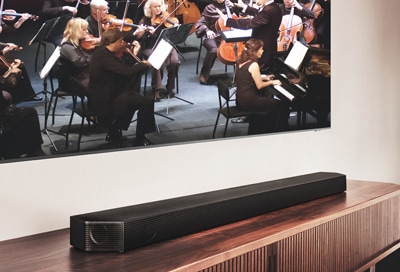
Your soundbar amps up your TV by providing awesome sound quality. It's also extremely versatile and easy to set up - there are several ways you can connect your soundbar to your TV, so you can customize your entertainment experience. Although they all have their benefits, certain setups provide better sound quality than others. If you aren't sure which one works best for you, we have some tips and instructions you can follow.
Connecting your soundbar to a TV through HDMI will give you the best audio because HDMI cables transmit sound digitally. There are 2 ways to connect your soundbar with HDMI:
- You can directly use the HDMI ARC or HDMI eARC port of your TV to connect the soundbar.
- You can connect an external device to your soundbar (like a video game system) and then connect the soundbar to the TV using the ARC (Audio Return Channel) or eARC (enhanced Audio Return Channel) port.
ARC or eARC is the way to go if you want great sound from streaming apps on your TV and a soundbar. Meanwhile, the second method will give you the best possible sound from external devices you regularly use.
Note:
- The following types of HDMI cables are recommended: a High Speed HDMI cable with Ethernet and a Premium High Speed HDMI cable.
- The number of HDMI ports on your soundbar may vary by model.
Connect your soundbar with HDMI ARC/eARC
Note:
To use eARC, you will need to activate the eARC function on your TV:
Navigate to and select Settings > All Settings > Sound > Expert Settings > HDMI-eARC Mode > Select Auto.
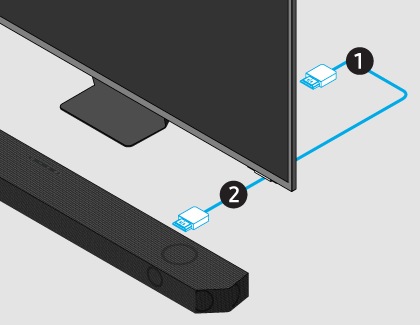
HDMI ARC (Audio Return Channel) allows certain TVs and soundbars to transfer audio back and forth using one HDMI cable. In other words, you can use the HDMI port as both an audio input and output. The only downside is that your soundbar is going to take up a port on your TV that would normally connect an external device.
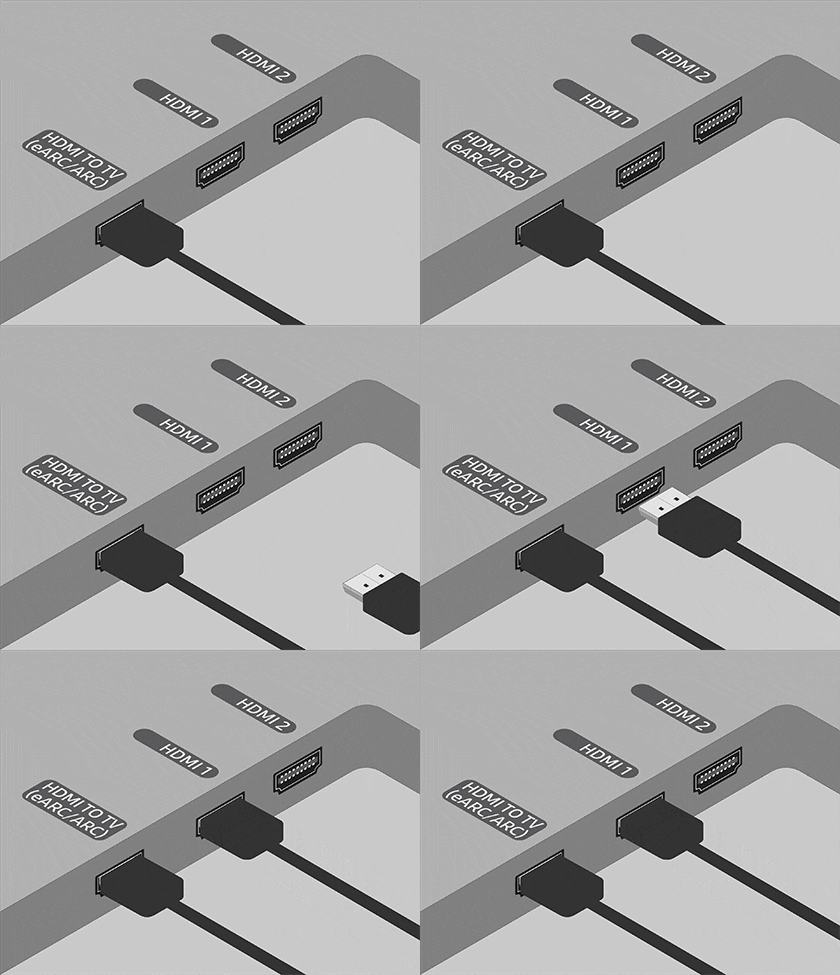
To set up HDMI ARC, follow the instructions below:
Note: The location of the ARC or eARC port may vary depending on your TV model.

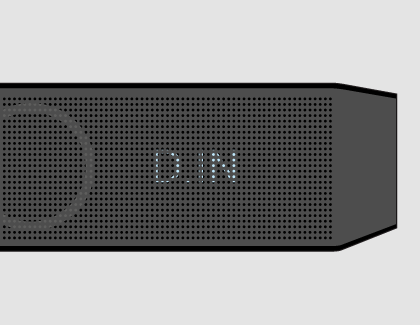
Note: Some Soundbar models may automatically start detecting source signal
Connect your soundbar and an external device using HDMI
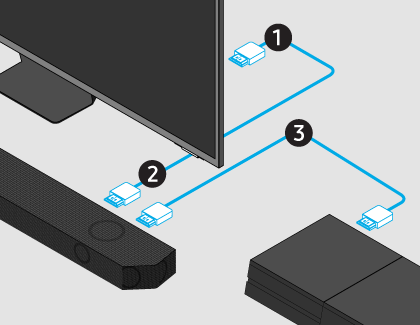
Then, connect one end of an HDMI cable to an HDMI (ARC/eARC) port on your TV.

Connect the other end to the HDMI port on your soundbar.
Press the Source button on the soundbar until "HDMI" appears on the display.
Everything should be working now, but let's take it a step further and make this setup the best it can be:
- Make sure Anynet+ (HDMI-CEC) is enabled on your TV. This will make the TV turn on when the device and soundbar are turned on. If you have a Samsung TV, navigate to Settings > All Settings > General & Privacy > External Device Manager > Enable Anynet+ (HDMI-CEC). Check the user manual for your TV if these instructions don't match, or if you don't have a Samsung TV.
- Lastly, you should enable HDMI-CEC settings on your external device and set up universal control on your TV. To set up the HDMI-CEC settings on your external device, you will need to check out the user manual for your device.
Note:
- If your external device is 4K compatible, you need to make sure the soundbar supports 4K pass-thru.
- Samsung Q series support 4K pass-thru, so you should be good to go if you have these models.
- The HDMI IN port of a Samsung soundbar can only support up to 4K (4:4:4 8 bit).
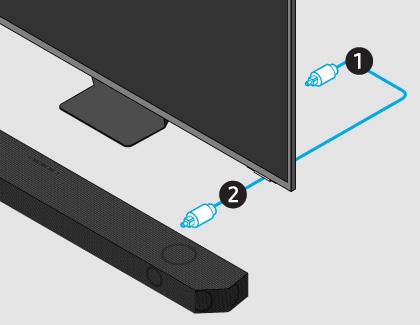
An optical cable (Tos-Link) is another way to connect your soundbar to your TV. This type of cable is similar to an HDMI cable and transmits digital sound, so you can hear every detail. You can also connect your devices (cable boxes, video game systems, and Blu-ray players) to the TV, so the sound outputs from the TV to the soundbar.
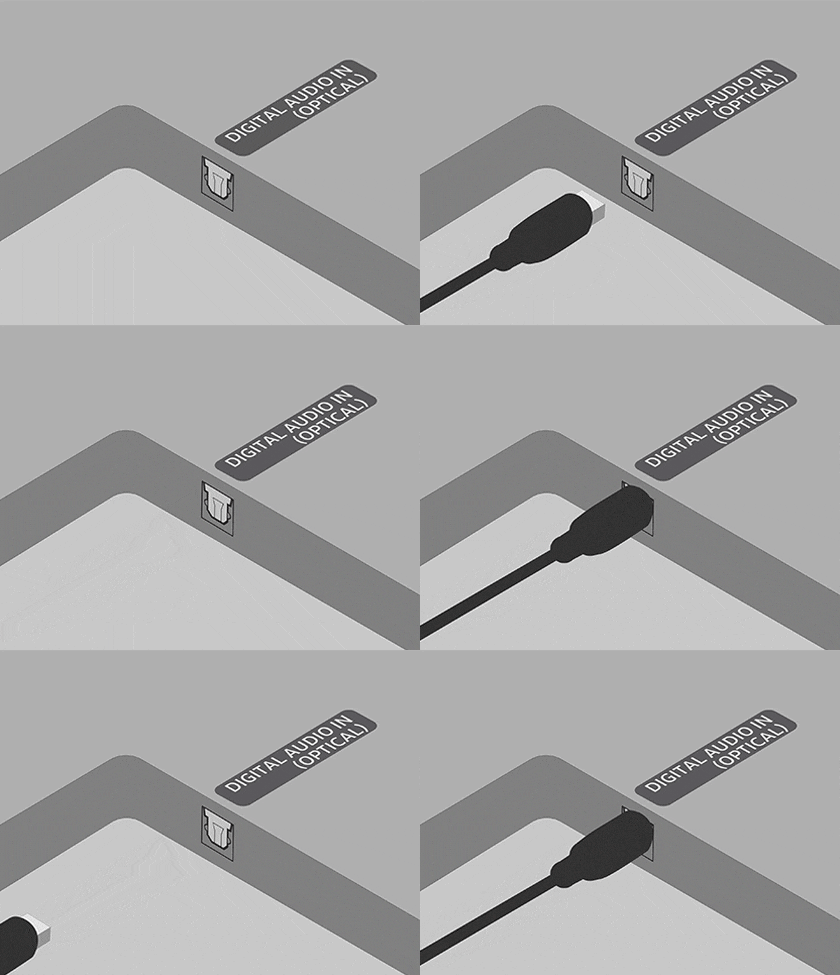
Press the Settings/Number/Color button on your remote repeatedly until the Quick Settings menu shows up, and then navigate to and select Sound Output in the Quick settings menu.
Note:
- If these steps don't work on your TV, or you do not have a Samsung TV, check out the user manual for the soundbar or TV.
- For 2022 and newer Samsung TVs, if there is no sound through the optical cable, check if the Simultaneous Optical Output is turned on.
Navigate to and select Settings > All Settings > Sound > Expert Settings > Turn on Simultaneous Optical Output.
It doesn't have the same sound quality as HDMI, but everyone loves the convenience of Bluetooth since you don't have to worry about any cables. The main challenge with Bluetooth is that connections can disconnect or become unstable if there's some kind of disruption, like a power outage. Bluetooth is still a nice and easy option to have, though.
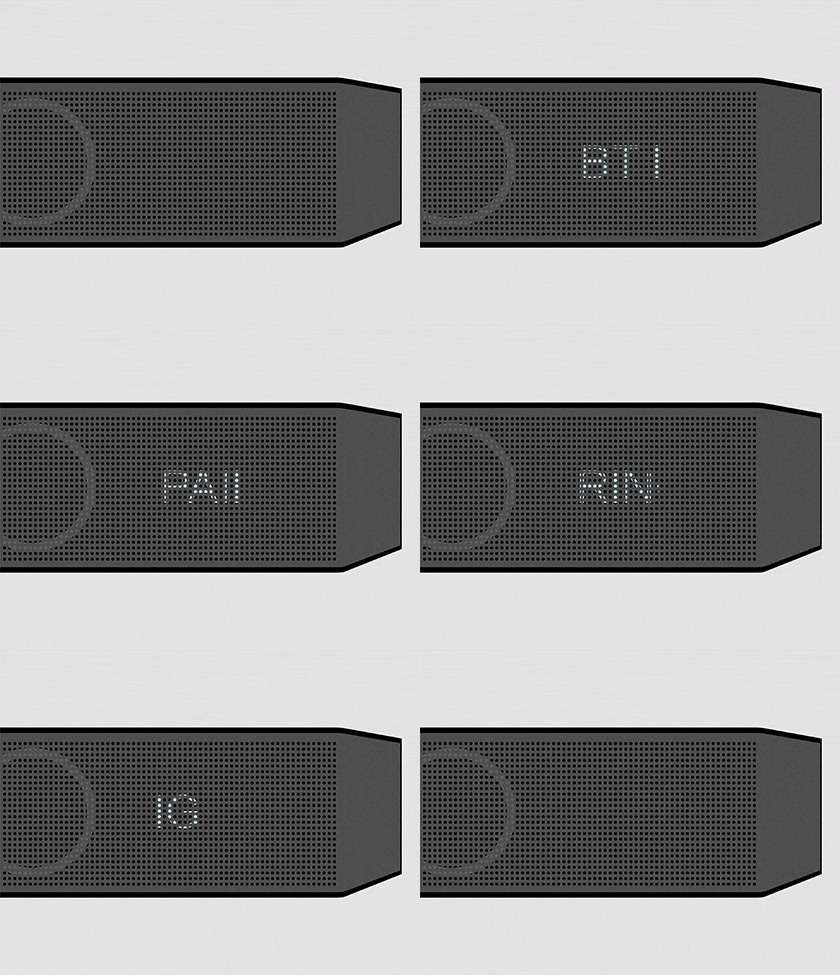
The display will show "BT PAIRING" when its source is set to Bluetooth.
Note:
- If “BT READY” appears, then it is already paired with a device.
- To pair a new device, press and hold the Mic On/Off or Source button on the soundbar for more than 5 seconds to display “BT PAIRING”.
For a Samsung TV, navigate to and select Settings > All Settings > Sound > Sound Output > select Bluetooth Speaker List or Bluetooth Audio Device, depending on your TV model.

You can also connect your Samsung TV and soundbar through a Wi-Fi connection. The TV and soundbar must be connected to the same Wi-Fi network. To do so, you will need to use the SmartThings app on your mobile device.

Note:
- Wi-Fi connection is only available on Samsung TVs.
- If your wireless router (Wi-Fi) uses a DFS channel, you will not be able to establish a Wi-Fi connection between the TV and soundbar.
- Contact your Internet service provider for details if you are having trouble with your Wi-Fi network.
Then, navigate to and open the SmartThings app on your phone or tablet.
Follow the on-screen instructions in the pop-up.


If the above information does not match what your product is showing, you may check the User Manual for your product. If you are unable to solve the problem, please contact us for further assistance.
Thank you for your feedback!
Please answer all questions.
RC01_Static Content : This text is only displayed on the editor page